> ## Documentation Index
> Fetch the complete documentation index at: https://docs.operata.com/llms.txt
> Use this file to discover all available pages before exploring further.
# Data Teams
> Give the right people access to only the data they need..
## What is Data Teams?
You can now limit the data seen by Teammates when they login to Operata, giving access to a sub-set of Canvas dashboards that only show data for specific agents/calls based on:
* ***Agent Groups*** (from Hierarchy Groups within Amazon Connect customers)
* ***Call Attributes*** (from Contact Trace Records (CTR) within Amazon Connect customers)
## Using Data Teams
There is a new type of Operata Teammate called a **Group Viewer** that can be configured within one or more **Teams** that **Filters** the data they see dashboards based on defined Agent Groups or CTR attributes.
**Note:** **User** and **Admin** user types can also be configured as **Members** within Data Teams, this will limit the Dashboards they can see, but **NOT** any of the **Filter** conditions.
***
### Creating Viewer Teammates
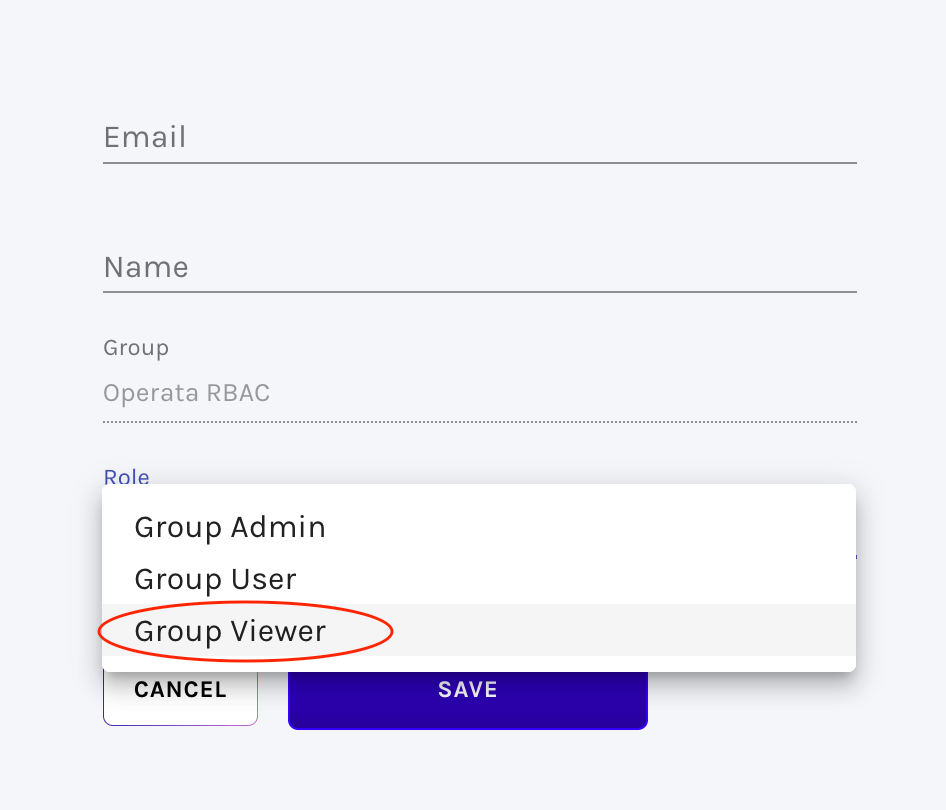
When creating a Teammate select the Role 'Group Viewer'
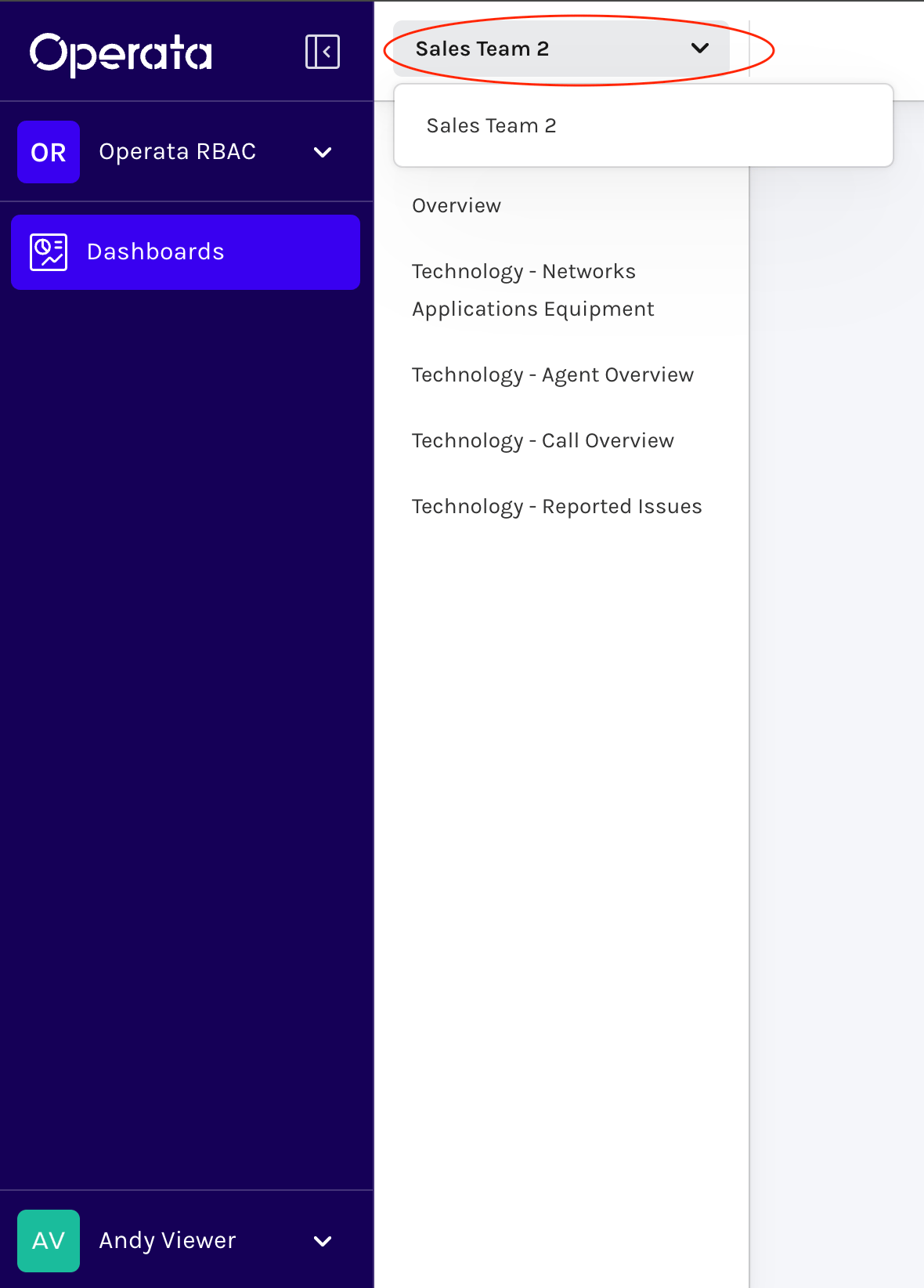
 When logged in as a **Group Viewer** only the **Dashboards** option is visible with a drop-down of Operata Groups the Teammate has access to and a list of the specific dashboards enabled for them.
 ***
### Creating Teams
**Teams** define both the data filters and access to specific dashboards.
Admin level Teammates can create, edit and delete **Teams** and then add Teammates to them, here's how\..
Select **Dashboards** and then **Manage Access**
***
### Creating Teams
**Teams** define both the data filters and access to specific dashboards.
Admin level Teammates can create, edit and delete **Teams** and then add Teammates to them, here's how\..
Select **Dashboards** and then **Manage Access**
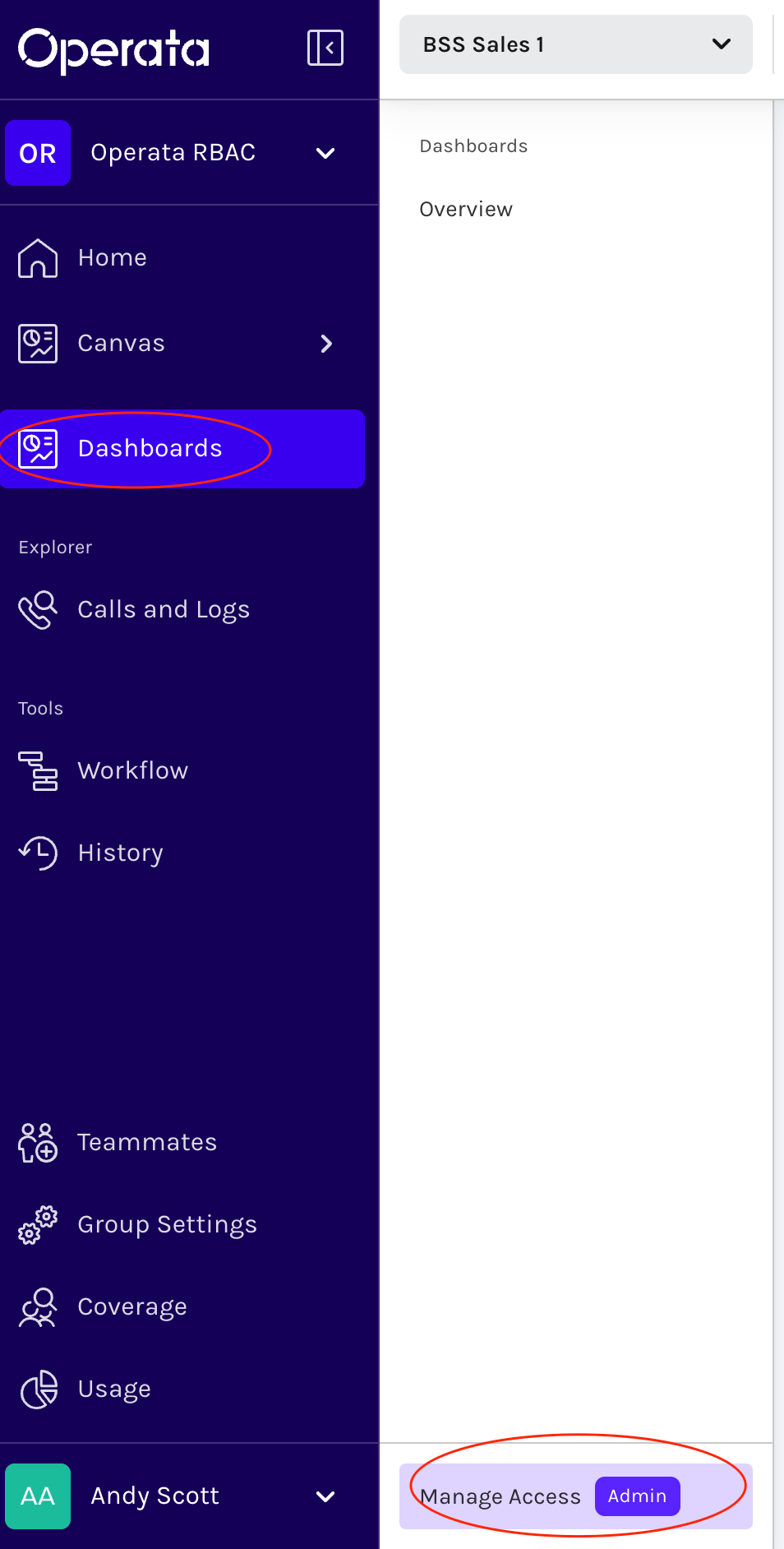 The drop-down on the Left Hand Side shows the **Roles** you are configured for in this Group, this is ideal for testing the Date Roles you have configured.
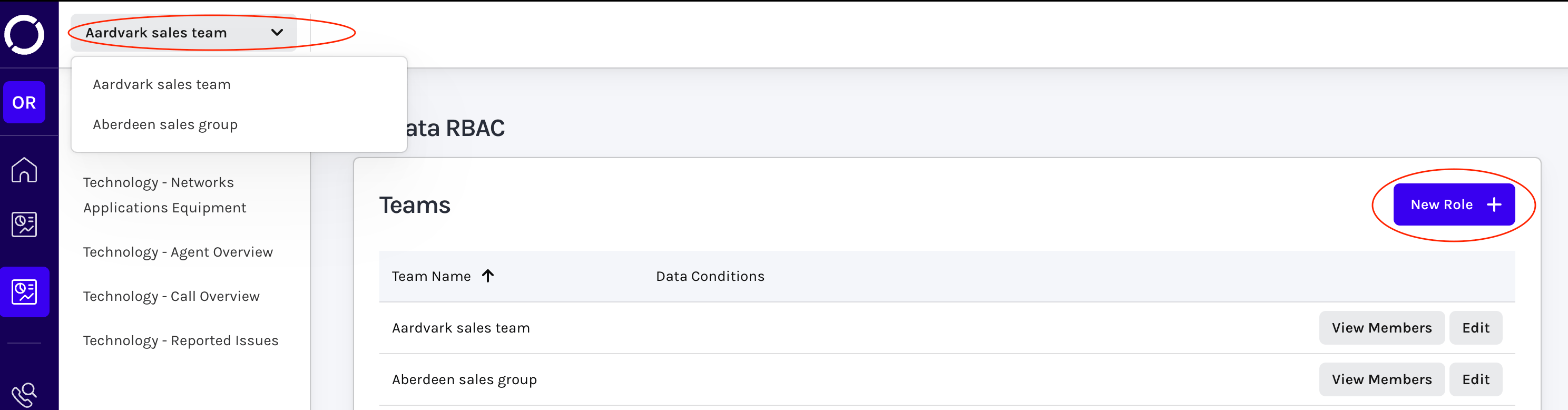 Select **New Role +** to create a new role
Name it an then select **Create.**
Once created it will appear in the Teams list, select Edit to configure the filters by selecting +Adding Condition
Select **New Role +** to create a new role
Name it an then select **Create.**
Once created it will appear in the Teams list, select Edit to configure the filters by selecting +Adding Condition
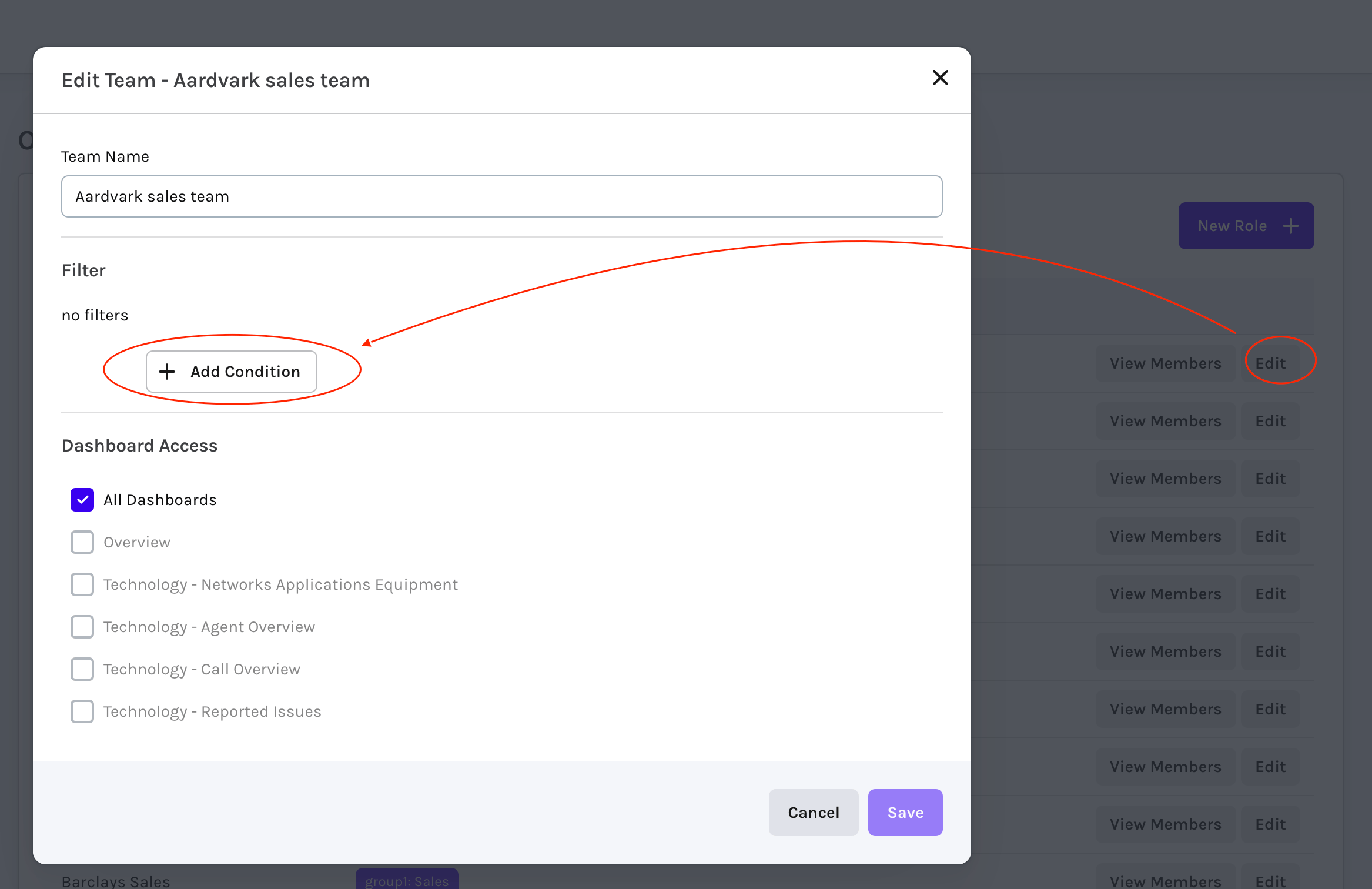 Enter the Agent Group (Amazon Connect Hierarchy Groups) and CTR attributes that you will filter the data using.
Use the check-boxes to select the Dashboards you need this Team to access.
The select **Save..**
**Note:** Selected CTR attributes must be defined in the Privacy Controls allow list
Enter the Agent Group (Amazon Connect Hierarchy Groups) and CTR attributes that you will filter the data using.
Use the check-boxes to select the Dashboards you need this Team to access.
The select **Save..**
**Note:** Selected CTR attributes must be defined in the Privacy Controls allow list
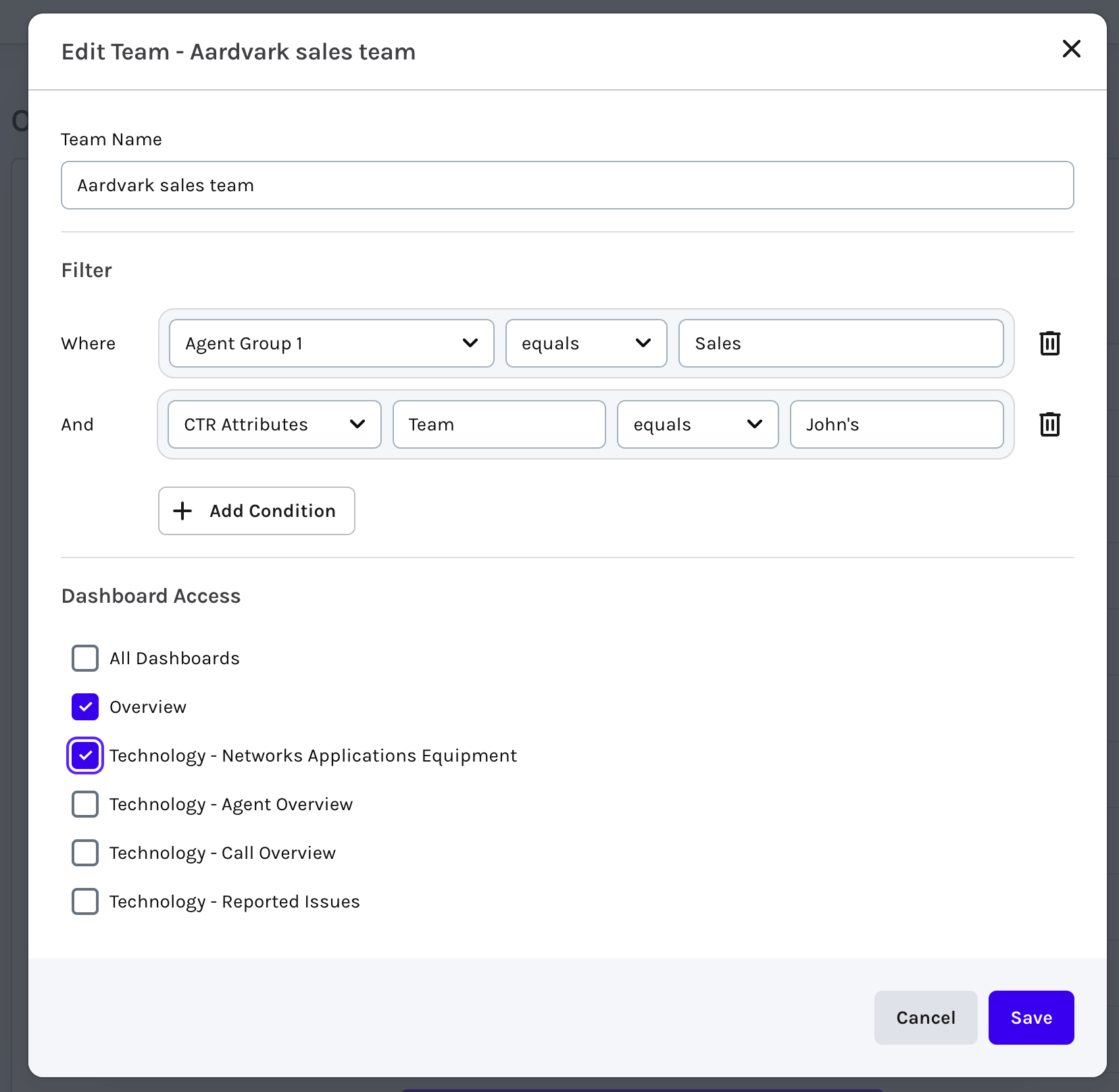 **Note:** On first run all the Dashboard options will be shown, but only the allowed dashboards can be selected.. This issue is resolved when next accessing Operata
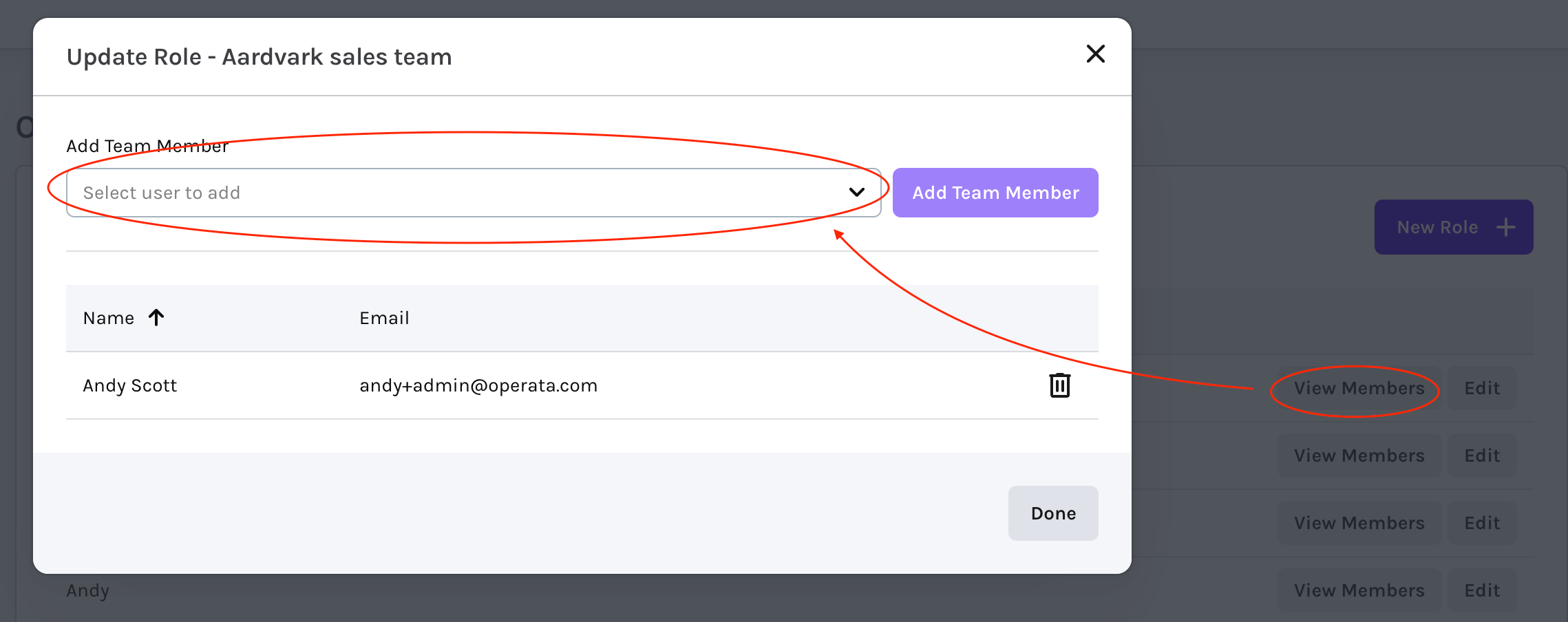
Finally add Add Teammates to the Team..
Select **View Members.**
Use the dropdown to select the Teammate and then **Add Team Member**.
**Note:** On first run all the Dashboard options will be shown, but only the allowed dashboards can be selected.. This issue is resolved when next accessing Operata
Finally add Add Teammates to the Team..
Select **View Members.**
Use the dropdown to select the Teammate and then **Add Team Member**.
 ***
***