Workflow status
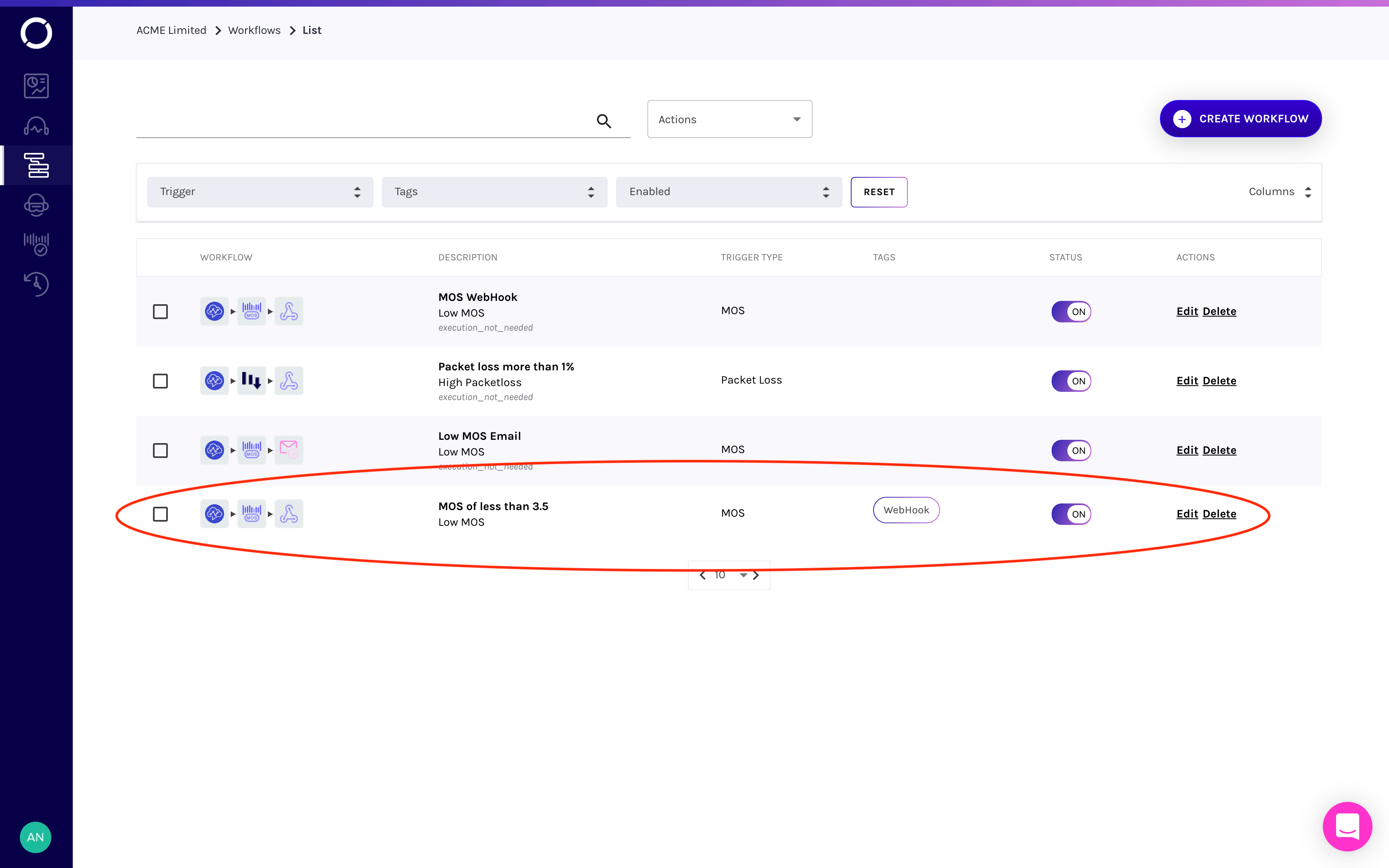
The first page lists the Workflows that have been created and gives options to change their STATUS to on/off, Delete or Edit them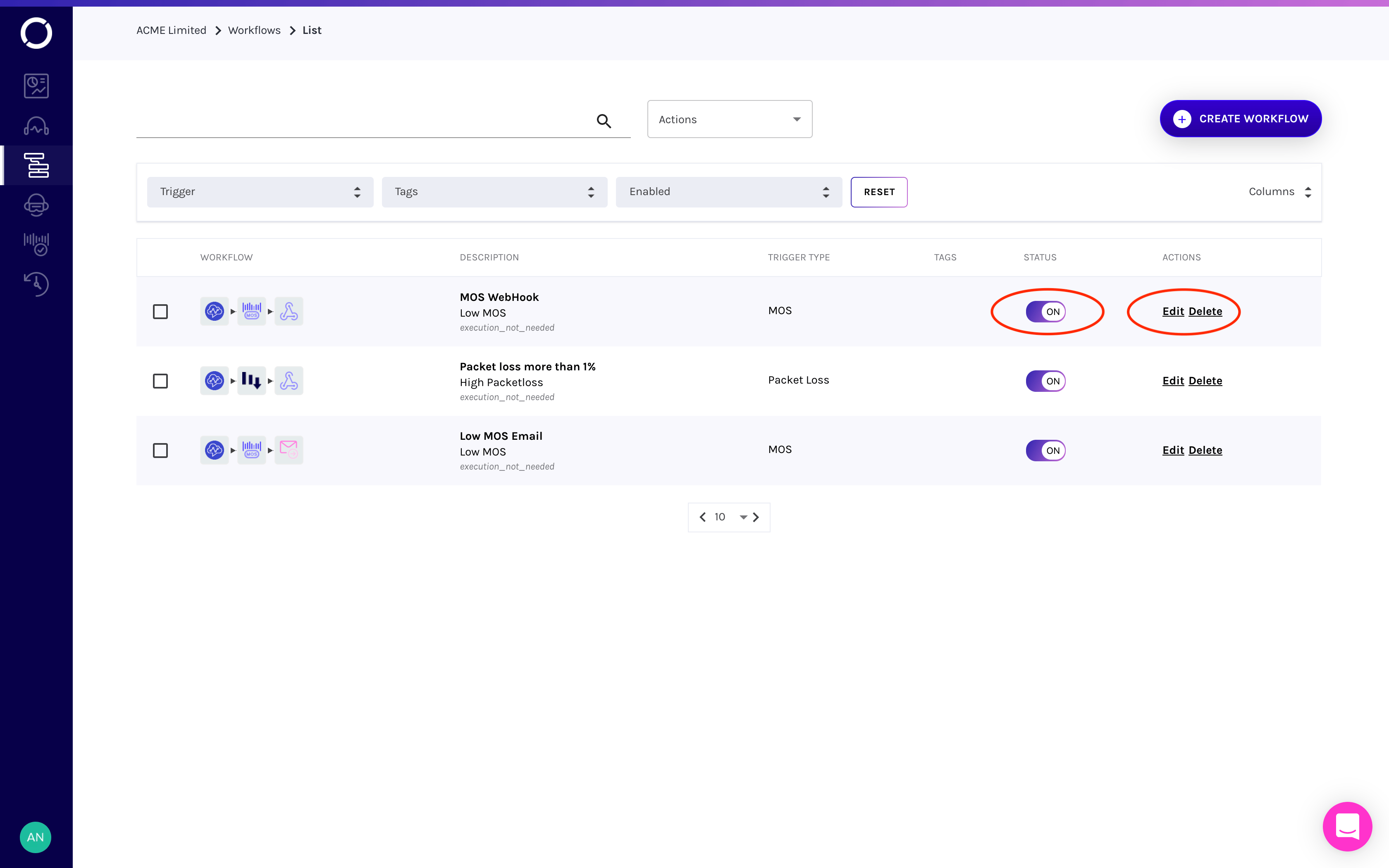
Creating Workflows
Selecting the +CREATE WORKFLOW starts the Workflow creation wizard.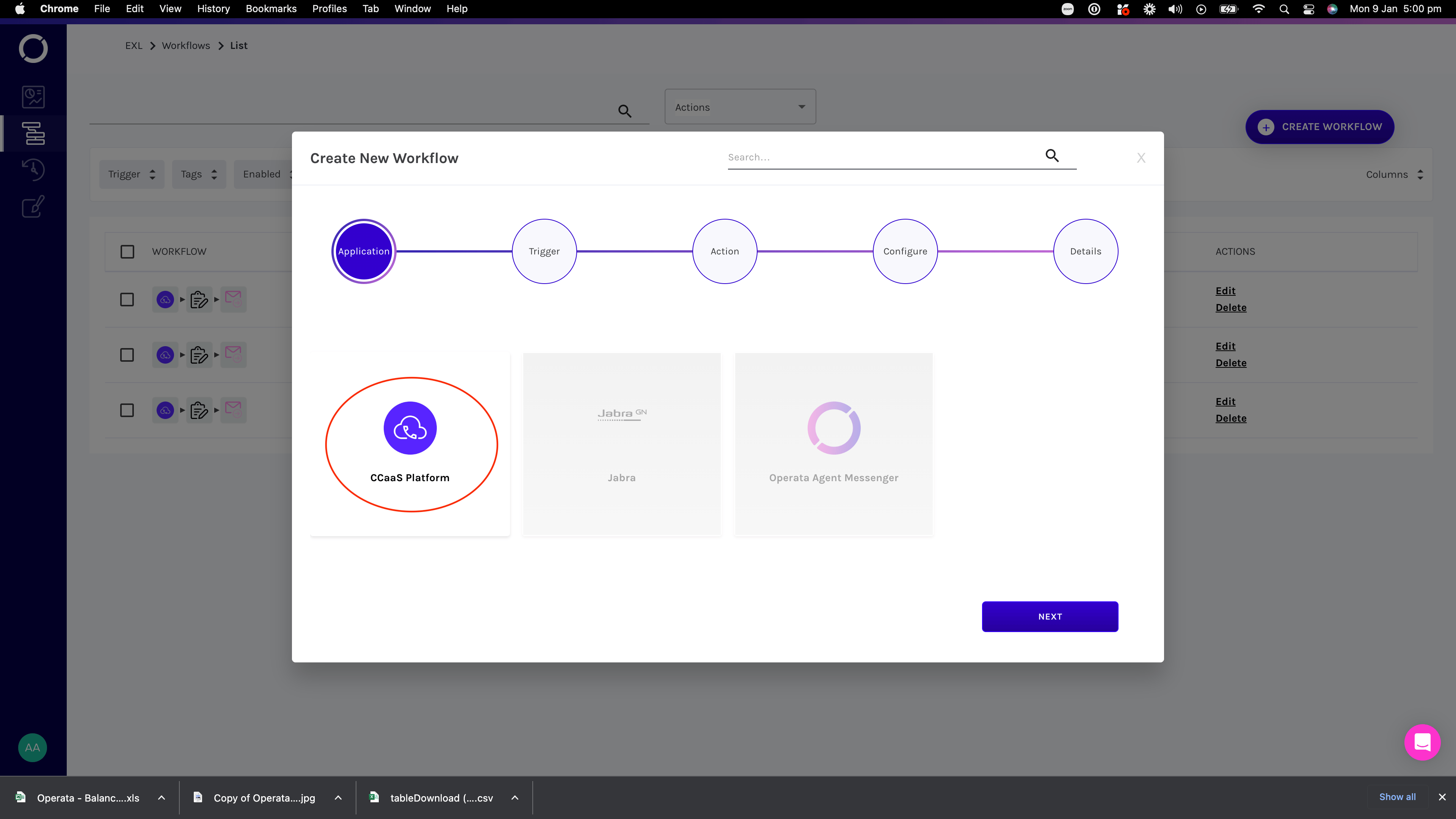
1. Workflow Application
The first option is to choose what application will trigger the Workflow.- The CCaaS Platform option takes events from the data network performance elements, the overall network performance MOS score, Agent Reported Issue or Heartbeat assurance test result.
- If you have EventBridge enabled then select Contact Ended to send data at the end of a call (where enabled)
- The Jabra option takes Jabra headsets performance statistics (where enabled)
2. Workflow Triggers
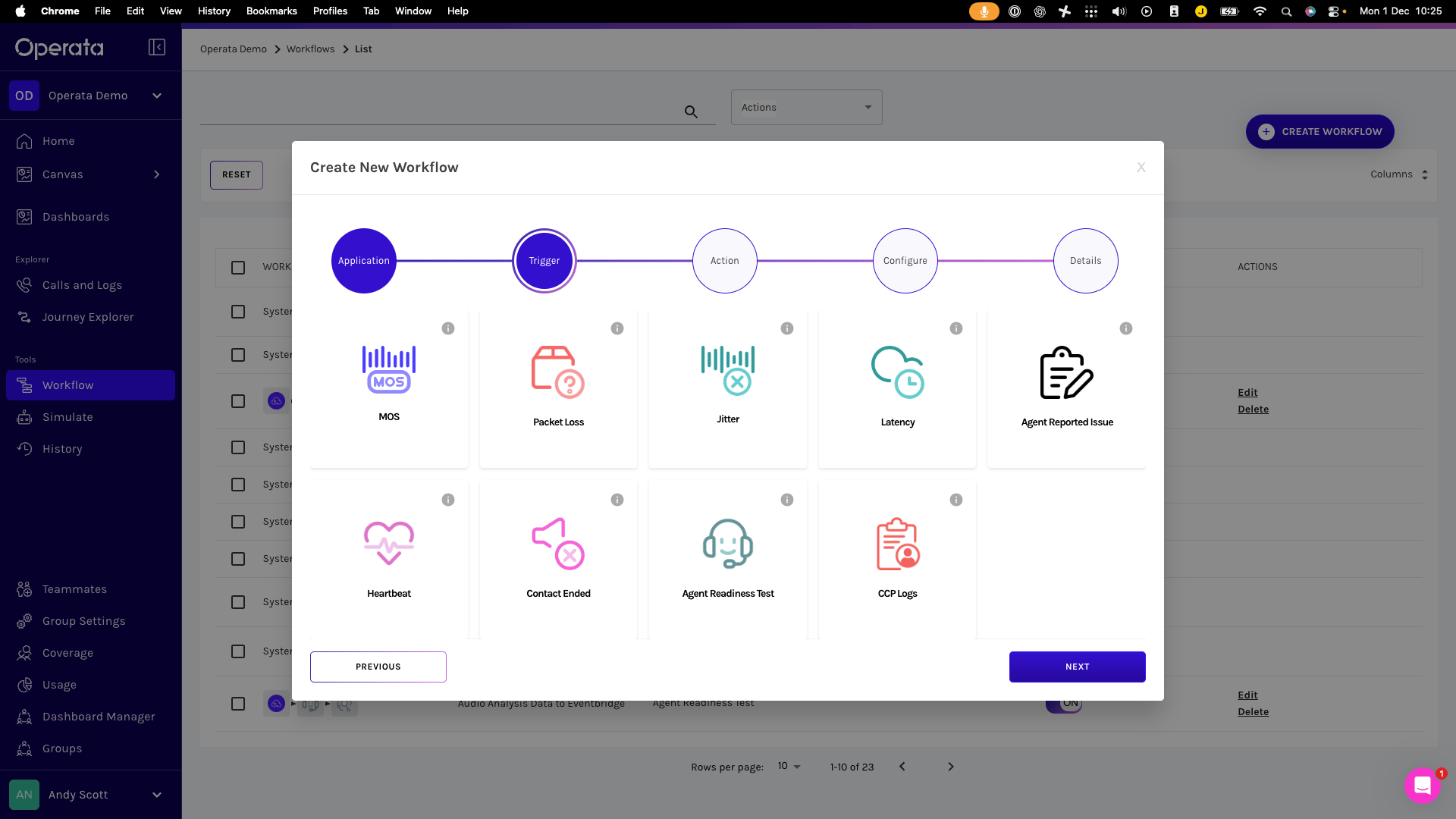
- MOS score
- Packet Loss
- Jitter
- RTT (Latency)
- If you have Agent Issue notification enabled, you can trigger events when agents report issues (see below for details)
- If you have Heartbeat enabled then you can trigger events if the tests find issues (see below for details)
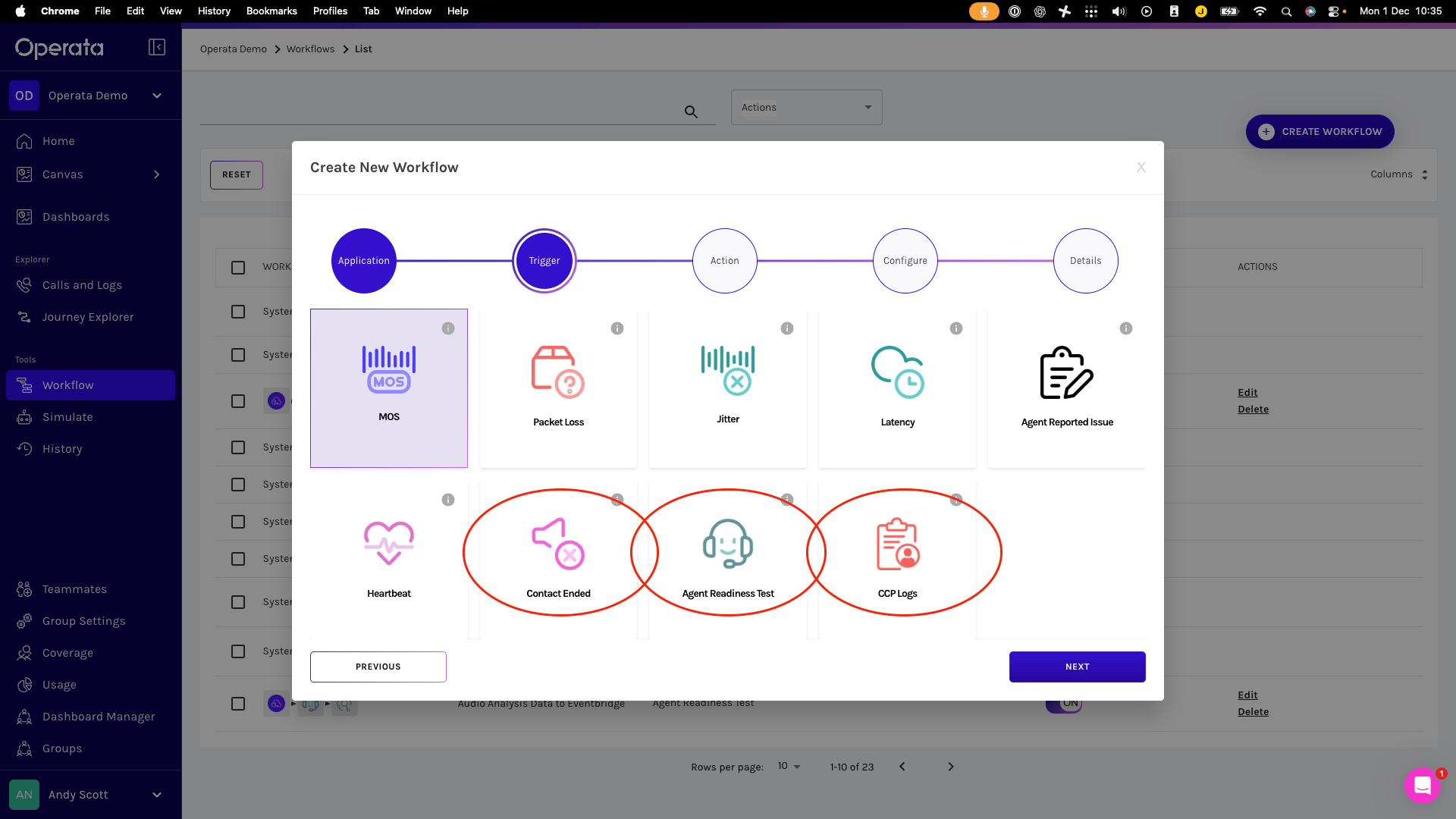
- If you have EventBridge enabled then select Contact Ended to send data at the end of a call (see below for details)
- If you have EventBridge enabled then select Agent Readiness Test to send test data at the end of the call.
- If you have EventBridge enabled then select CCP Logs to send all collected CCP log data as it is collected by Operata.
3. Workflow actions
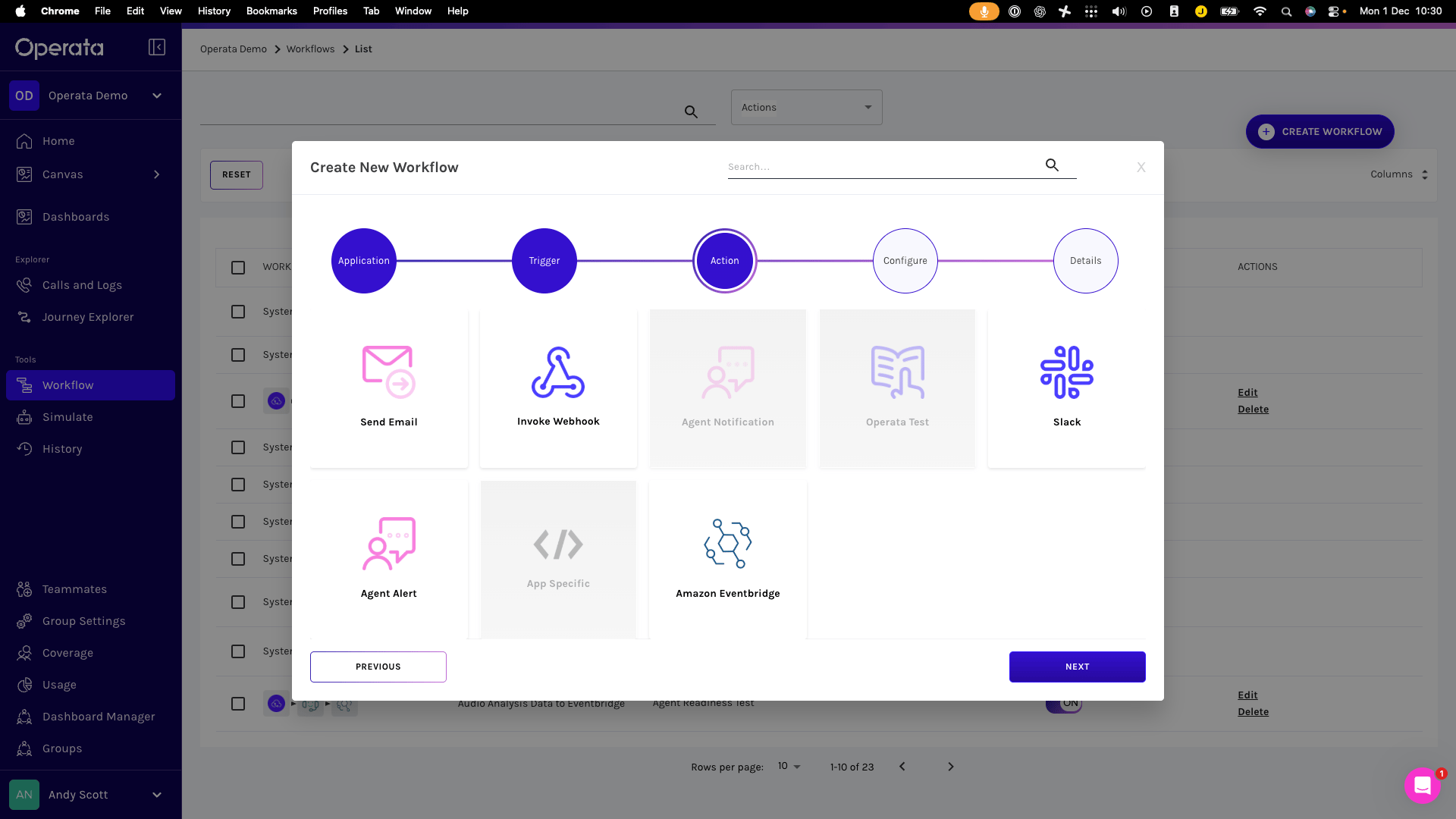
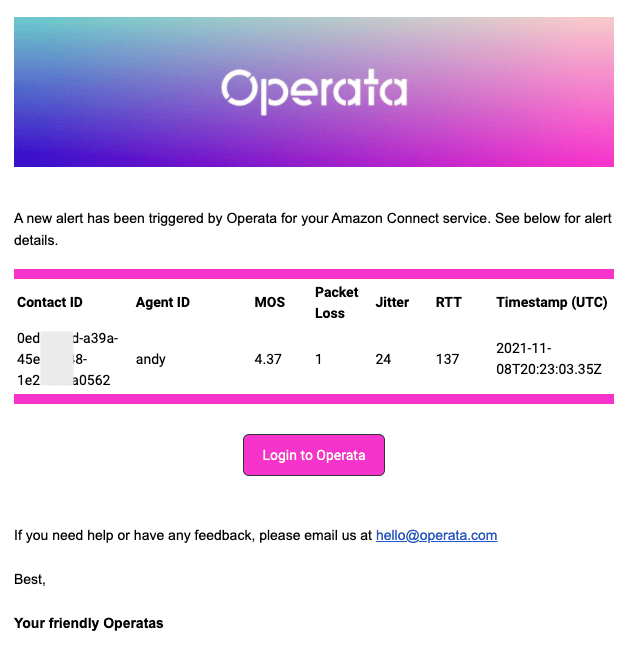
- Send Email: does just that (see below for more details on the content of the email you can send.
- Invoke WebHook: used to event into a third party application, Operata uses uses basic authentication in Headers to secure WebHook messages.
- Agent Notification: Sends an alert to Tenor for human agents (not currently used)
- Operata Test: Launches the Agent Test sequence (not currently used)
- Slack: notifies to a nominated Slack channel
- Agent Alert: Sends an alert to Tenor for human agents
- App Specific: (not currently used)
-
Amazon EventBridge: Send data to the EventBridge that has been created.
4. Configure
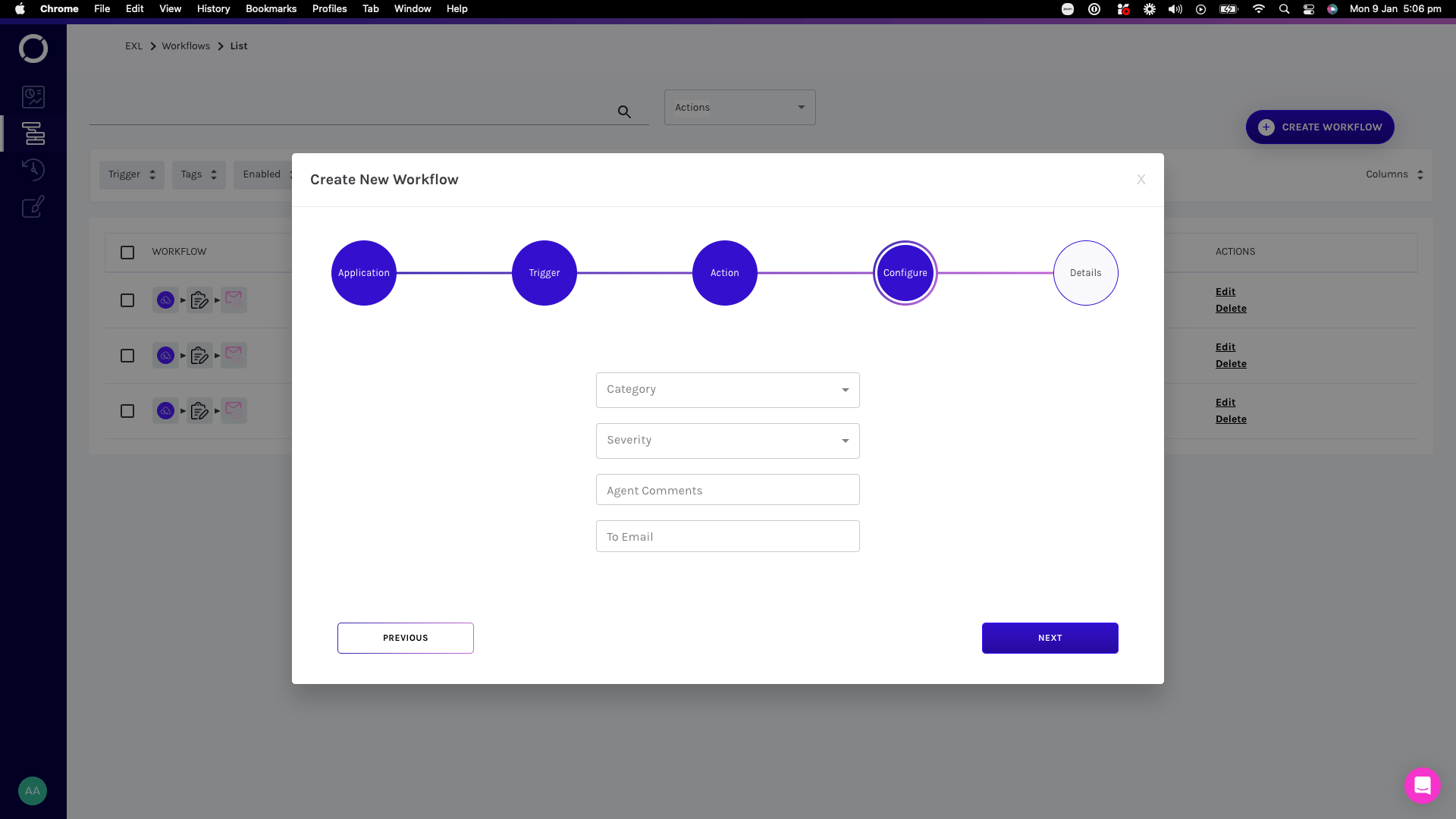
Send Email
Invoke WebHook
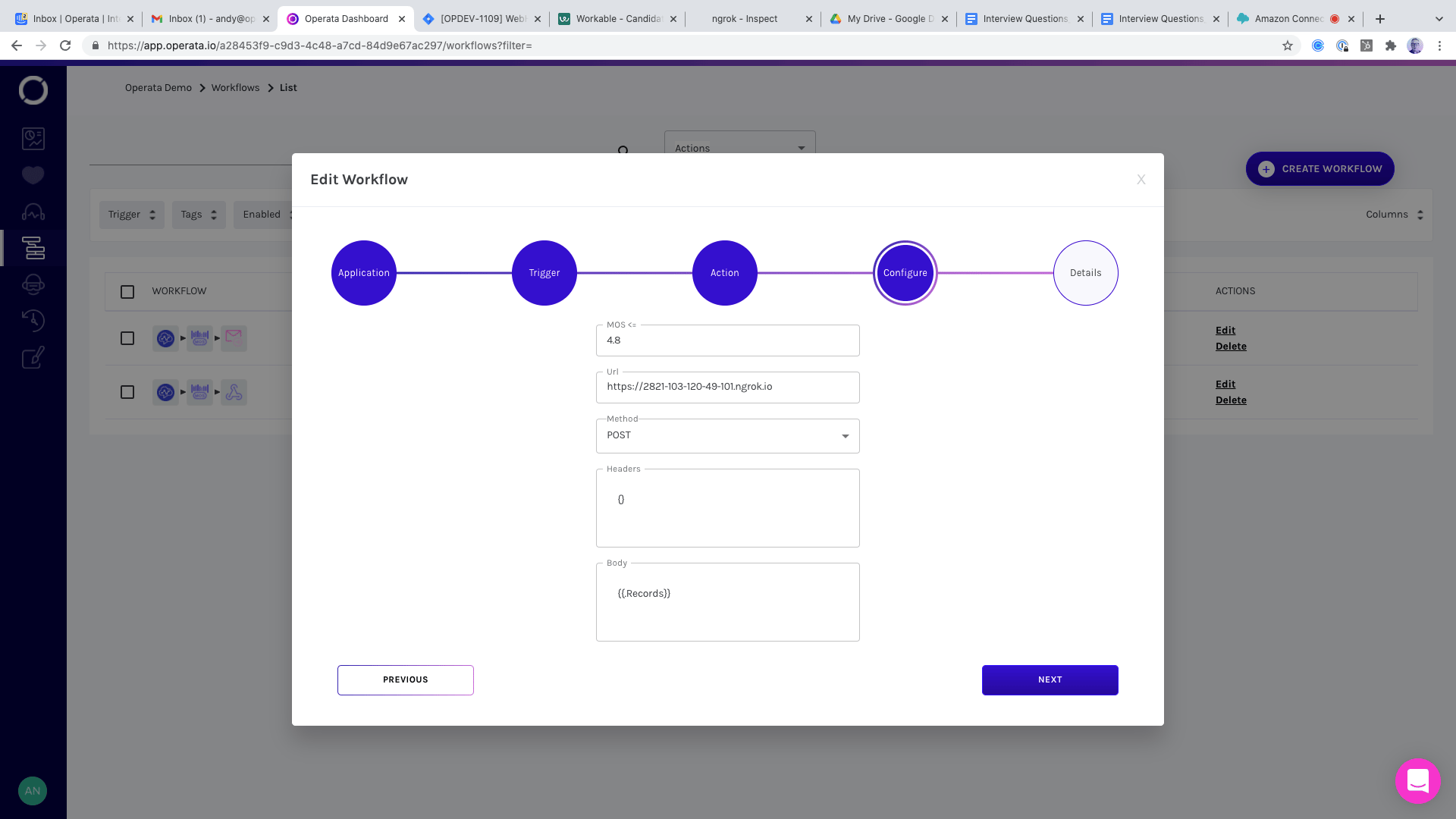
{{.Records}} into the Body to see all the details for the call that triggered the event.
Add the details to match where the WebHook event will be sent.
Slack Notification
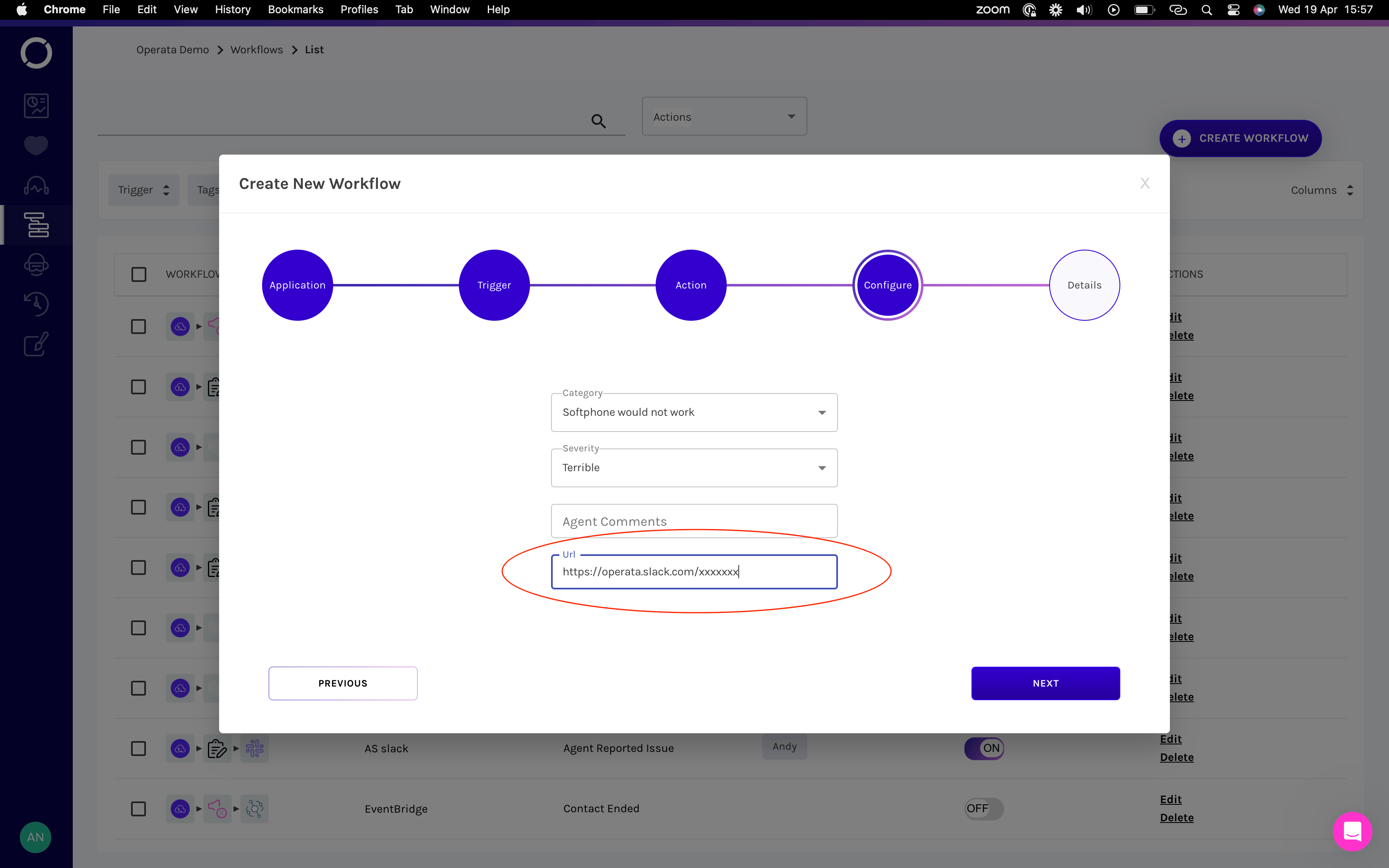
Agent Reported Issue
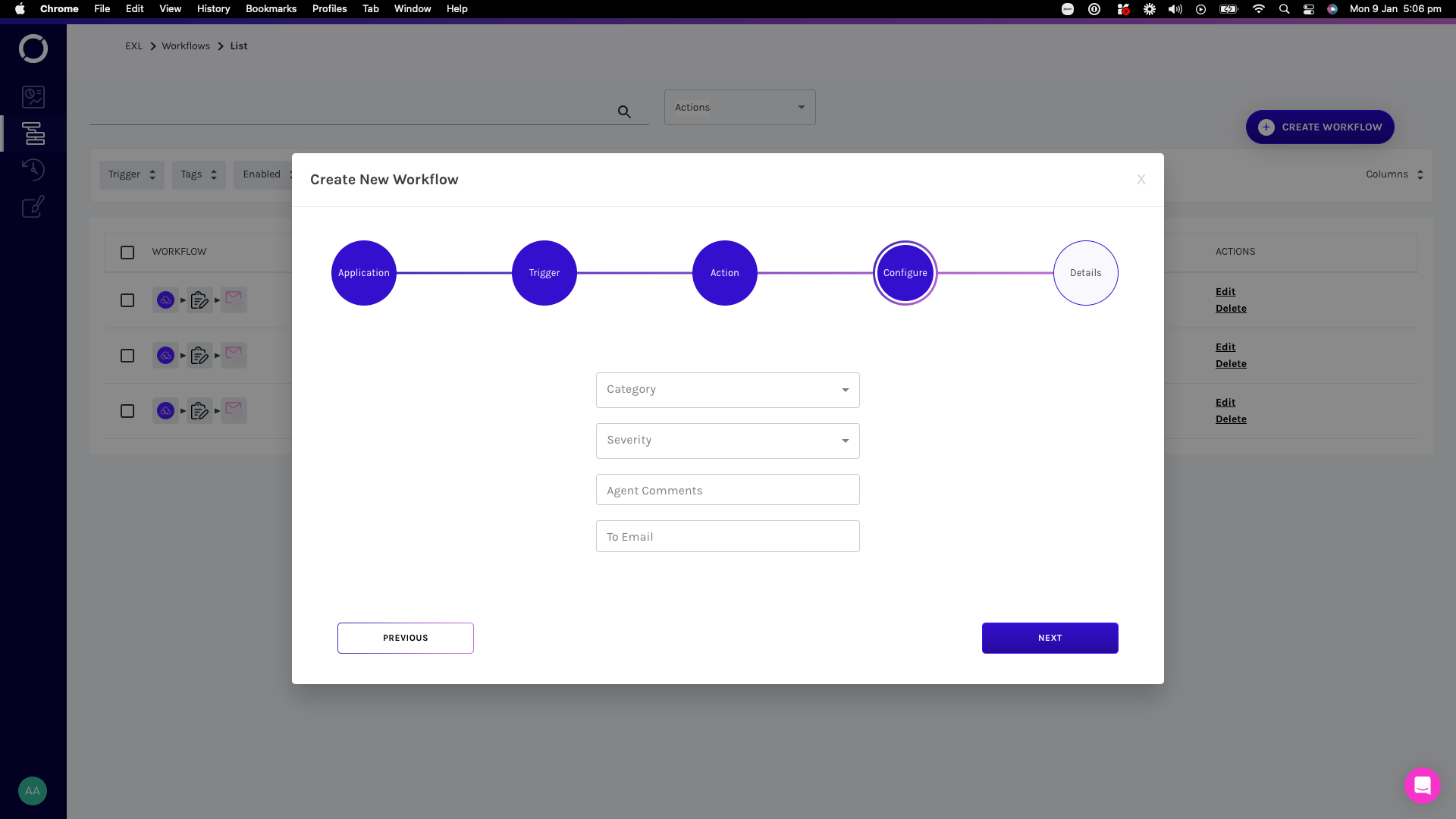
- Category (this is optional, leave blank and any Cause will trigger the workflow)
- Softphone would not work
- Poor sound quality
- Delay in the conversation
- Call disconnected
- Customer could not hear me
- Could not hear the customer
- Missed call, the Softphone did not ring
- Something else
- Terrible
- Difficult
- Minor
{{.Records}} into the Body to see all the details for the call that triggered the event.
Heartbeat Telephony
Three elements are needed to configure an Agent Reported issue workflow: Status- Agent Error - The target agent for the Heartbeat could not be found.
- Call Failed - The Virtual Customer call failed to be answered.
- Call Not Accepted by Agent - The Heartbeat test call could not be answered by the agent.
- Poor Call Quality - the Heartbeat test call was successful, but was of poor quality
{{.Records}} into the Body to see all the details for the call that triggered the event.
EventBridge
Details of how to configure and use EventBridge are here. EventBridge Events from Operata Workflows can push events to the configured EventBridge service:- When a Contact ends.
- When a Heartbeat test is completed.
- When CCP logs are captured.
5. Saving the workflow
Finally update the Workflow Name and Tag - then NEXT to move forward. Your new Workflow appears in the Workflow List.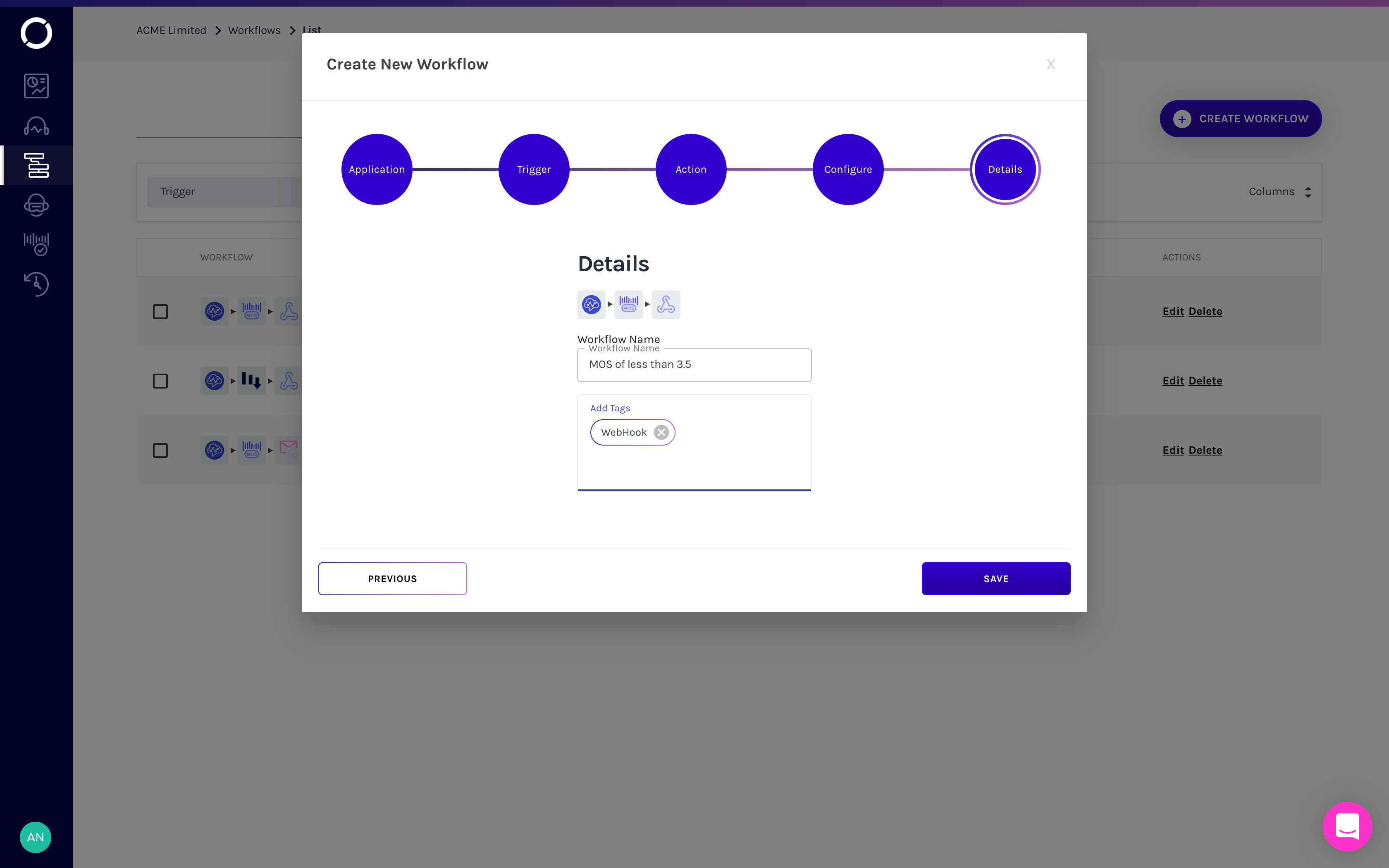
Event History
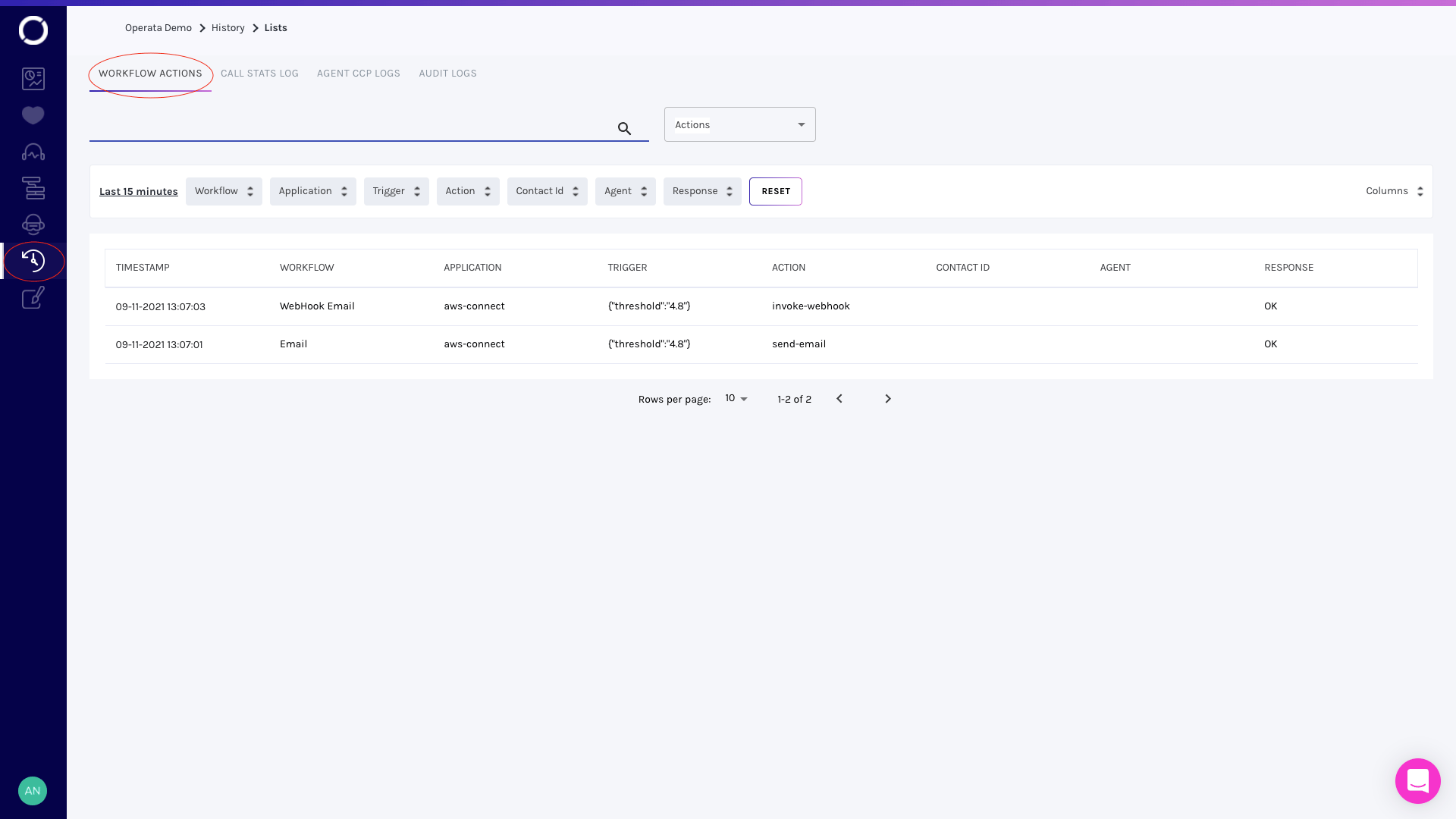
Selecting History then WORKFLOW ACTIONS brings up the list of workflow events that have been triggered.