
This guide covers manual integration. Automatic integration is available
via AppFoundry.
Before you start
- An Operata account with Admin role and your Operata Group ID. The Group ID is the UUID immediately after the hostname in your Operata console URL — for example, on
https://app.operata.io/41ba528c-cef7-400f-ab08-cc5aba33527fthe Group ID is41ba528c-cef7-400f-ab08-cc5aba33527f. Contact Operata Support if you cannot locate it. - A Genesys Cloud organization with admin access to Account Settings, User Management, and IT and Integrations.
- The Genesys Cloud integration overview read end to end — the OAuth scopes you grant in step 2 map to the data Operata reads.
Steps
1. Capture the Organization ID
In the Genesys Cloud admin console, go to Account > Organization Settings > Organization Details and copy the Organization ID. Operata configures Amazon EventBridge and Secrets Manager against this ID.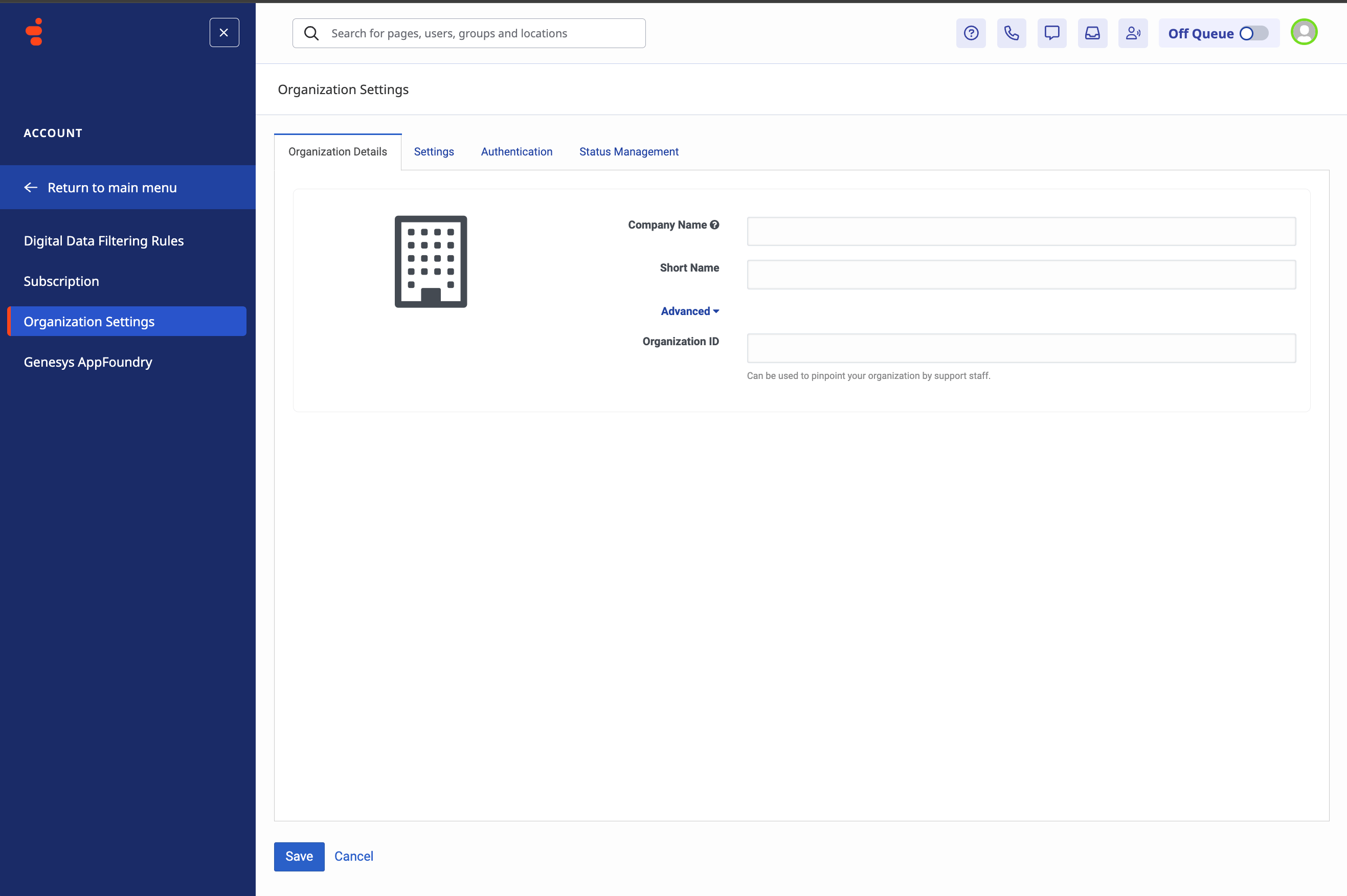
2. Create the OAuth client
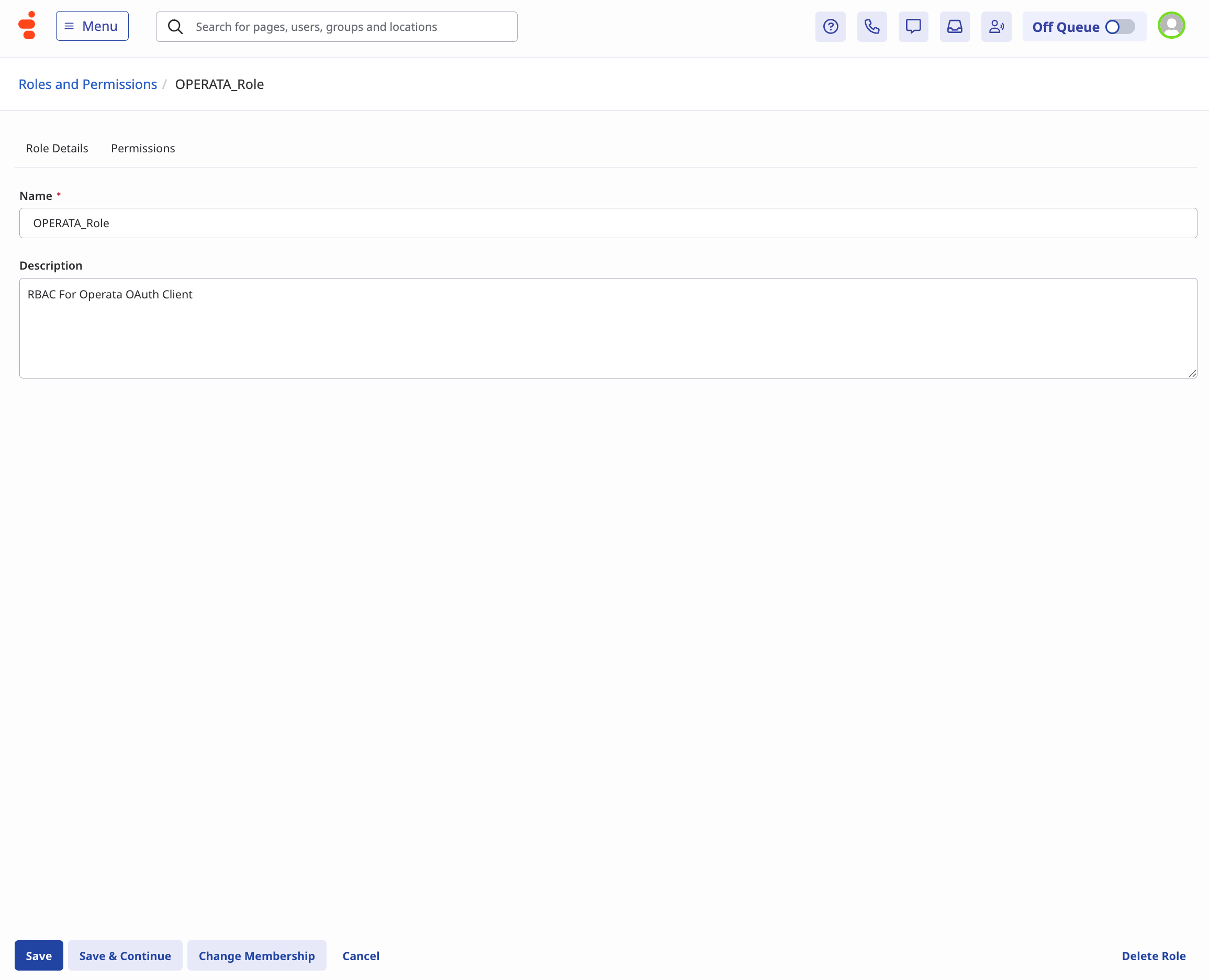
Genesys Cloud uses role-based access control. Create an access role with the permissions Operata needs, then assign that role to an OAuth client. Create the access role: In the Genesys Cloud admin console, go to User Management > Roles and Permissions > Add Role. On the Roles tab, enter:- Name:
OPERATA_Role - Description:
RBAC for Operata OAuth Client
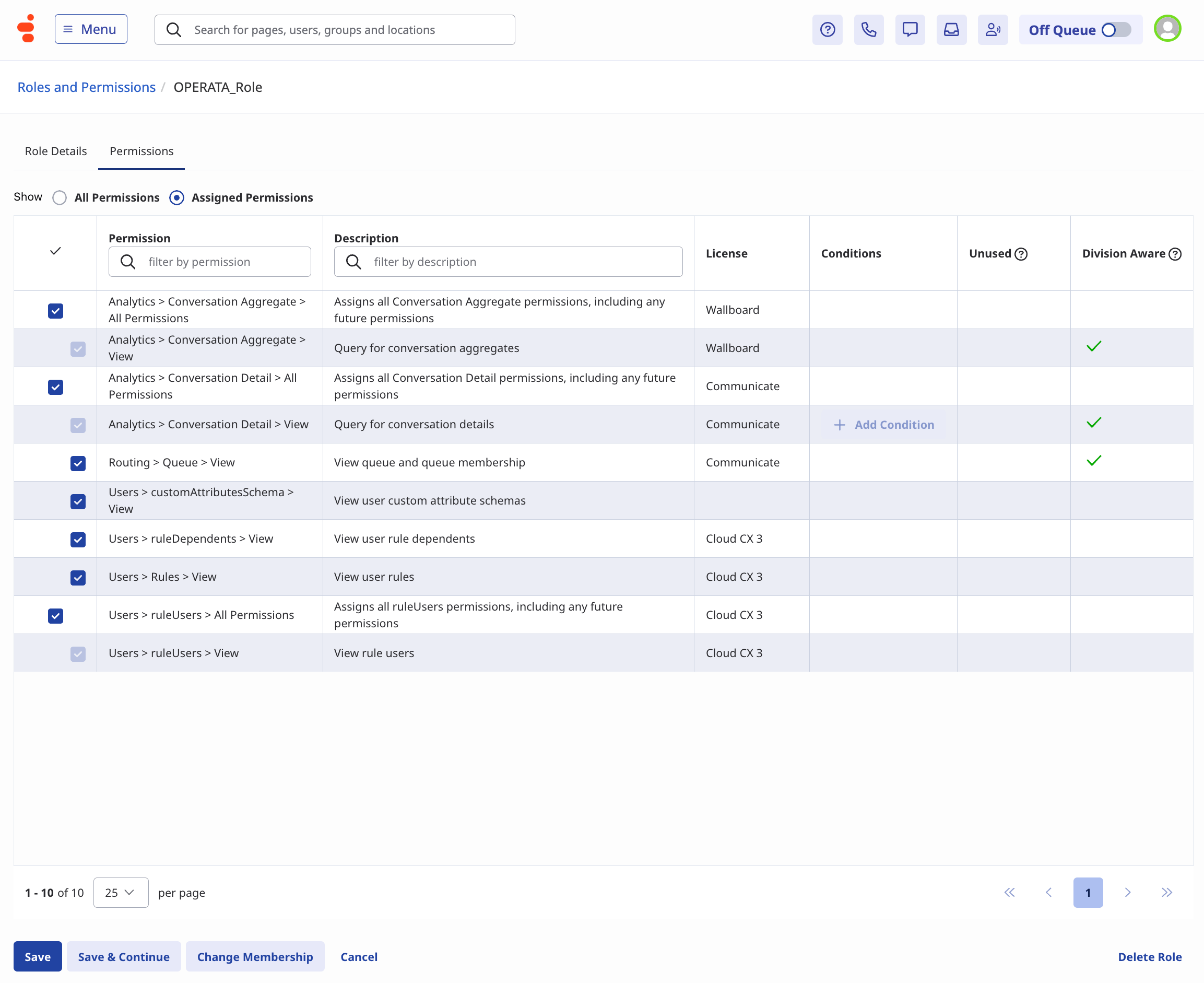
- Analytics > Conversation Aggregate > View
- Analytics > Conversation Detail > View
- Routing > Queue > View
- Users > customAttributesSchema > View
- Users > ruleDependents > View
- Users > Rules > View
- Users > ruleUsers > View
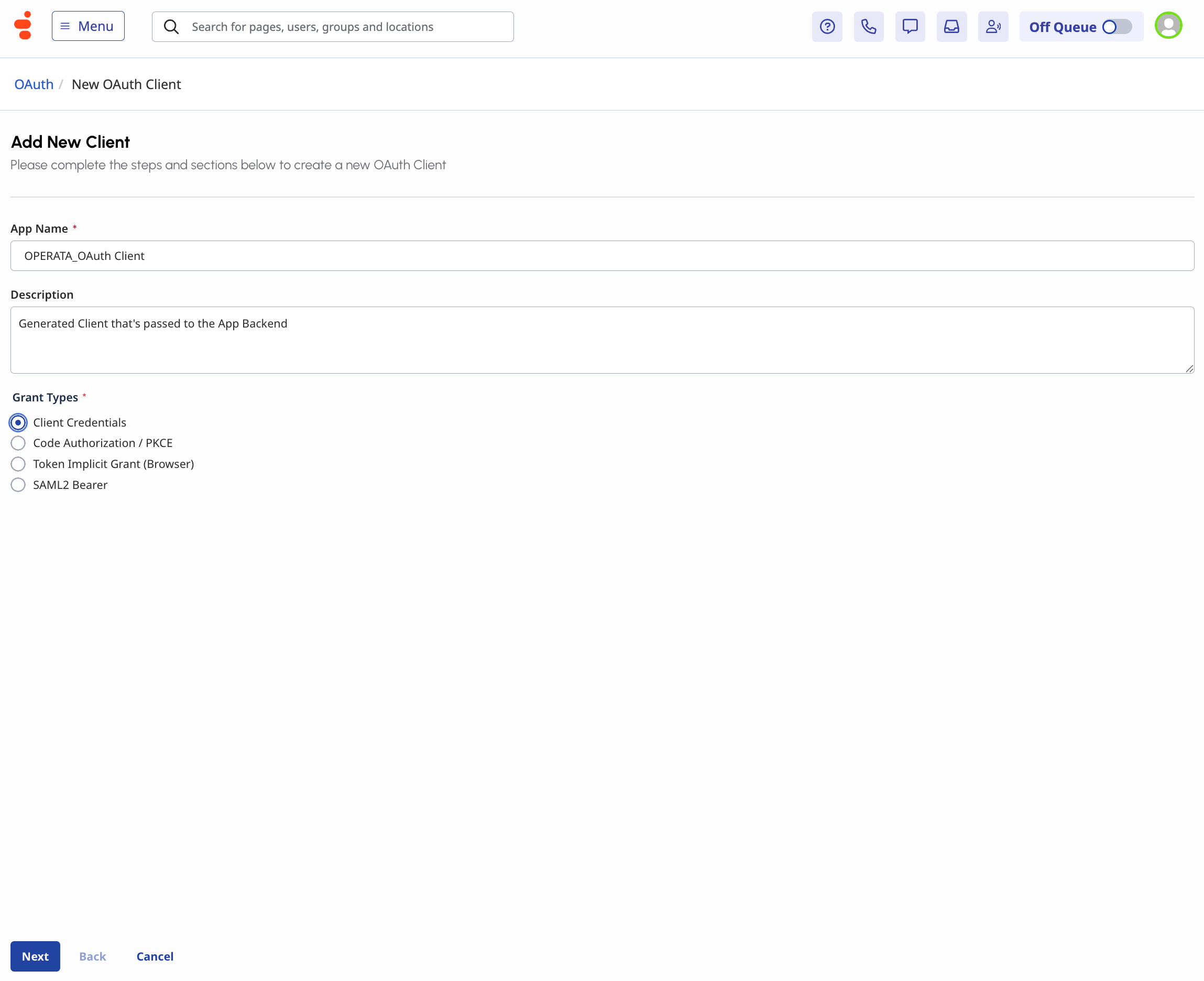
- App Name:
OPERATA_OAuth Client - Description:
Generated Client that's passed to the App Backend - Grant Types: Client Credentials
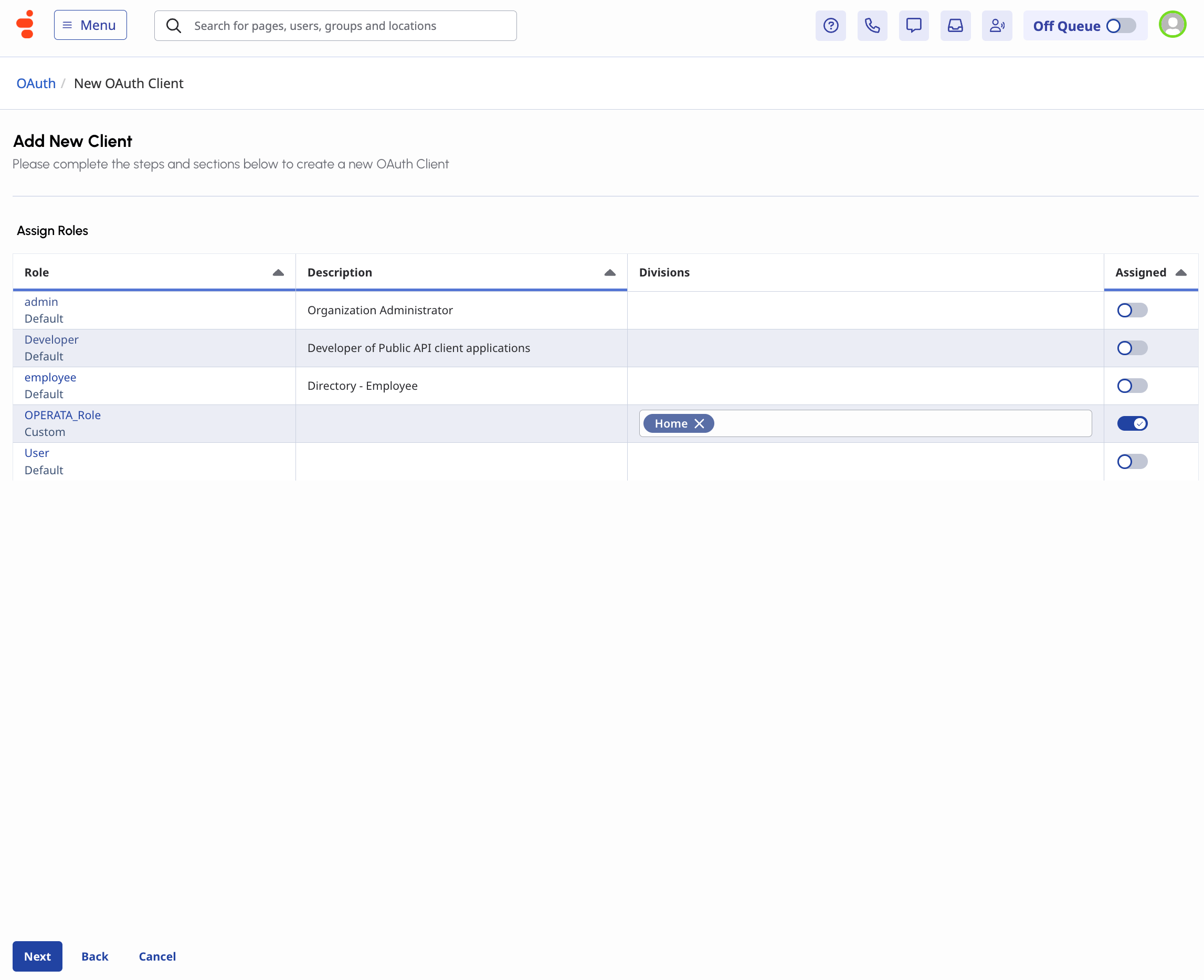
OPERATA_Role you created above and click Next.
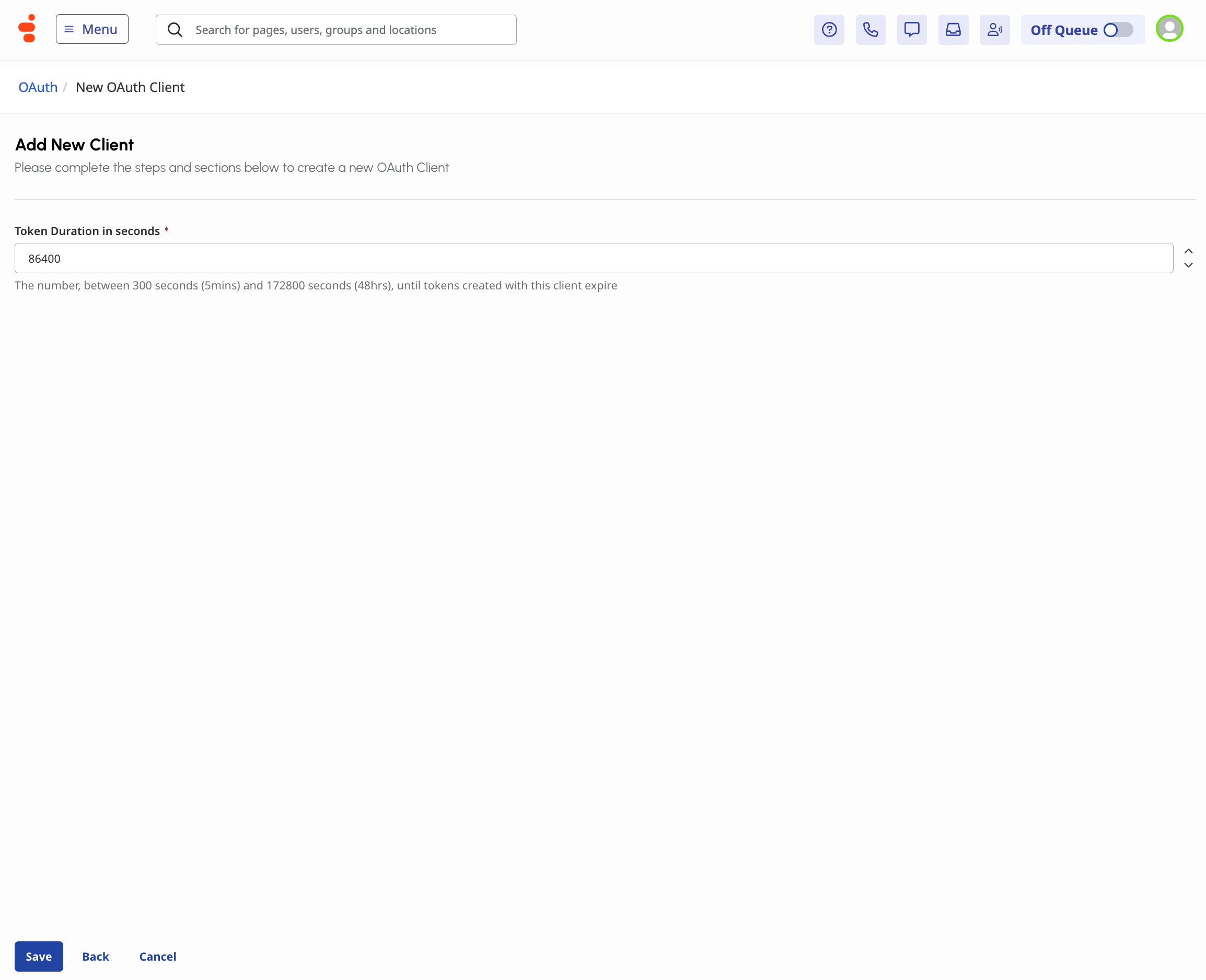
86400 seconds (24 hours) and click Save.
3. Configure the Amazon EventBridge source
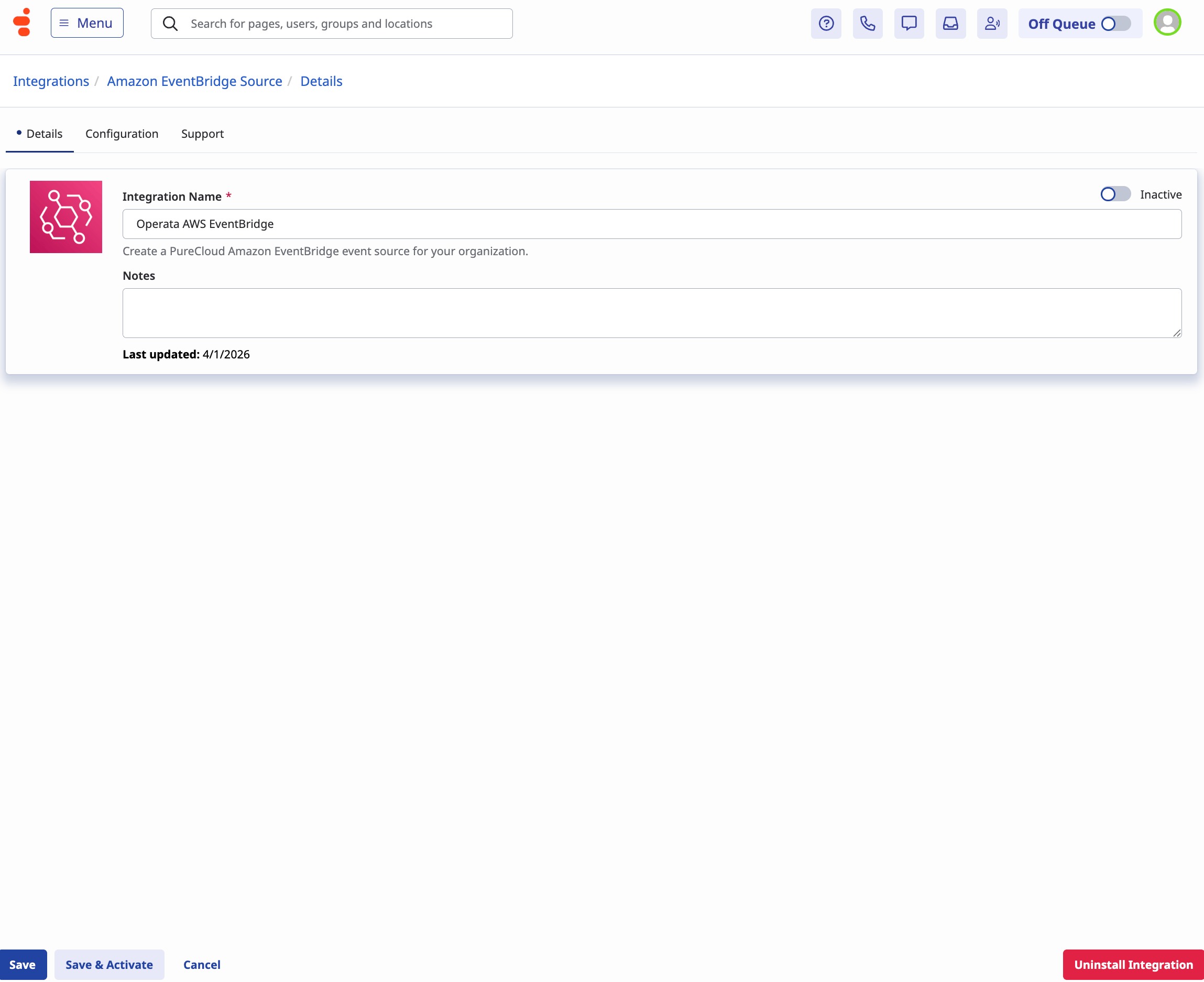
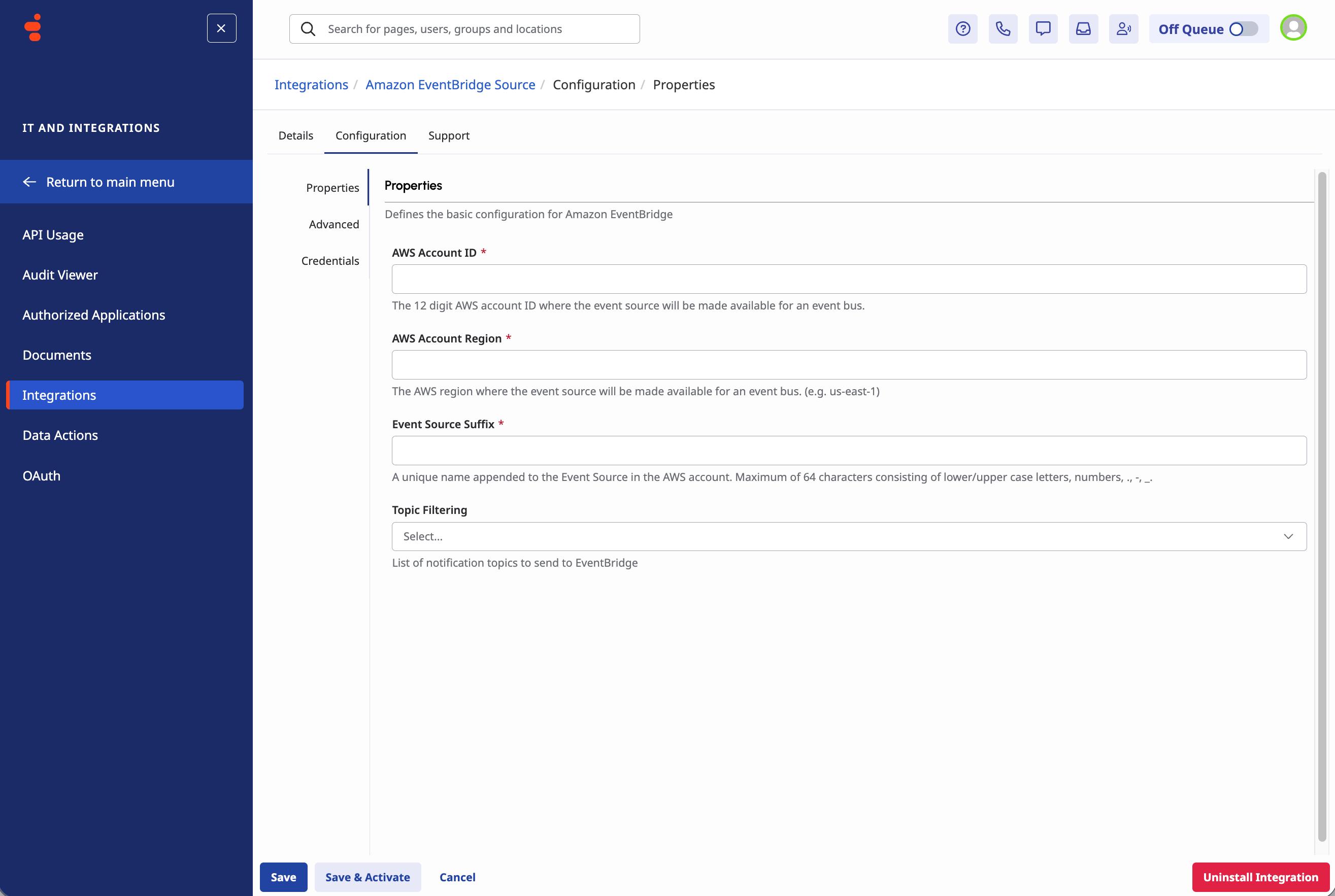
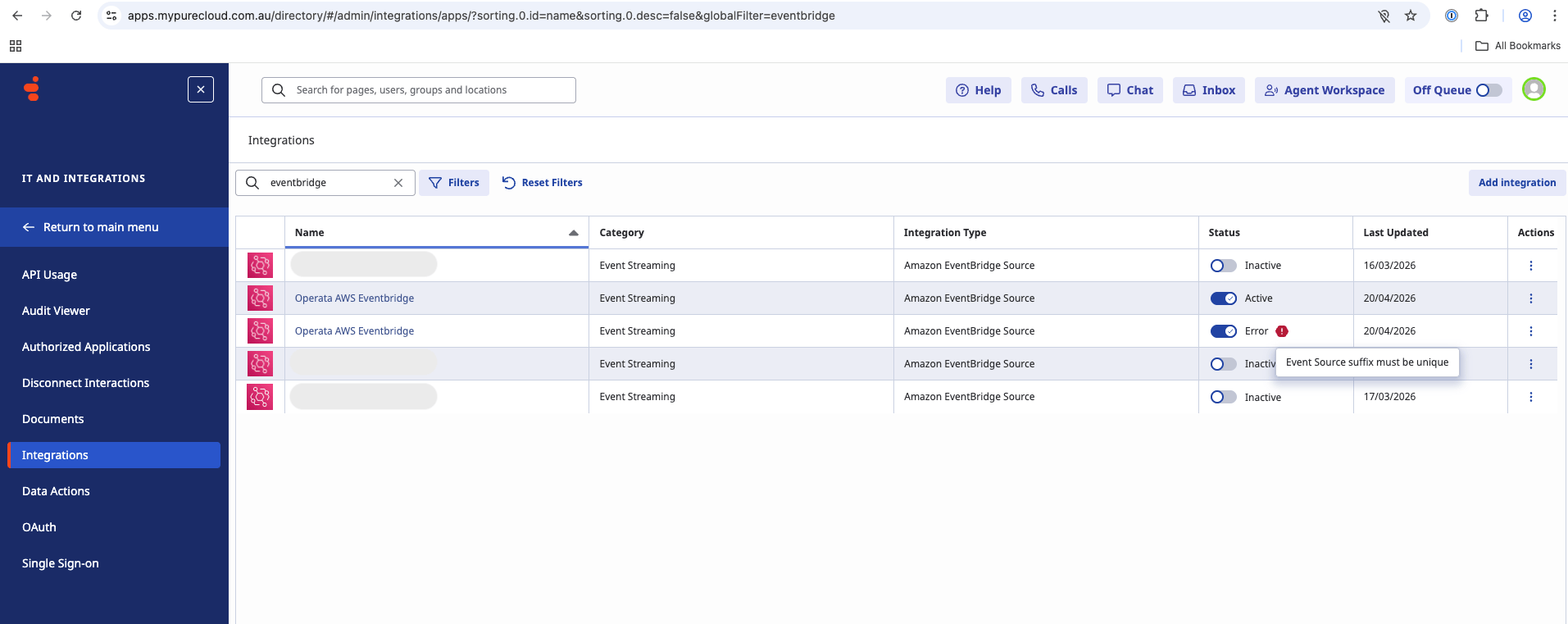
Operata reads Genesys Cloud events from Amazon EventBridge. Each Operata group supports exactly one Genesys Cloud Amazon EventBridge integration; if you already have one set up, skip to step 4. Navigate to IT and Integrations > Integrations > Add Integration. Click Install on the Amazon EventBridge Source tile.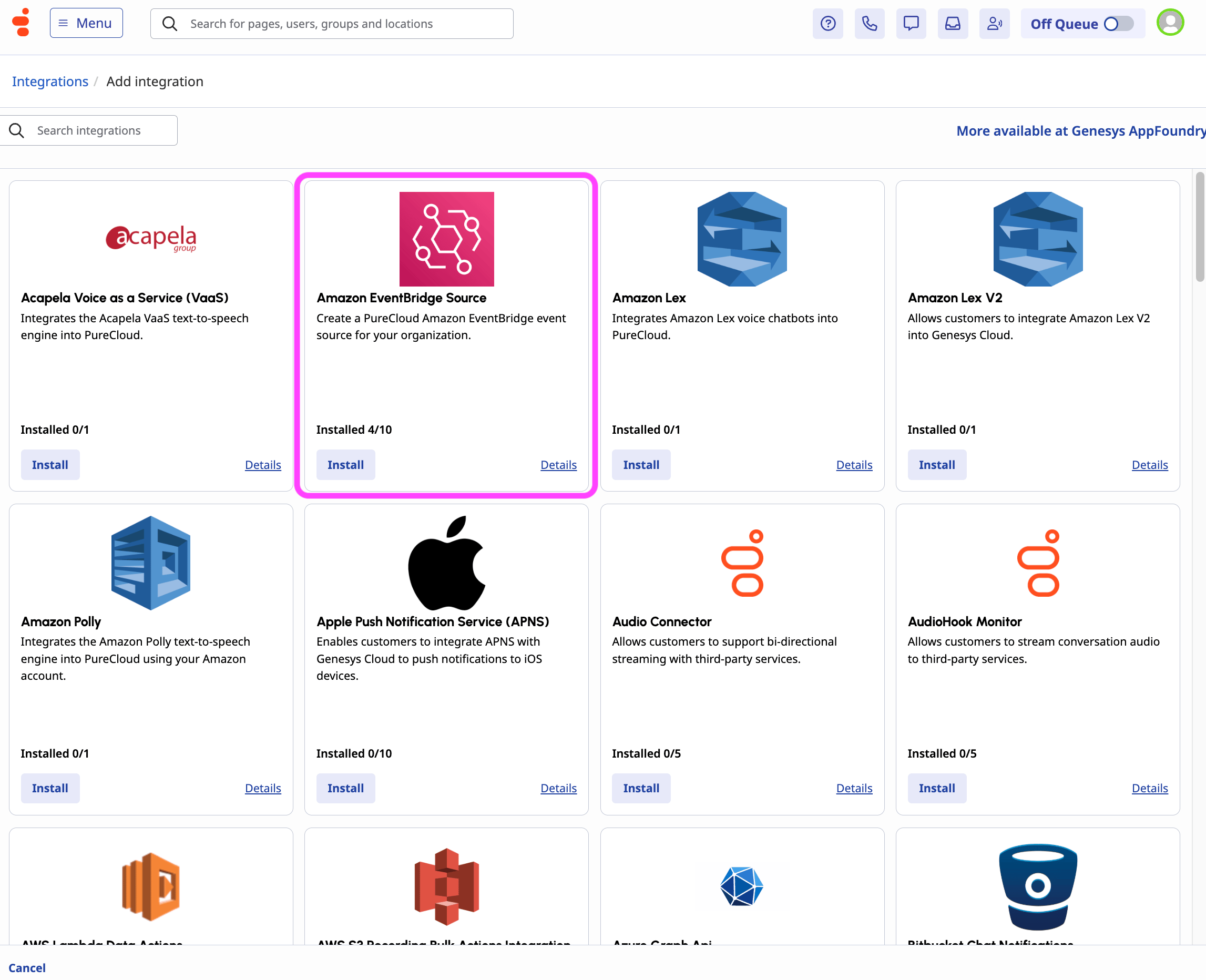
- Integration Name:
Operata AWS EventBridge
- AWS account ID:
287581919123 - AWS account region:
ap-southeast-2orus-east-2, matching your Operata group region. - Event source suffix: your Operata Group ID from the Before you start section.
- Topic filtering:
v2.detail.events.conversation.{id}.user.end
4. Configure Operata
In the Operata console, go to Group Settings > Genesys Softphone Configuration > Org Id. Enter the Organization ID you copied in step 1, leave the remaining fields as they are, and click Save.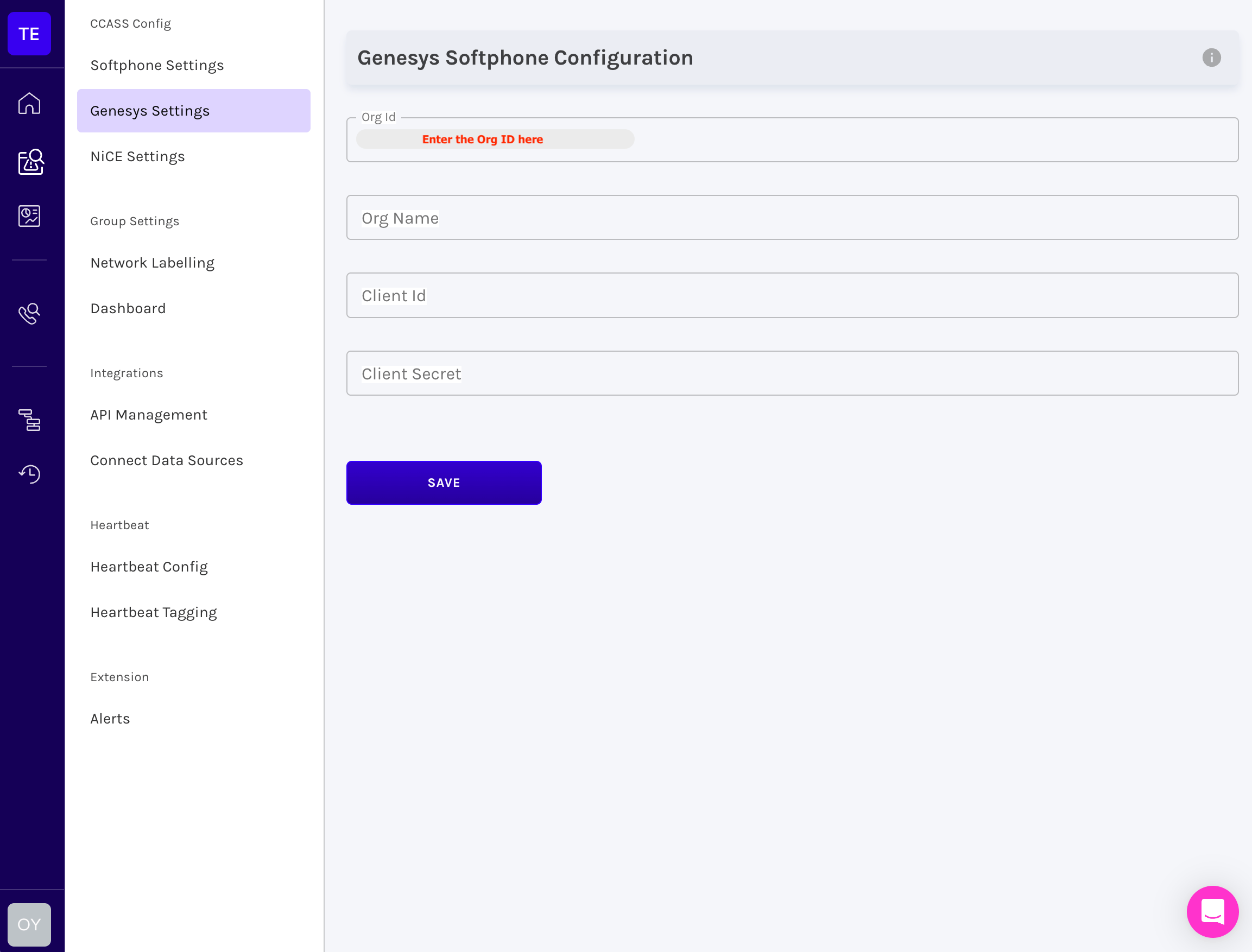
- Organization ID from step 1.
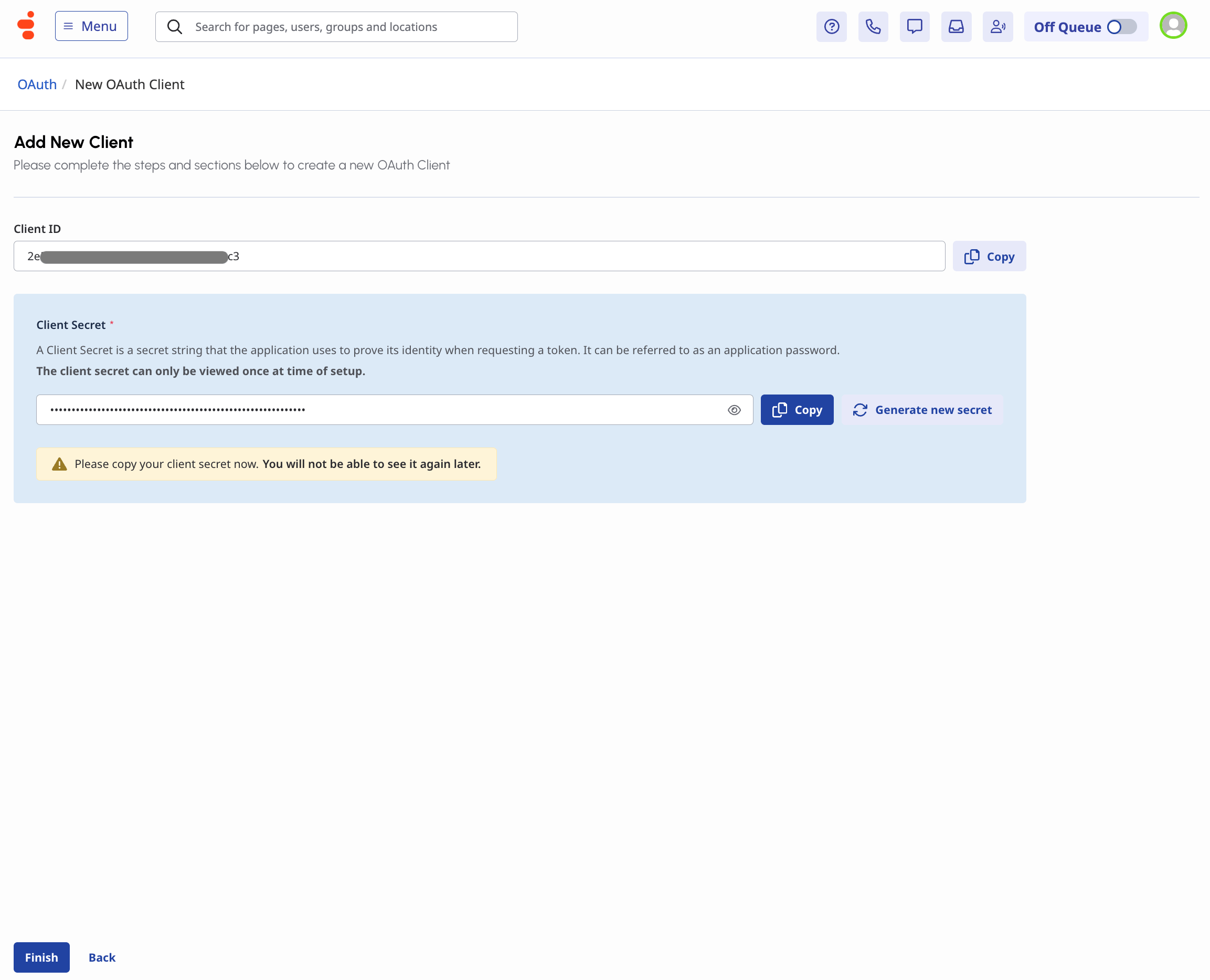
- OAuth Client ID and Client Secret from step 2.
- Genesys Cloud AWS region (so Operata picks the correct API URL for the Fetcher Service).
Verify
Place a test interaction through your Genesys Cloud organization and end the Conversation cleanly. In the Operata console, open Contacts and filter to the last 10 minutes. The Conversation appears within five minutes of conversation end, with theconversationId matching the Genesys Cloud value.
Related
- Configure Genesys Cloud redaction — Allow or deny fields the Fetcher Service forwards to Operata.
- Genesys Cloud integration overview — The Amazon EventBridge topics and REST endpoints Operata uses, plus the mandatory observability fields.
- Concept: Privacy and redaction — The model the Fetcher Service applies.
- Genesys data glossary — The fields Operata can deliver from Genesys Cloud.