
Before you start
- Cloud Orchestrator installed in the same AWS region as your Amazon Connect instance. The Orchestrator CloudFormation stack creates the Lambda function this guide binds into Amazon Connect.
- Amazon Connect administrator access — you sign in using emergency access throughout this guide.
- An Operata-supplied
HeartbeatContactFlow.jsonfile. Contact Operata Support for the link. - The Cloud Orchestrator concept read end to end — Heartbeat is one of two products that runs on the Orchestrator.
Steps
1. Create the Operata_Heartbeat_RP routing profile
Sign in to the Amazon Connect console using emergency access. Open
Routing → Routing profiles and click Add new profile.
- Name:
Operata_Heartbeat_RP— the exact name Cloud Orchestrator expects. - Channels: select the Voice checkbox.
- Queues: add any inbound and outbound queue so the Virtual Agent can make and take a call.
OperataHeartbeatRoutingProfile parameter you set when you deployed
the Orchestrator stack.
2. Add the Cloud Orchestrator Lambda to Amazon Connect
In the Amazon Connect console, open Contact flows and scroll to the AWS Lambda section. In the dropdown, find the Lambda created by the Cloud Orchestrator CloudFormation stack. Its name lives in the Resources tab of the Orchestrator stack. Click + Add Lambda Function. The Lambda is now selectable inside any contact flow in this Amazon Connect instance.3. Import the Heartbeat contact flow
DownloadHeartbeatContactFlow.json from the link Operata supplied,
then follow the AWS guide to import a contact flow
into your Amazon Connect instance.
4. Bind the Heartbeat Lambda inside the contact flow
In the Amazon Connect console, open Contact flows and select the contact flow you just imported. Click the Invoke AWS Lambda function block, choose the Cloud Orchestrator Lambda from the dropdown, then Save. Click Publish.5. Claim and route the Heartbeat phone number
In the Amazon Connect console, open Channels → Phone numbers. Either Claim a number or Edit phone number, and associate it with the Heartbeat contact flow you imported. Save. Send the number to Operata Support so Operata can configure it on the platform side — the Orchestrator dials this number on each Heartbeat run.Verify
In the Amazon Connect console, open the Heartbeat contact flow and confirm the Invoke AWS Lambda function block points at the Cloud Orchestrator Lambda and the flow is published. In Phone numbers, confirm the Heartbeat number routes to that contact flow. The first Heartbeat run completes once a Virtual Agent is in place — see Heartbeat Virtual Agent for the next step. A test call placed manually to the Heartbeat number from the agent side rings the configured contact flow and invokes the Lambda.What the agent sees
Here’s the end-to-end sequence for an Amazon Connect agent on a Heartbeat run.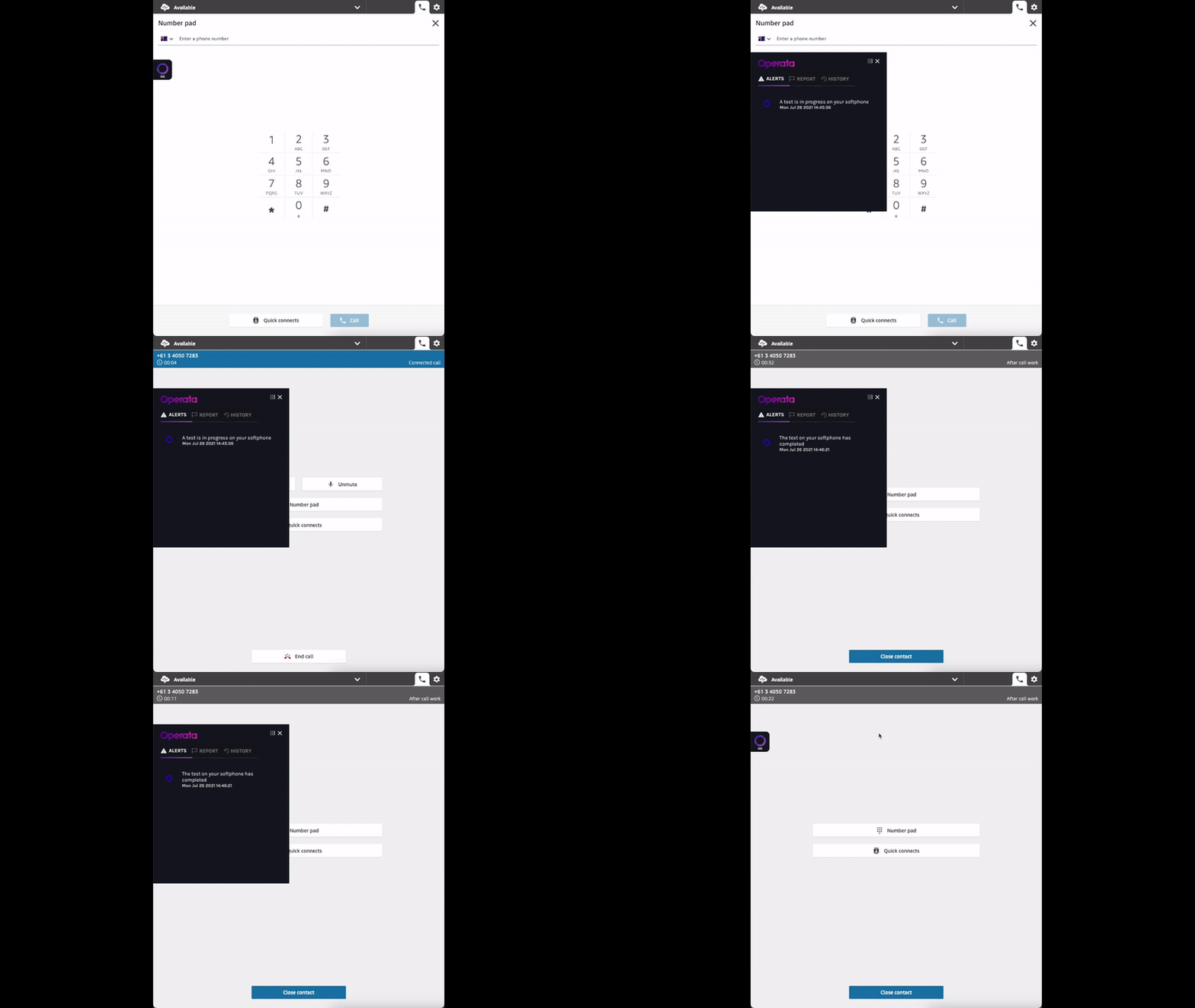
Related
- Heartbeat Virtual Agent — deploy the containerized agent that answers Heartbeat calls.
- Virtual Agent troubleshooting — confirm the Virtual Agent is running and logged in.
- Concept: Cloud Orchestrator — how the Lambda, ECS service, and Virtual Agent fit together.
- EventBridge — receive each Heartbeat run’s result on your event bus.