
Installation
The documentation details the configuration steps, setting up the necessary permissions to enable Operata integration with Genesys cloud.
The process involves configuration in Genesys and Operata. This is the guide for manual integration. The automatic integration can be done via AppFoundry.
Operata - Genesys Cloud Integration
Prerequisites
You must have an Operata account and group setup enabled. We would need the group ID information in the later steps.
The Primary method to find the group ID is to read the URL after login into Operata Platform UI. When logged into the Operata platform (app.operata.io / app-dev.operata.io), the Group ID is the UUID segment immediately after the hostname.
https://app.operata.io/<GROUP_ID>/...
Examples -
- https://app.operata.io/41ba528c-cef7-400f-ab08-cc5aba33527f --> 41ba528c-cef7-400f-ab08-cc5aba33527f
- https://app.operata.io/b6c93a4e-877e-4138-91df-5f9df2a58b17 --> b6c93a4e-877e-4138-91df-5f9df2a58b17
Save UUID in that position as the Operata Group ID in text editor. Please reach out to Operata Support if you need further help with finding the group information.
Now, lets navigate to Genesys Interface -
1. Review Organization
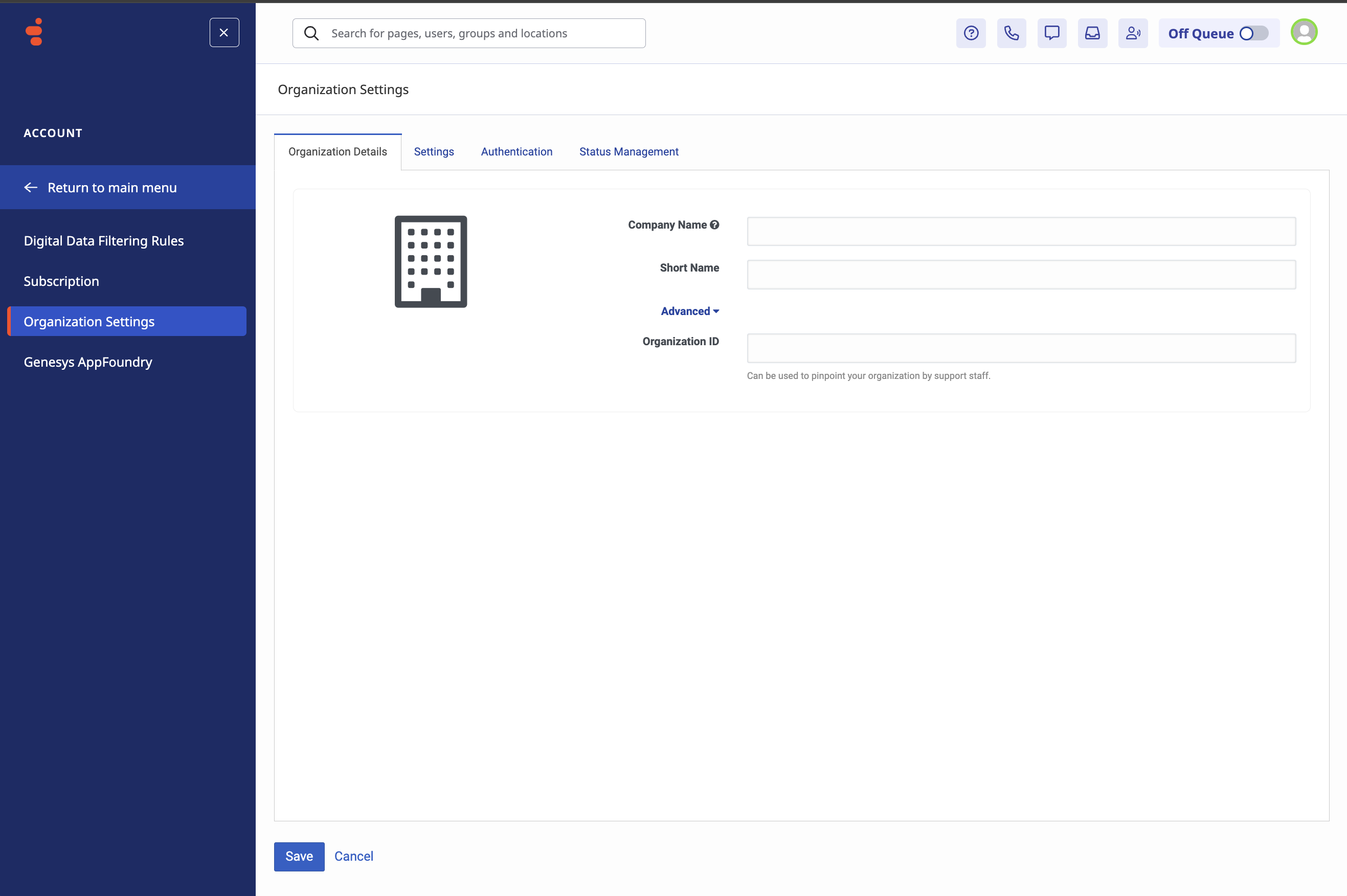
Review the Organization details to ensure that everything is set up correctly. We would need the Organization ID information in Operata setup. Navigate to -
-
Navigate to
Account > Organization Settings > Organization Details: Copy the Organization ID information into a text editor.
2. oAuth Client
To facilitate the cloud integration, Operata requires an OAuth client to communicate with the Genesys Cloud API and retrieve essential conversation data. This client is instrumental in generating the necessary OAuth tokens.
Genesys employs a Role-Based Access Control (RBAC) model. Consequently, it is necessary to establish an appropriate access role encompassing all requisite permissions. The OAuth Client will be assigned this role, thereby defining and managing its access privileges. We have two steps -
2a. Create Access Role
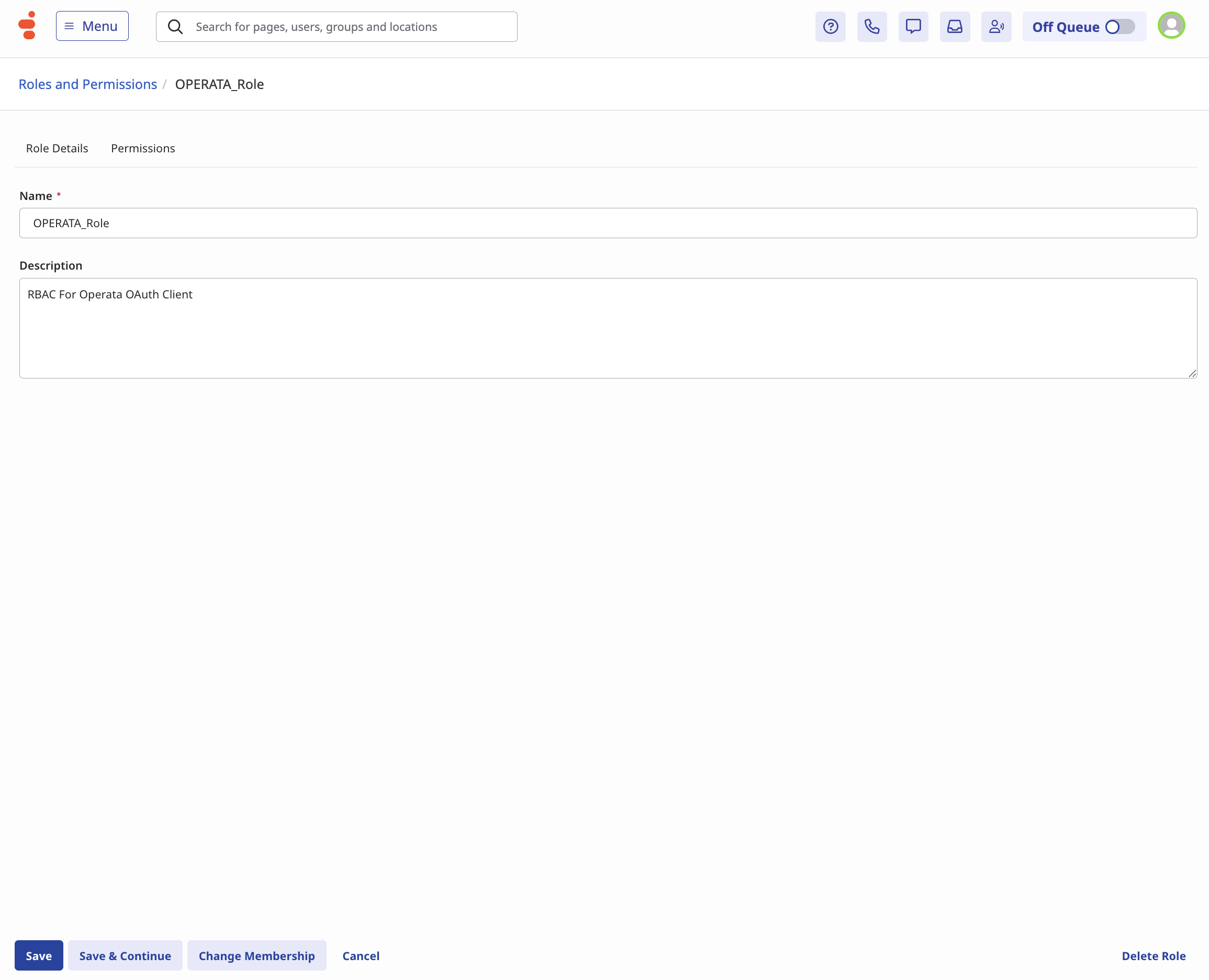
In Genesys Interface, Navigate to User Management > Roles and Permissions > Add Role
Under the Roles tab, enter the following -
Name: OPERATA_Role Description: RBAC for Operata OAuth Client
Switch to the Permission tab. Search and select the following permissions
- Analytics > Conversation Aggregate > View
- Analytics > Conversation Detail > View
- Routing > Queue > View
- Users > customAttributesSchema > View
- Users > ruleDependents > View
- Users > Rules > View
- Users > ruleUsers > View
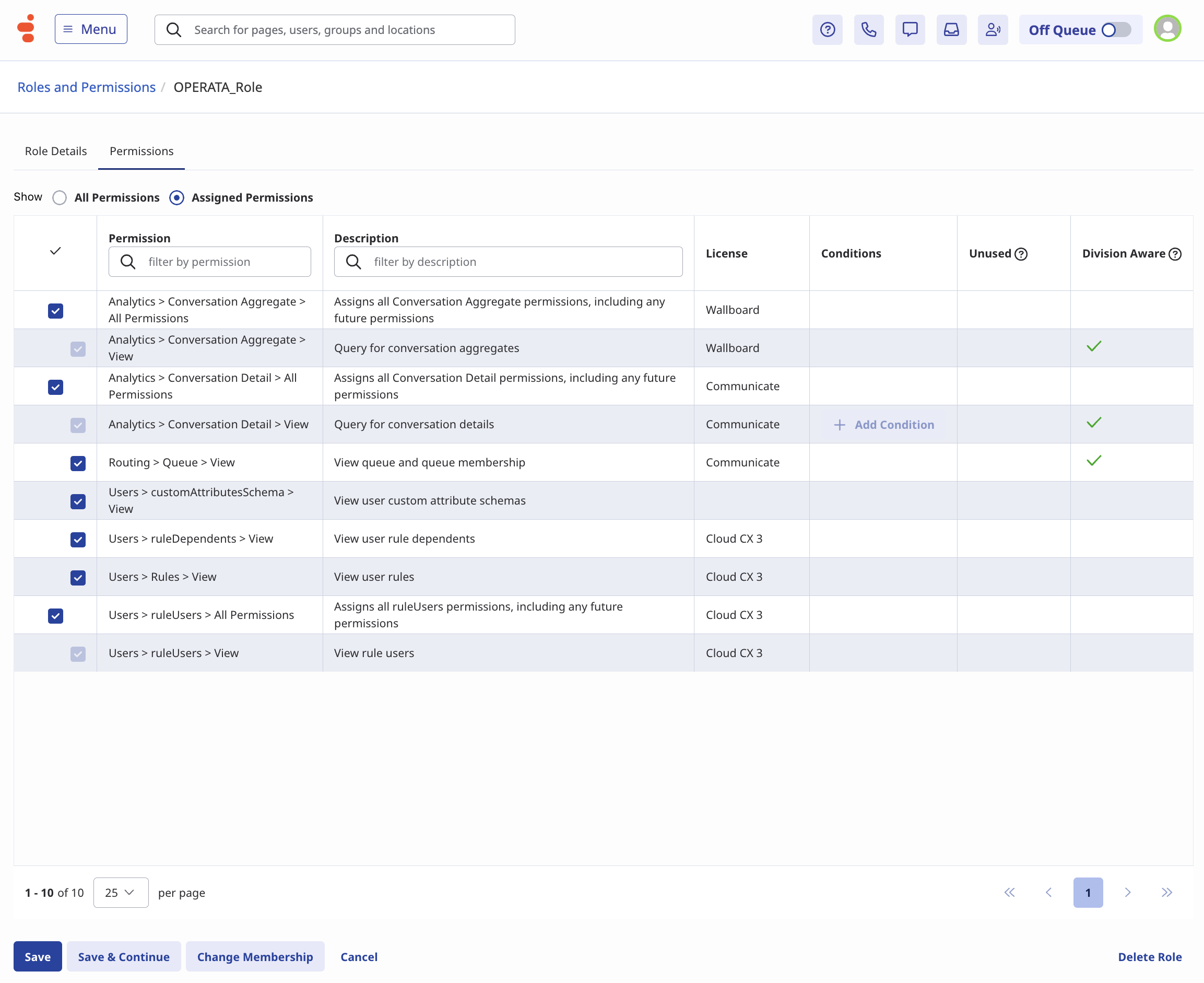
Once the permissions are selected, Click “Save”.
2b. Creating OAuth Client
Navigate to IT and Integrations > OAuth > Add Client
Enter the following details:
- App Name: OPERATA_OAuth Client
- Description: Generated Client that's passed to the App Backend
- Grant Types: Client Credentials
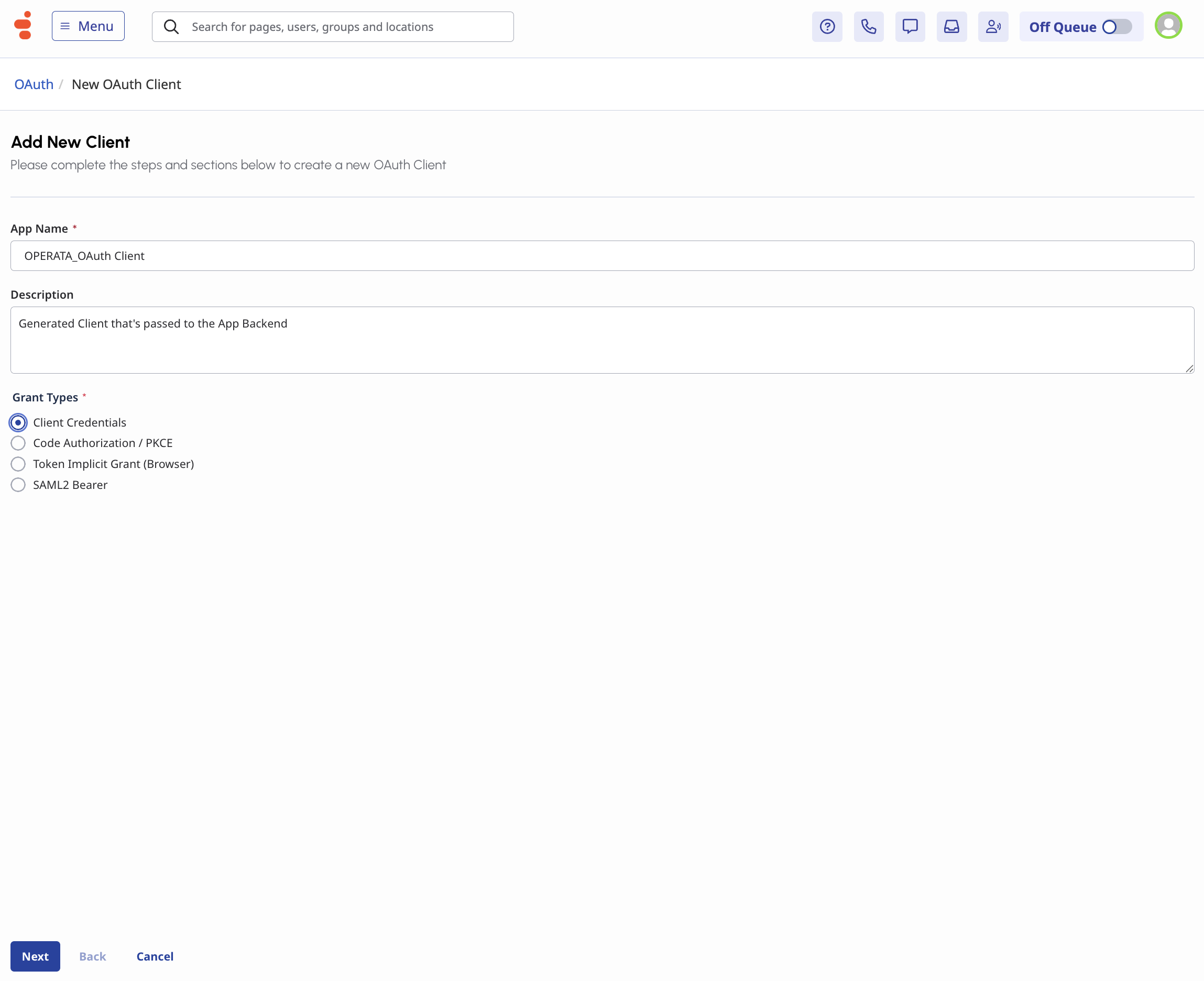
Click Next.
You will now be shown the “Roles” available. Please select/toggle Assigned for OPERATA_Role that we created in the previous step. Toggle the "Assigned" column, and click Next.
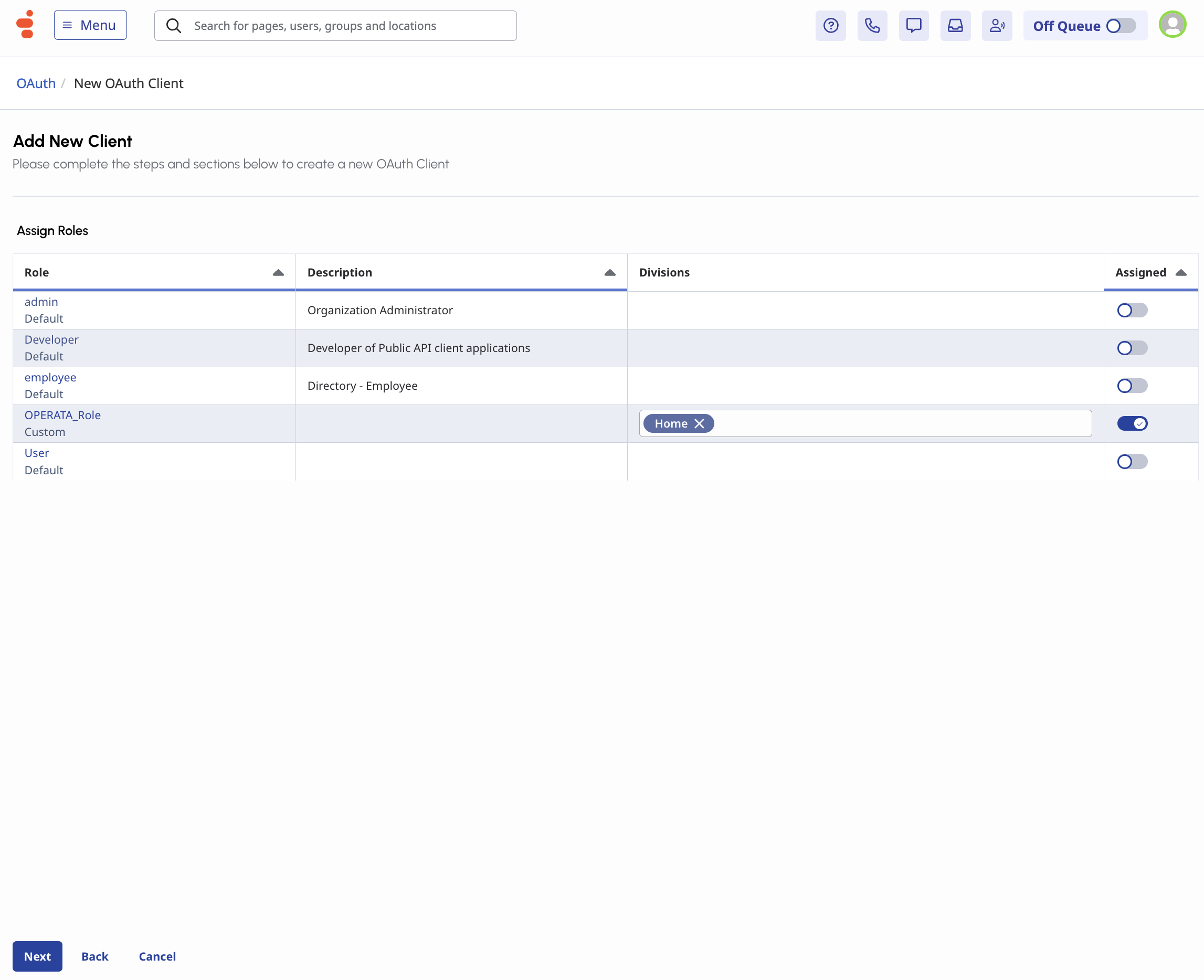
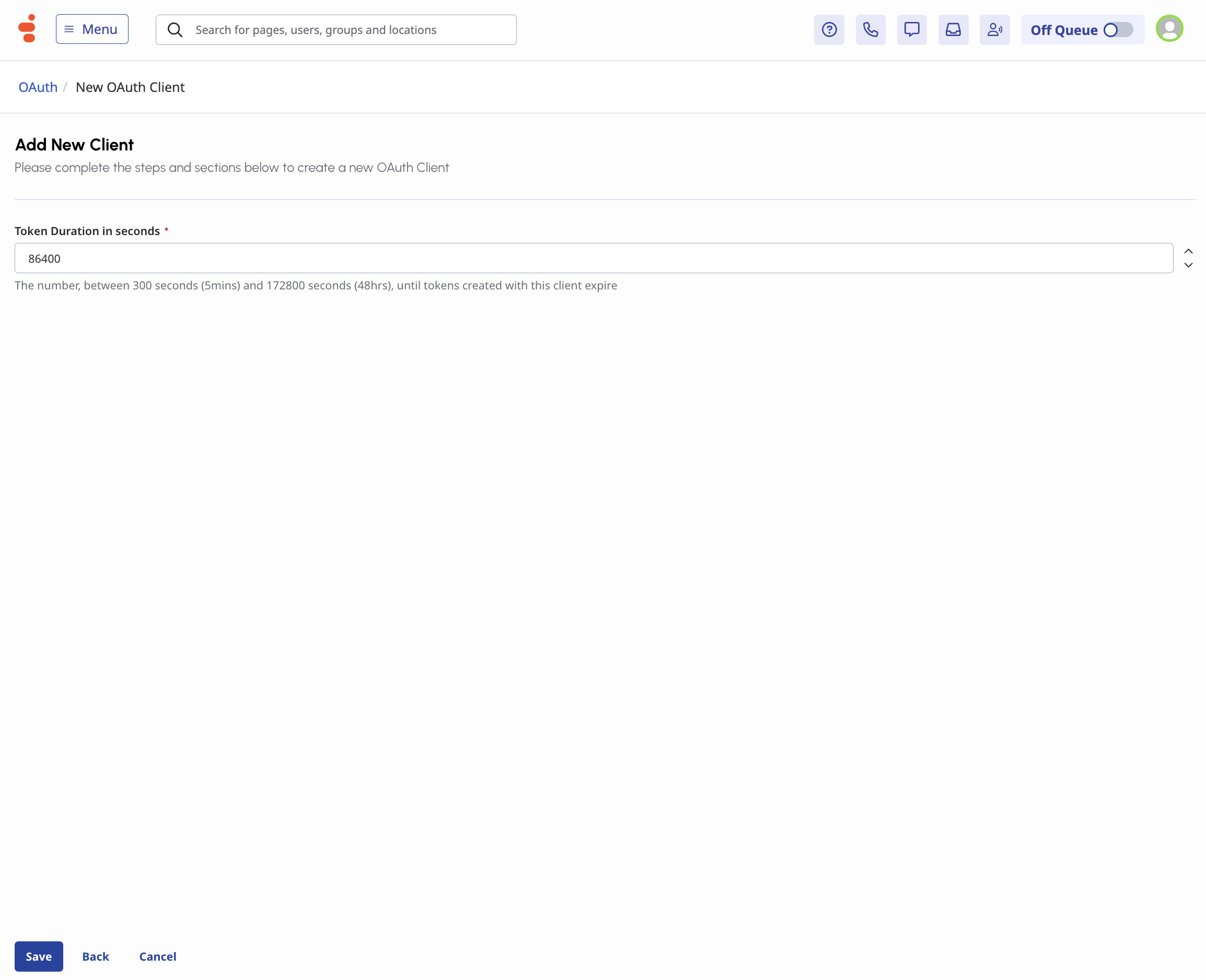
For the Token Duration, leave the default value 86400 (24 hours) as-is, and click “Save”.
Genesys will now display the Client ID and the Client Secret values.
While the Client ID can be retrieved again, the Client Secret will not be displayed subsequently. Therefore, please ensure that you copy the Client ID and Client Secret into a text editor. These values will be required in the subsequent steps.
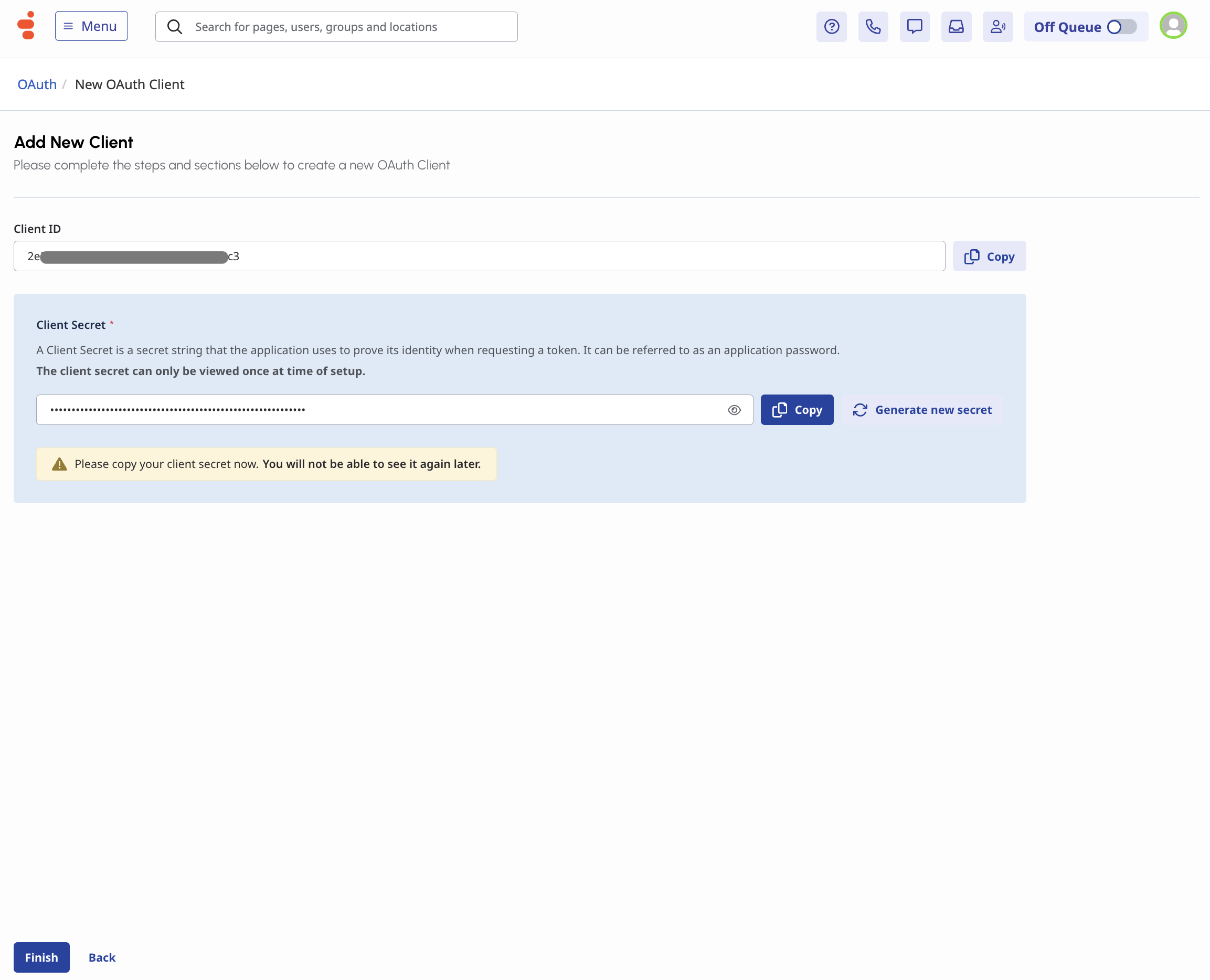
Once you have copied the values safely into a text editor, click on Finish.
3. Event Bridge Integration
Operata uses events emitted by Genesys as triggers for its data workflows. These workflows utilize the event information, along with the previously created oAuth Client credentials, to fetch the necessary additional data.
We will configure the Amazon EventBridge Source Integration to notify Operata about the events generated by Genesys. To do this -
Navigate to IT and Integrations > Integrations > Add integration
Click on [Install] button in the Amazon EventBridge Source tile.
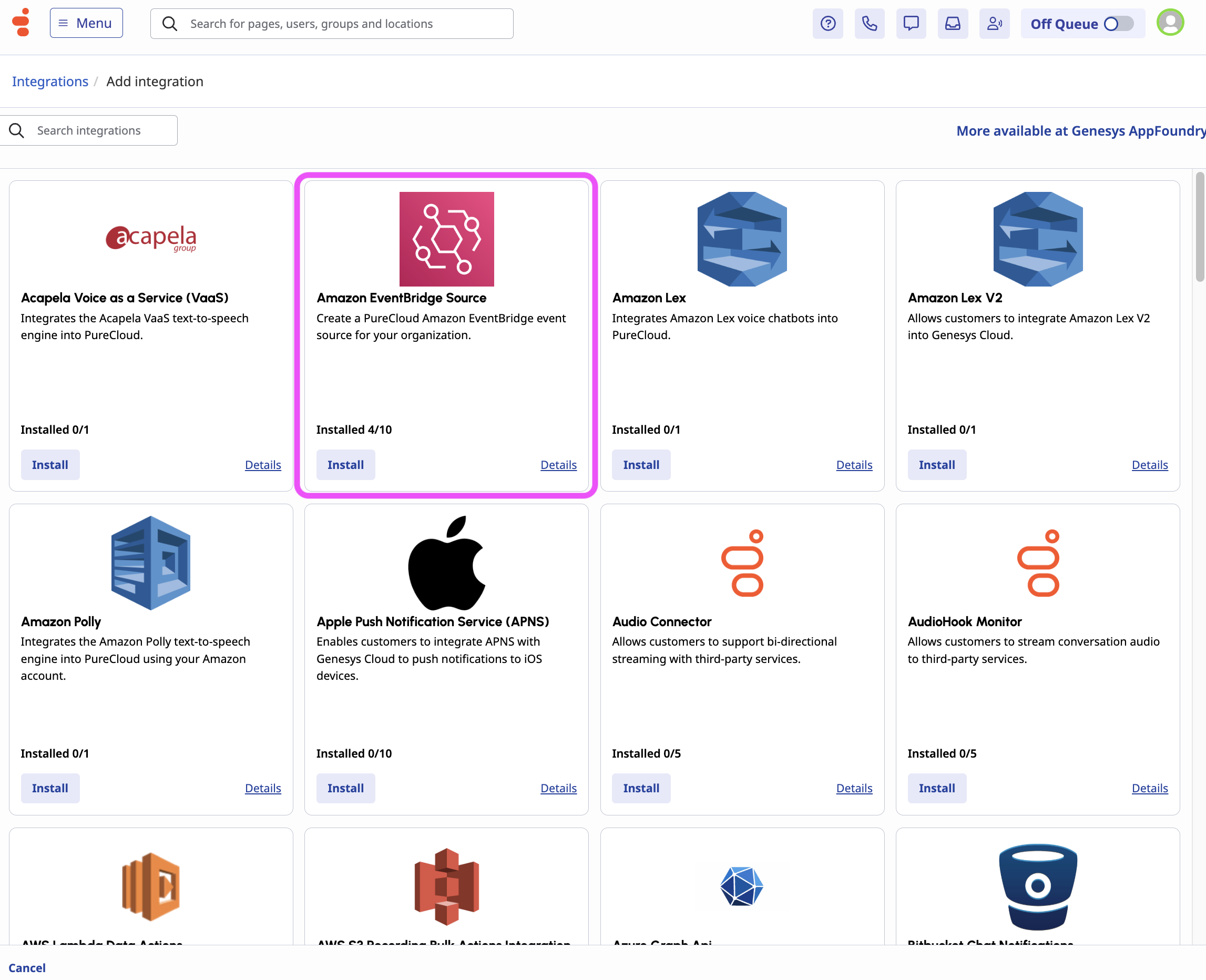
In the Details tab, fill in the following fields -
Integration Name: Operata AWS EventBridge and click Save
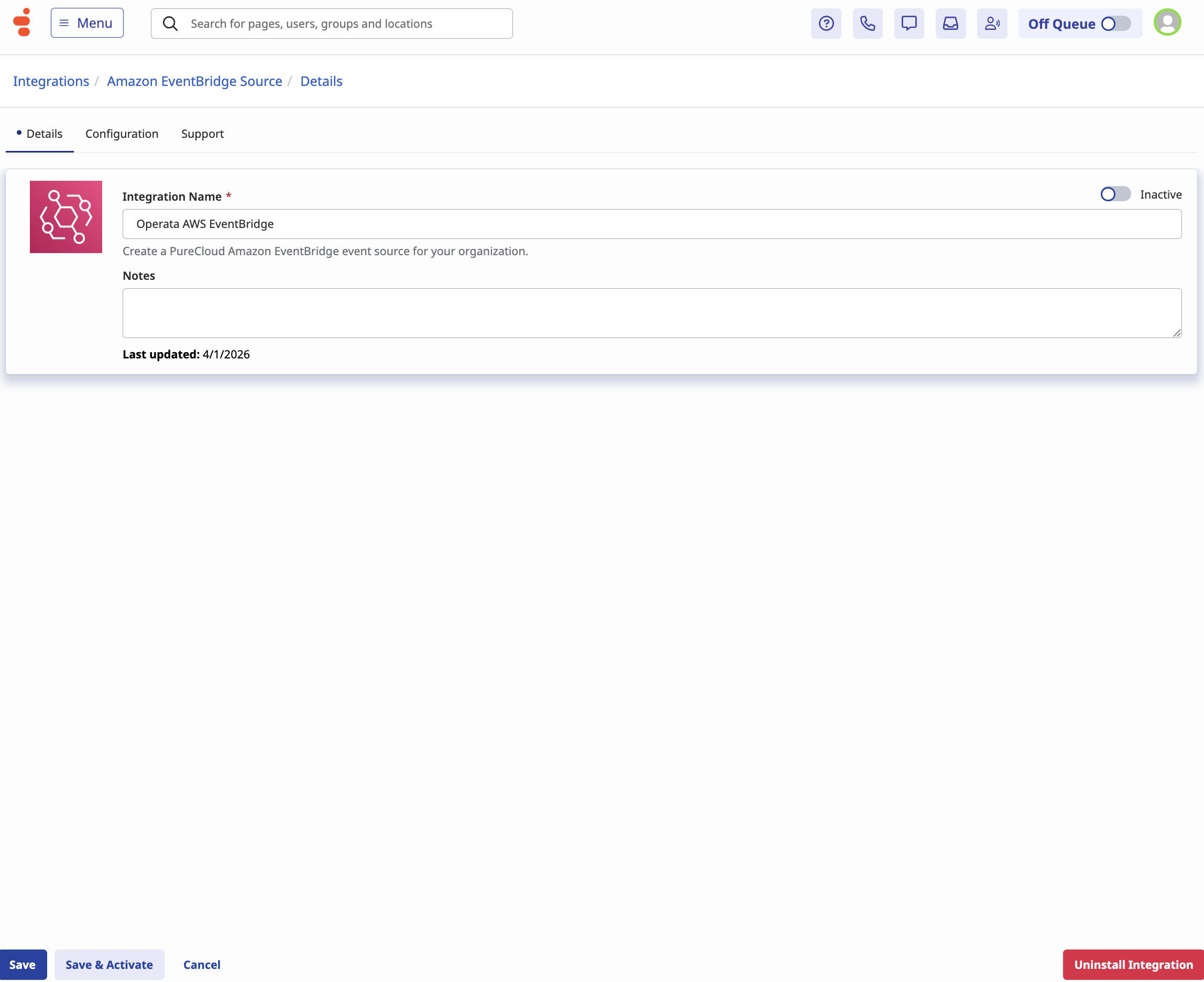
We will now move to the Configuration Tab
Enter the following information:
- AWS account id:
287581919123 - AWS Account Region:
ap-southeast-2orus-east-2based on Operata group region - Event Source Suffix:
Operata GroupIdfrom the prerequisites step - Topic Filtering: v2.detail.events.conversation.{id}.user.end
Use the
AWS Account IDandRegionexactly as shown - these are Operata's details, not yours. Do NOT enter your own AWS or Genesys values here.
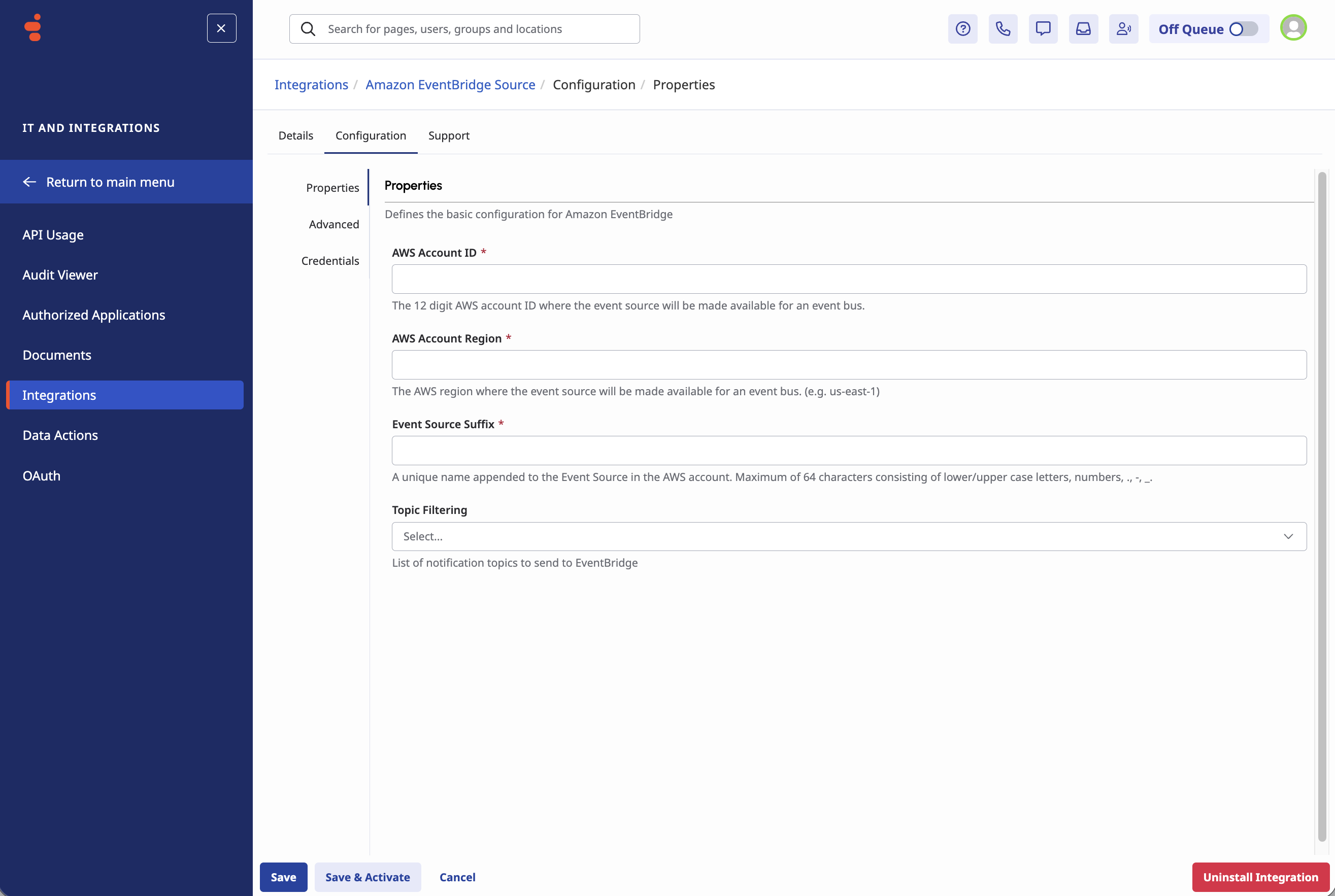
Now, click on ‘Save and Activate’. You have now configured Genesys to work with Operata properly.
4. In Operata
The following steps will enable data collection via the Chrome Collector.
Navigate to
Group settings > Genesys Softphone Configuration > Org Id
Enter the Organization ID we have collected in the Organization step here. Leave the remaining fields as-is and click on [Save]
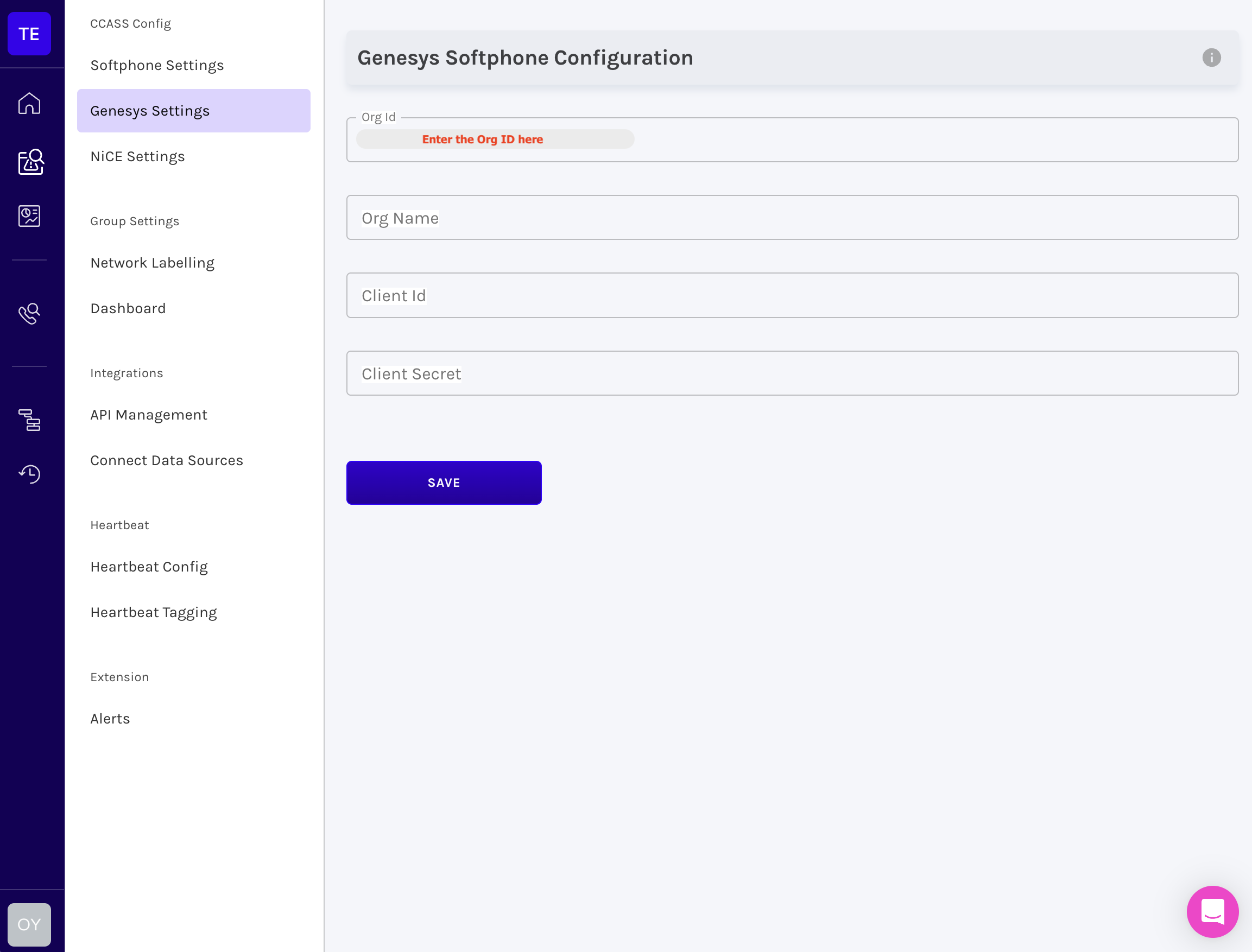
Now, Navigate to Softphone settings
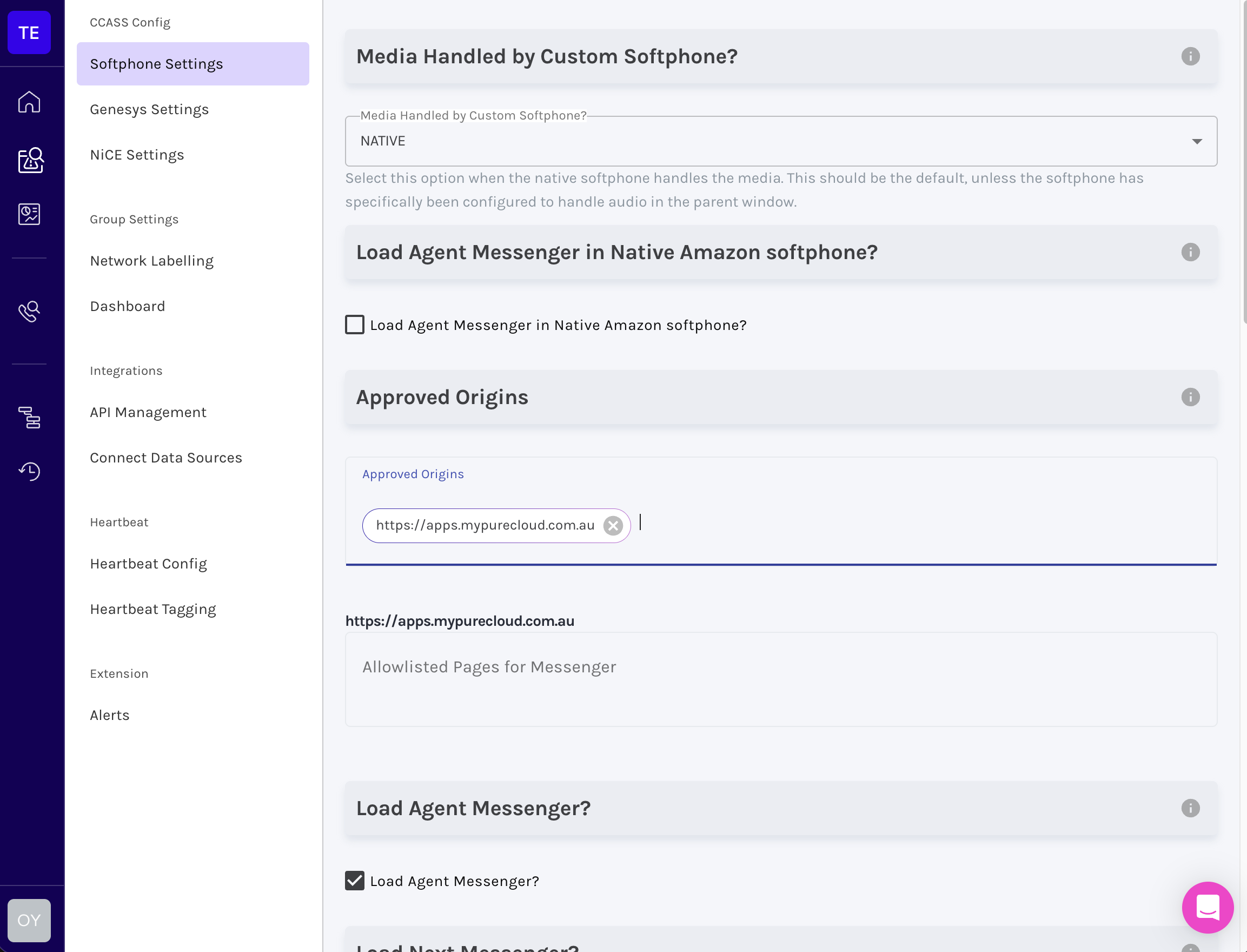
The Genesys URL must be included in the list of Approved Origins. This is required so the Chrome Collector can load within the Genesys tab and successfully capture the necessary information.
We need to add in the Apps URL, which is AWS region dependent and can be found in the documentation here. Add the appropriate Apps URL into Approved Origins.
It is important to find the right URL applicable for you based on your region. Invalid or incorrect URL will result in an incorrect configuration and the Operata Chrome Collector may not load properly.
Validation
We have now completed all the steps in the Operata and Genesys UI. We should be seeing the Operata extension Icon loading properly (see bottom left of the screen)
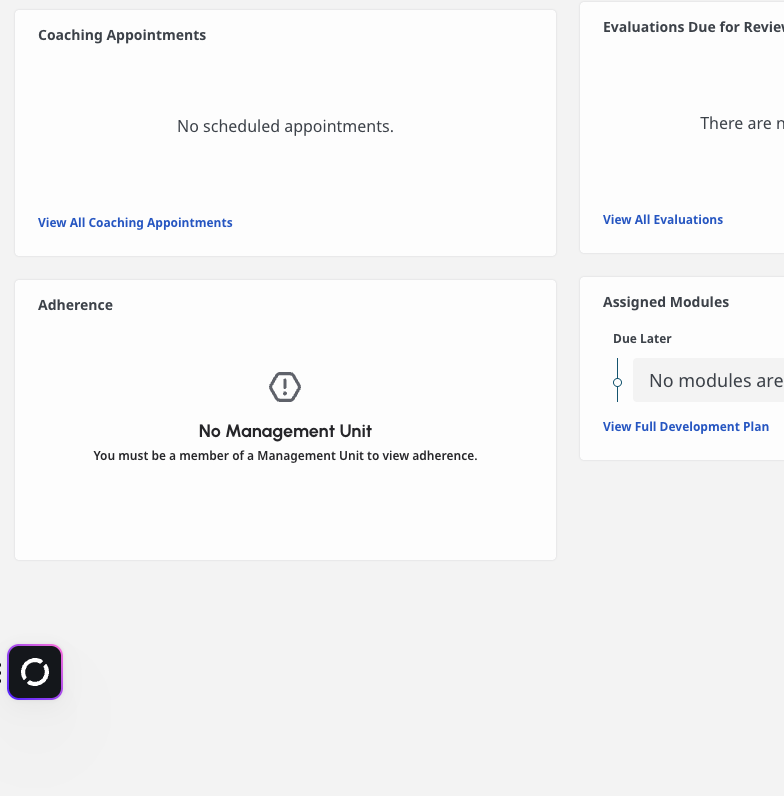
Verifying Operata Browser Extension Functionality
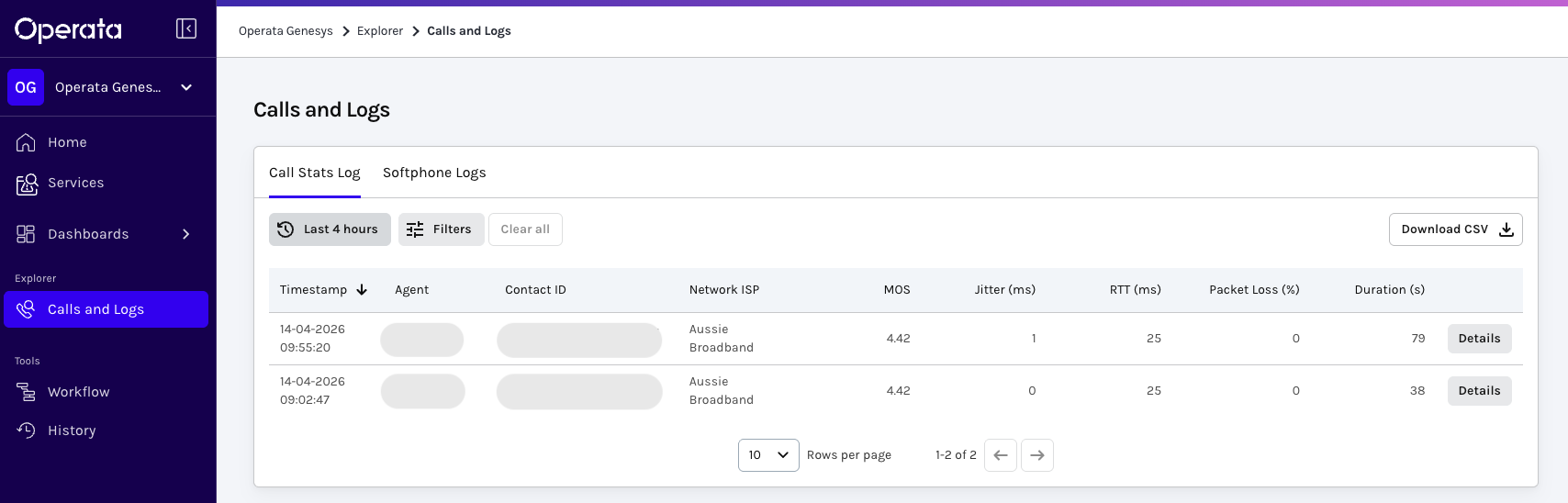
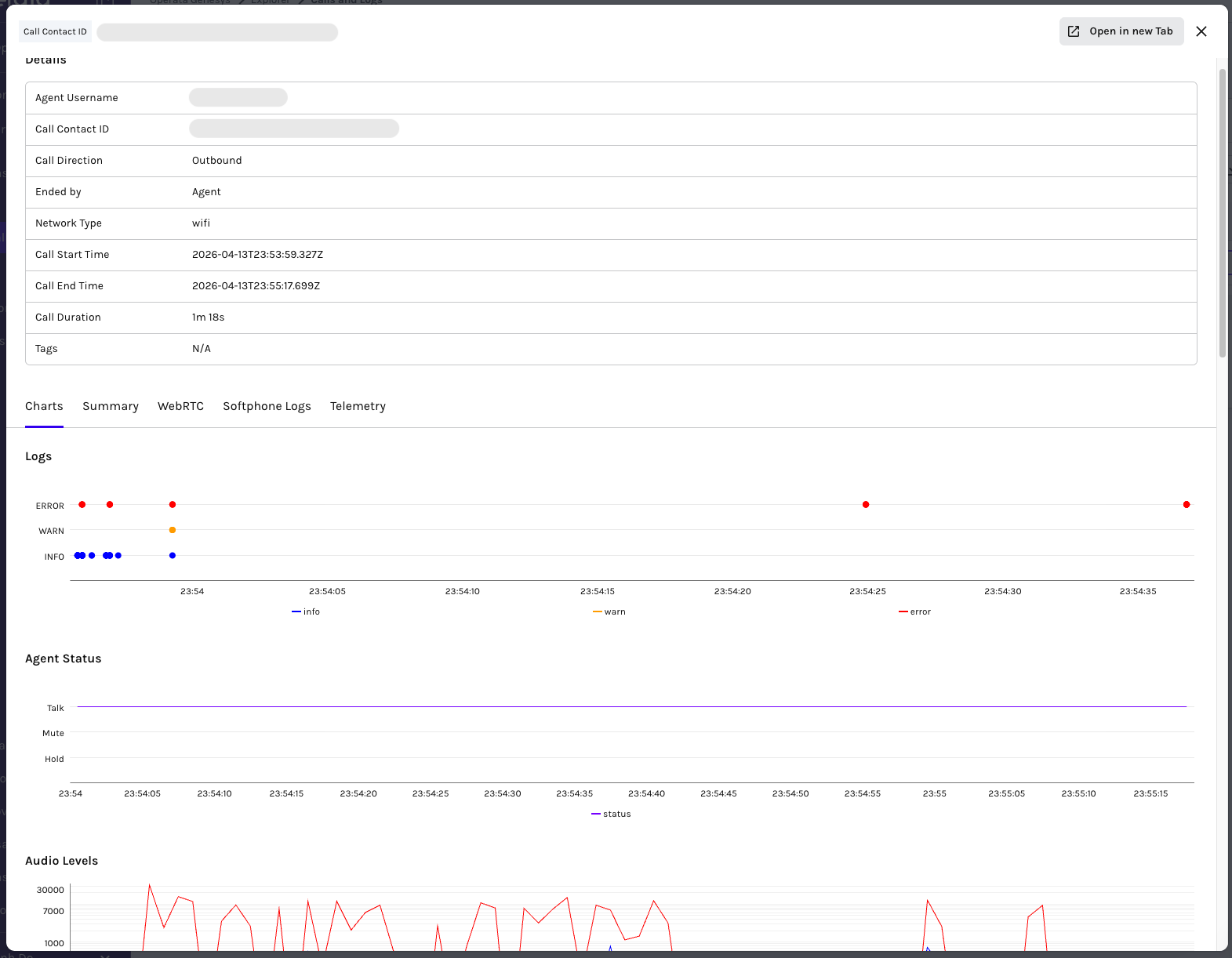
The most crucial indicator that the Operata Browser Extension has been installed and is operating as intended is the successful transmission and display of call data within the Operata Portal.
To confirm correct functionality,
- Make a test call using the softphone in your Genesys environment
- Navigate to Operata Interface > "Calls and Logs" section.
Configuring AWS Event Bridge and Secrets
The next critical steps involve Operata configuring the AWS Event Bridge and Secrets Manager with the following information -
Genesys
- Organization ID
- OAuth Client ID and Client Secret
- Genesys AWS region to pick the correct API URL that will be used by Operata fetcher
Please provide this information to Operata via a Support ticket and we will be able to complete the configuration quickly.
Updated about 16 hours ago