
Heartbeat Virtual Agent
How to create the Heartbeat virtual Agent
What is the Heartbeat Virtual Agent?
Operata Heartbeat assurance tests can be run to a Heartbeat Virtual Agent, that is created within your Amazon Connect region.
Tests to the Virtual Agent can be used to continually test the availability and quality of toll-free numbers, DID numbers and Amazon Connect itself, without disturbing real agents.
Operata Virtual Agent is a containerized Amazon Connect agent deployed in Fargate with ECS. Operata will provide the CloudFormation template (yml) to create this.
1. Preparation
- If your agents use Single Sign On (SSO) then please let Operata know the IDP provider you use (Azure is common) and have a login created within that IDP for the virtual agent. Including operata-virtual-agent in the user name will help with identification and support. You can have more than one Virtual Agent.
Note: Operata Virtual Agent does not support agent login with MFA, so the agent needs to be created without this or a configuration that enforces it later on (Security Defaults in Azure).
2. Create the Agent in Amazon Connect.
- Log in to the Amazon Connect control panel
- Navigate to the User Management page
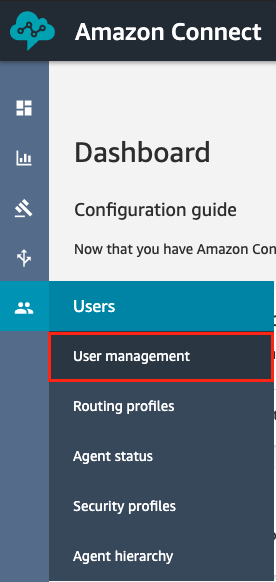
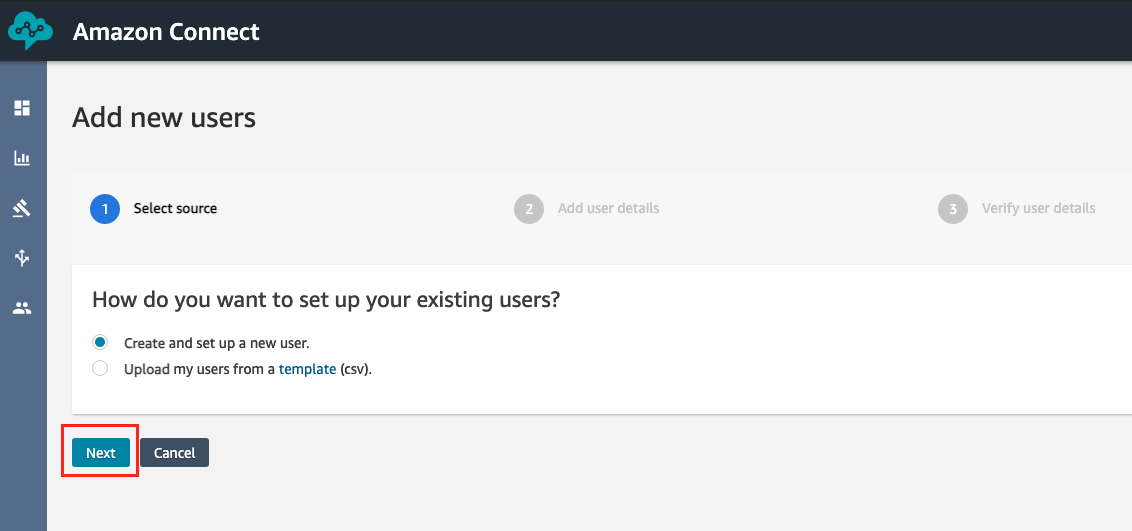
- Click on Add new users.
- Proceed with Create and set up a new user.
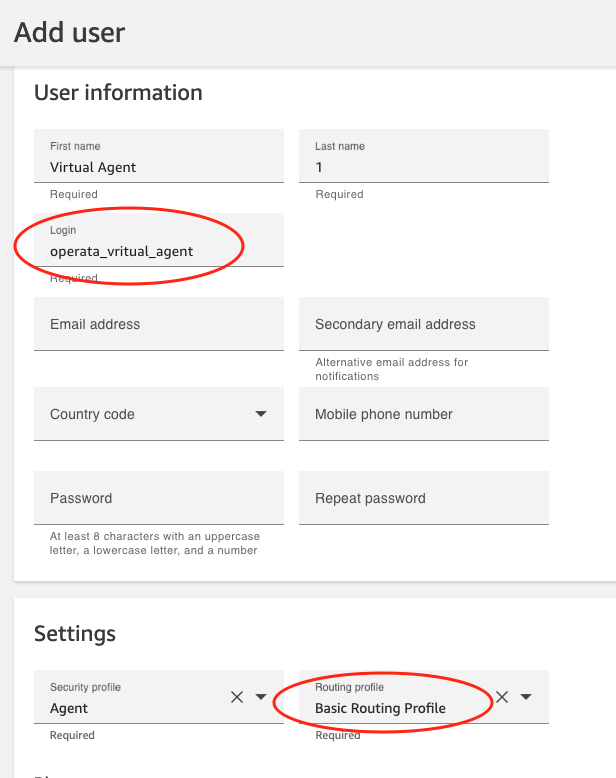
- Fill in the Agent Details as seen in the screenshot below
Non SSO configuration
Use the login name operata-virtual-agent to make it easy to find
Add the password for the agent and remember this (we will need this later on)
SSO configuration
Create an agent login that meets your SSO requirement
Note: Do not give the agent the Heartbeat_RP routing profile
Click Save and proceed with Create users after verifying the user detail
3. Create the Virtual Agent itself.
- Go to CloudFormation
- Click on Create stack > With new resources (standard)
- Input the CloudFormation template URL for the Operata Virtual Agent (Operata will provide this)
- Select Next
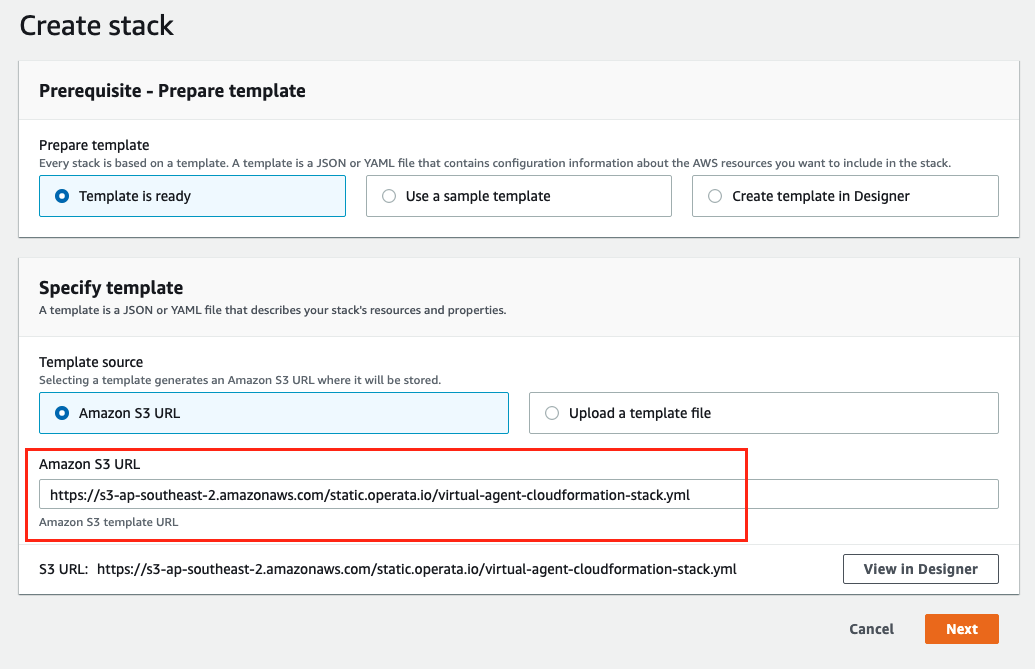
Now enter the following 'Specify the stack' details:
-
APIKey: Use the API Key created for Orchestrator.
-
AgentPassword: Add the Agent password created above (for SSO, this should be the password for the virtual agent user within the IDP).
-
AgentUsername: Add the Agent username created above.
-
CCPUrl: Input your Amazon Connect CCP URL in the CCPUrl field (don't use your custom CCP URL).
-
LoginUrl (SSO only): Enter the url agents are forwarded to for SSO when they login.
-
OperataAPIUrl: Leave as default https://api.operata.io.
-
OperataGroupID: Operata will provide the GroupID details.
-
SubnetIDs: Enter VPC Subnets allowed for ECS task deployment.
-
VPCID: Enter the VPC ID to deploy the ECS cluster into.
-
Select Next
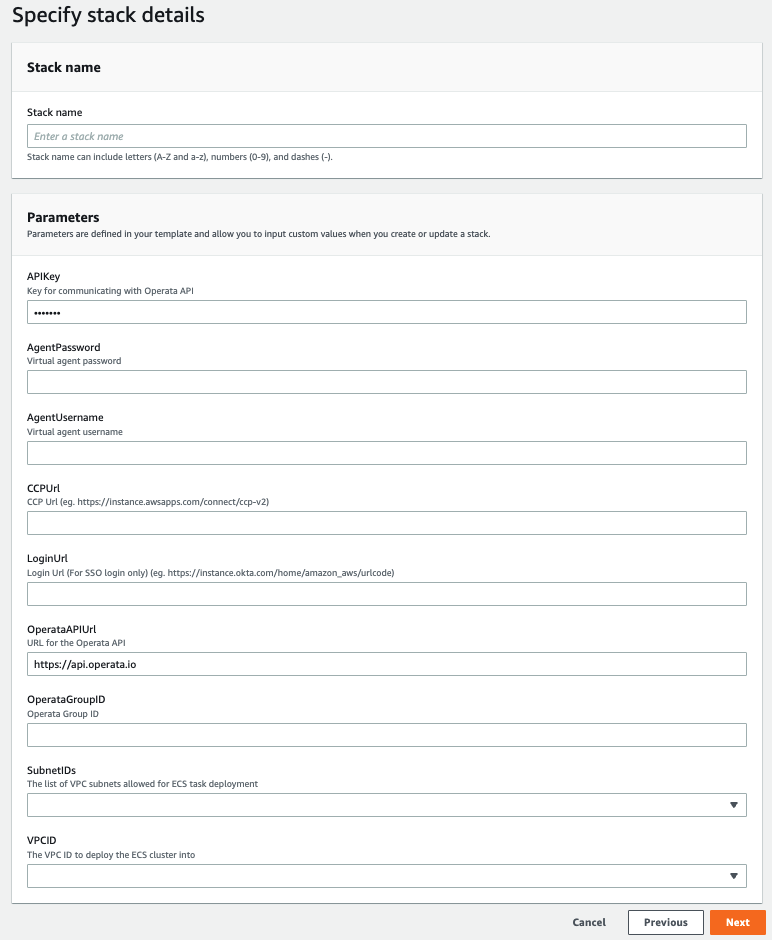
- Proceed with the CloudFormation steps and Create stack
4. Operata Configuration within the Operata platform (SSO only).
Note: Operata needs to configure these.
The SSO type needs to be configured in your Group. Login to the Operata platform and then use the Settings/Configs and the dropdown to select the SSO Provider used.

5. The final step is to run a Heartbeat test to the Virtual Agent.
If you have issues or questions don't hesitate to contact us.
Updated 10 months ago