
Creating Operata Orchestrator
A step by step guide on using the Operata CloudFormation template to create Orchestrator.
Preparation is key to a quick and successful deployment of Operata Cloud Orchestrator.
- There are two Orchestrator templates one if you have an existing VPC that you want to use, or one that creates a new dedicated VPC. Operata will provide links to the CloudFormation template [yml) you need.
Before you start, ensure you have the 8 (or 10 if you are using an existing VPC) details below captured to simply cut and paste when needed.
Important notes - you will save time reading these!
- Be careful to ensure the format as detailed.
- If you create the stack with an error, you MUST delete the old and create a new one (do not use the change sets feature).
- If you build a new Orchestrator you will need to update the Lambda name in Connect.
- If you are encrypting Call Recordings then there are KMS allow, and other customer specific considerations.
- Check to ensure you are creating Orchestrator in the same region as your ARN.
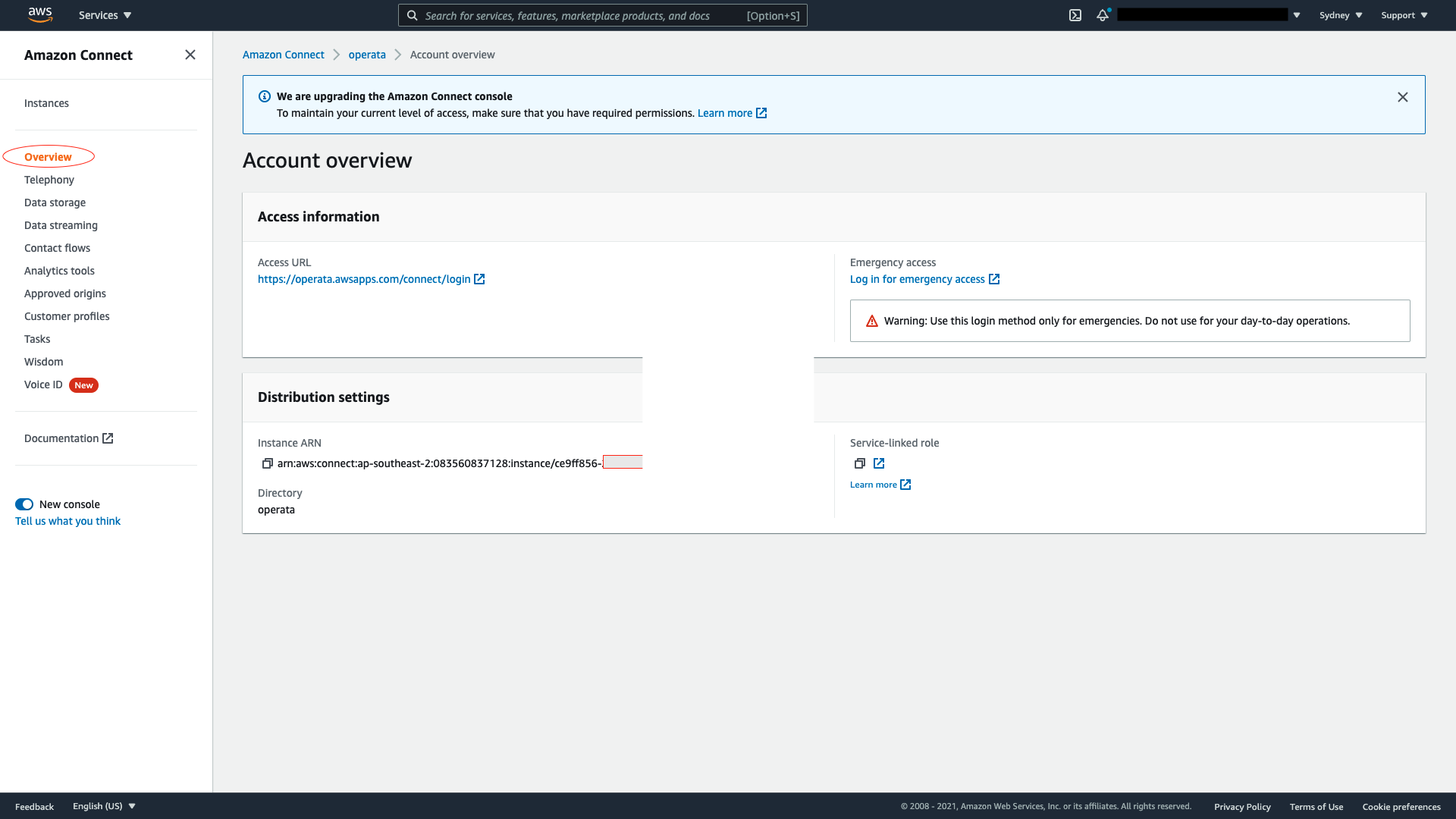
1. ConnectInstanceARN
From the AWS Console - Amazon Connect - Overview
ARN of the customer connect instance.
Note: use the full ARN name (for example: arn:aws:connect:ap-southeast-2:08xxxxxxx8:instance/cexxxxxxx6-2xxb-4xx7-8xx3-c6xxxxxxxxxb0
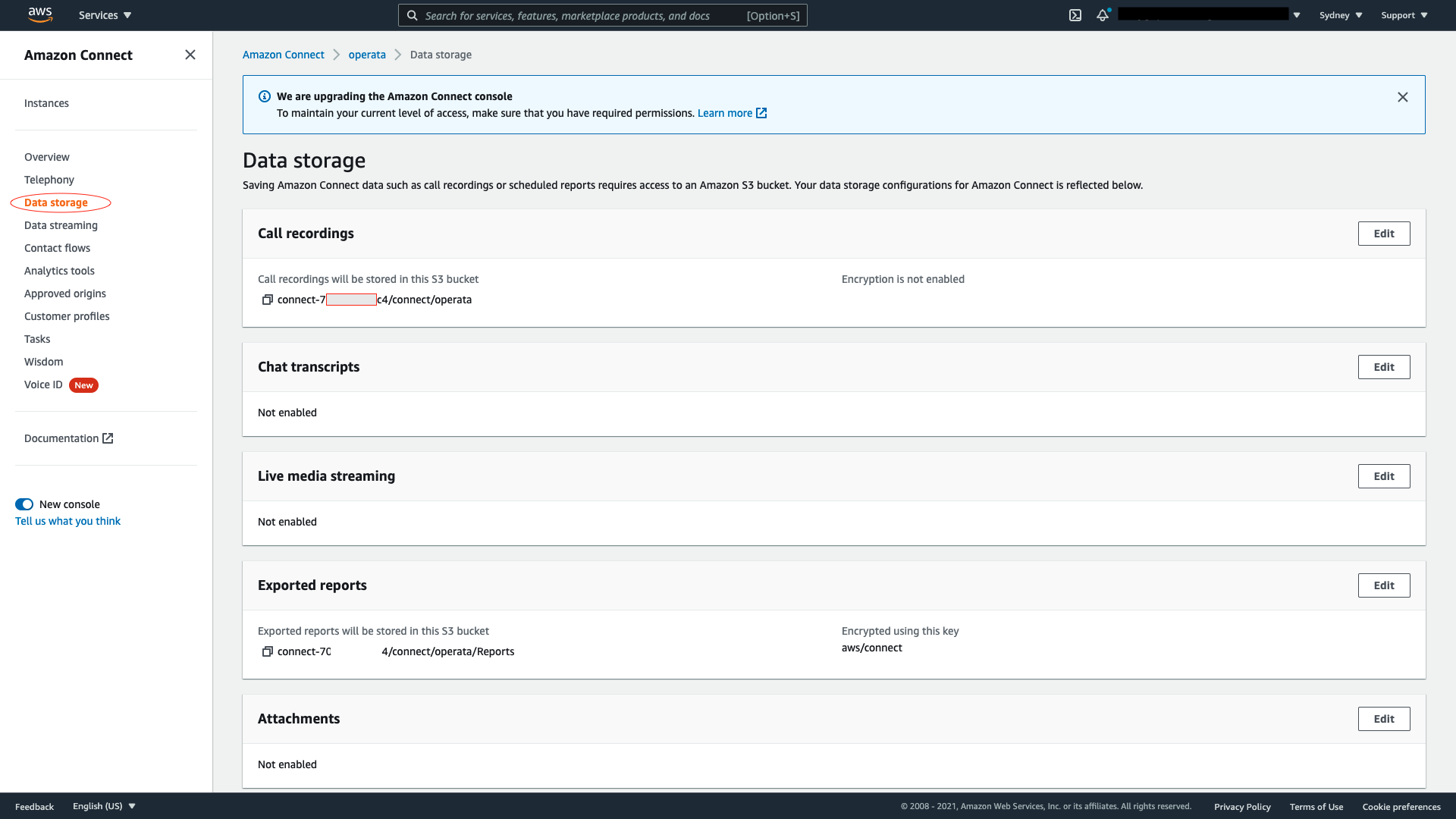
2. ConnectRecordingsBucketName
From the AWS Console - Amazon Connect - Data Storage
S3 bucket where the call recordings are stored.
- Note: Only use the address to the first / (for example call.recordings/connect/acme-prod would be entered as call.recordings)
- Note If you are encrypting Call Recordings then there are KMS allow, and other customer specific considerations - see here KMS Policy requirements
3. LogLevel
Leave as Default '0'
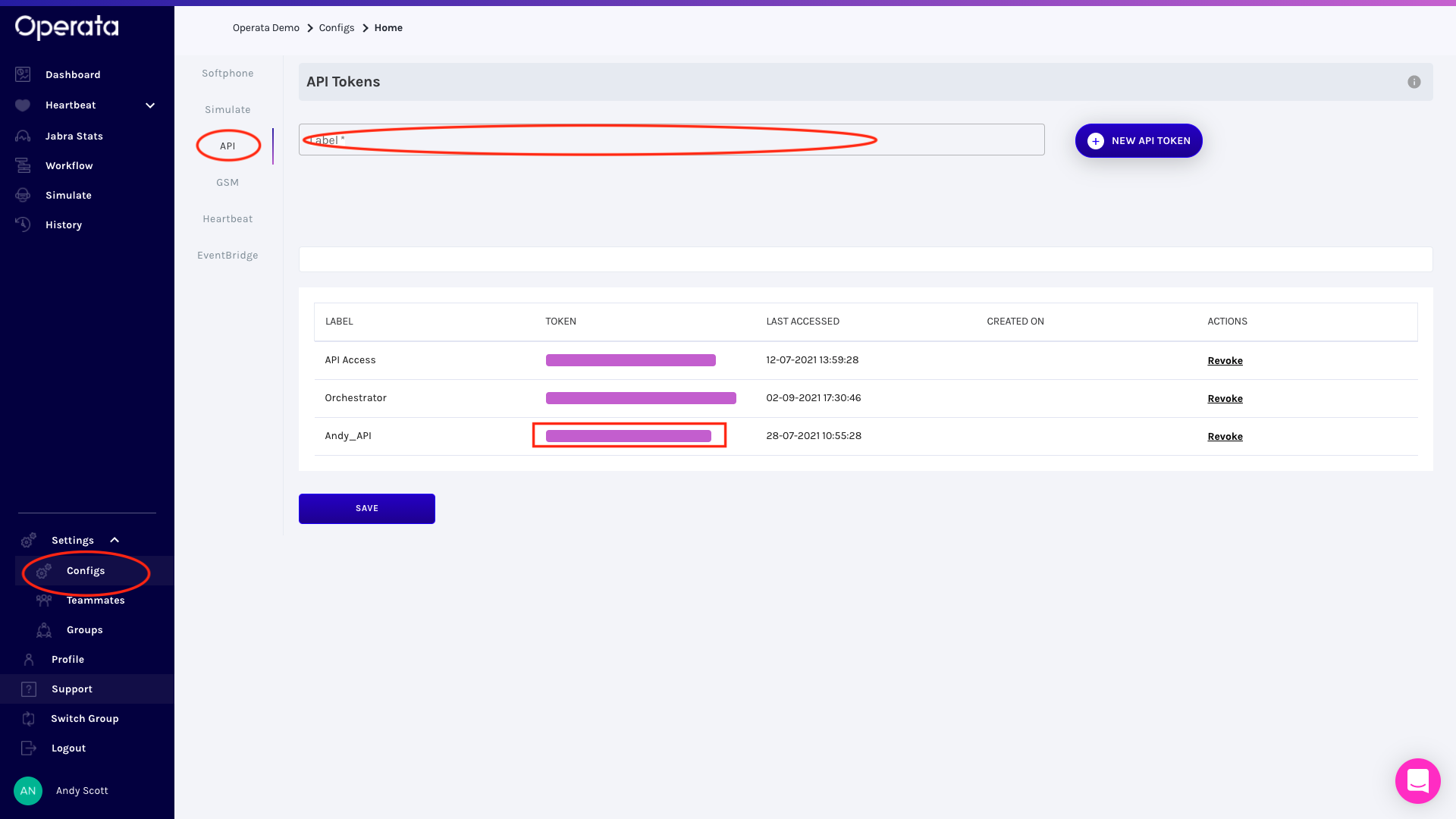
4. OperataAPIToken
This is created within the Operata platform, here's how.
Here's how to create one
- Login to the Operata Group as an admin user and navigate to the Settings/Configs section.
- Select the API section.
- From here you can create a new API Token by entering a name in the Label field and then selecting + NEW API TOKEN. - Its a good idea to Label as 'Orchestrator'.
- Hover over the shading to reveal and copy the API Token.
5. OperataAPIUrl
Leave as default https://api.operata.io
6. OperataGroupID
Operata will provide details of the Operata Group ID.
7. OperataHeartbeatRoutingProfile
Update the Operata Heartbeat Routing Profile name to Operata_Heartbeat_RP
8. OrchestratorVersion
Leave as the default version
If using an existing VPC then the following information is also needed
9. SubnetIDs
The list of VPC subnets allowed for ECS task deployment
10. VPCID
The VPC ID to deploy the ECS cluster into
Operata VPC RulesThe Operata CloudFormation that creates a new VPC can be used for Virtual Agents, for this to work the VPC needs to allow bi-directional media access to the Virtual agent.
- OUTBOUND 3478 needs to be added to the Operata Virtual agent security group
- VPC ACL inbound needs to be updated with UDP ports 49152 - 65535 for all ACL's
- VPC ACL outbound needs to be updated with UDP ports 49152 - 65535 and 3478 - 65535 for all ACL's
As documented here [https://docs.aws.amazon.com/connect/latest/adminguide/ccp-networking.html#stateless-firewalls|
Now you have all the details, lets create Orchestrator
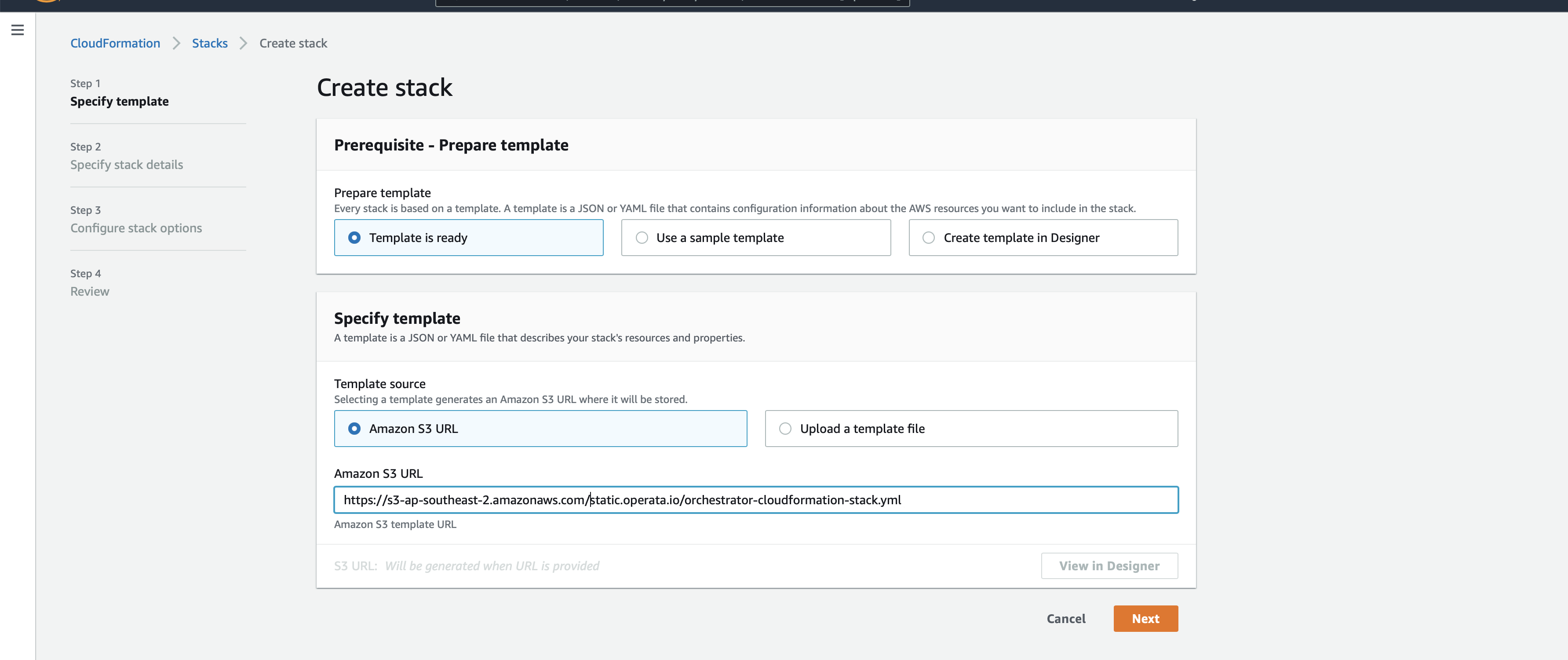
On AWS console, navigate to CloudFormation and create stack - with new resources (standard).
Note: Make sure you are logged in to the right AWS region.

- Select Upload a template file and upload the Operata yml and select Next
- Note: There is an existing VPN or New VPN version.
- Give the stack a name - including Operata Orchestrator in the name is a good idea.
- Fill in the parameters you have collected above.
- The SubnetIDs and VPCID fields can be left blank
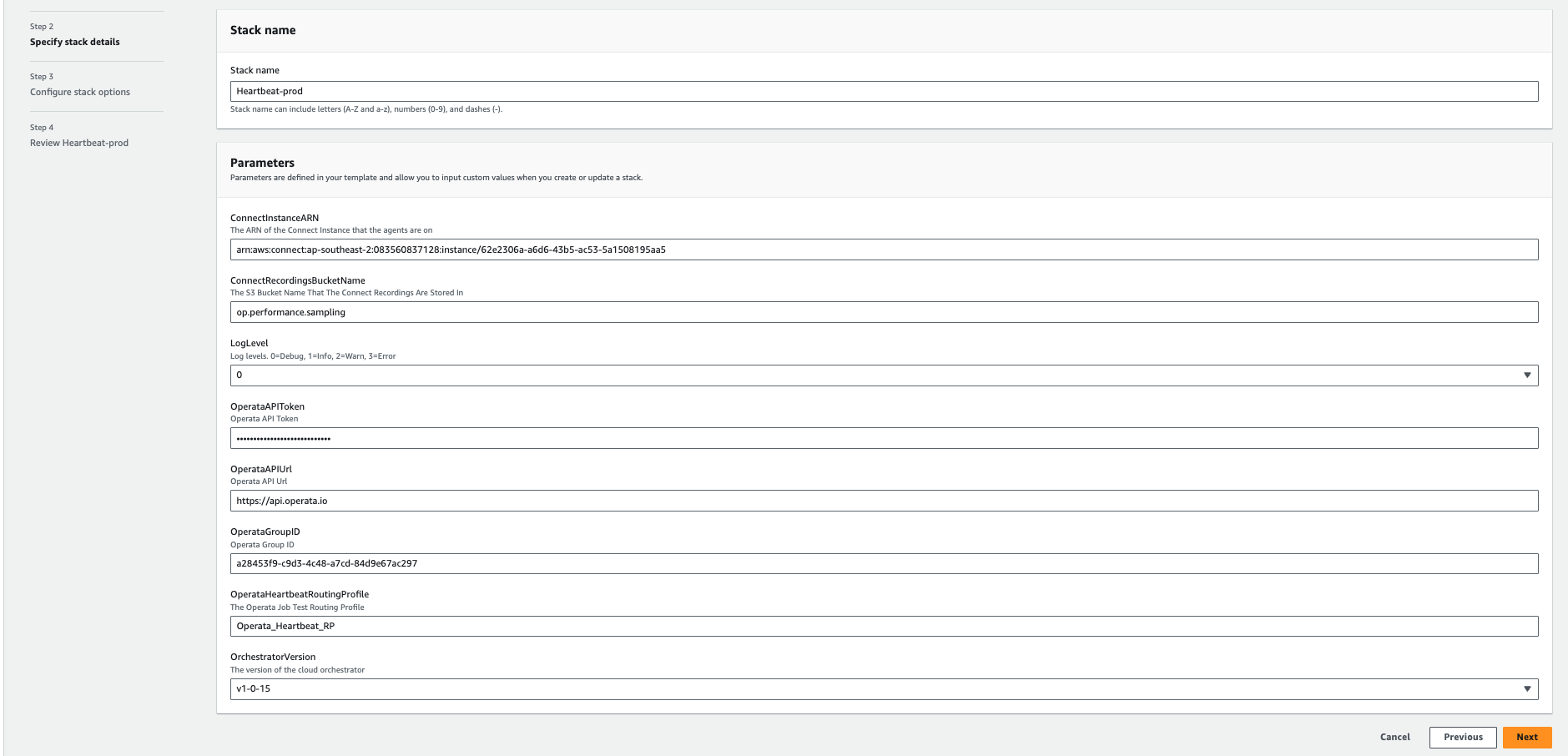
- If using the yml for an existing VPC then there will be a couple more fields to select from:

- Select Next
- There are no changes on the next screen. Click next
- Review all the information provided and check the required checkboxes and then select Create stack.
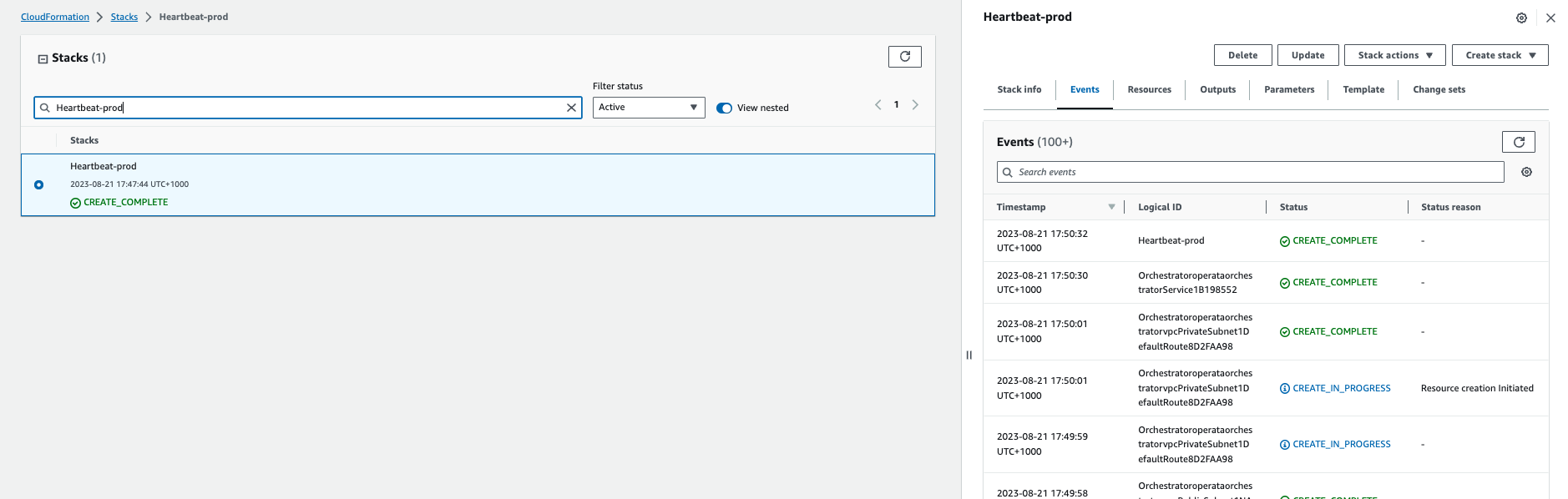
- After the stack is created, navigate to Resources tab and search for log.
- Click on the log group link to navigate to logs.
- Logs generated will confirm that the Orchestrator is deployed and running.
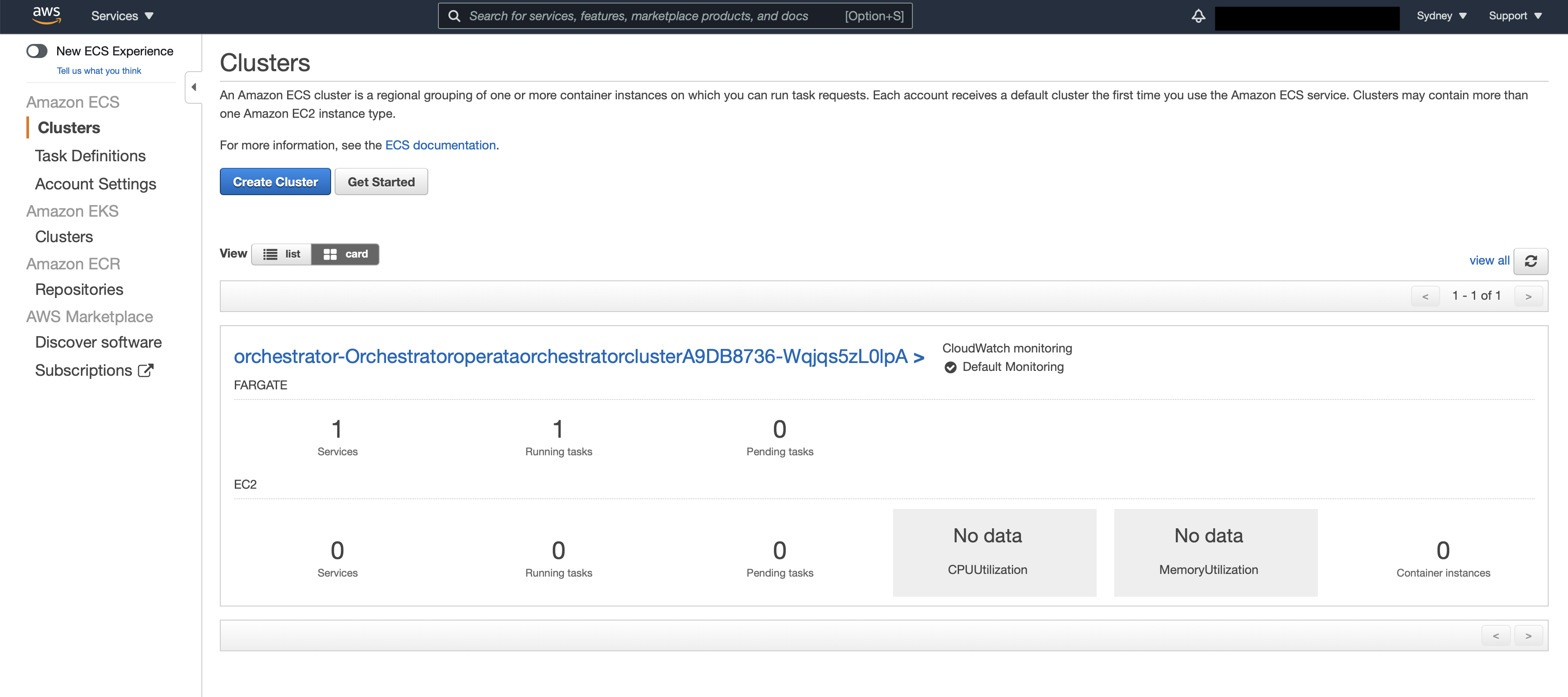
- On navigating to ECS, it can be seen that a Fargate cluster has been created
- Note: It is recommended that you configure your AWS EventBridge instance to capture and forward Orchestrator events - see details here
Note: The resources can be Tagged in AWS once they have been created, here's how..
Updated about 1 year ago